Codex Plugin
Run OpenLoomi from inside OpenAI Codex CLI. OpenLoomi is a local-first desktop app that holds your memory, runs tasks in the background, and talks to your connected apps (Gmail, Slack, GitHub, Calendar, Linear, …). This plugin turns Codex into a front-end for that local runtime — you chat with Codex, and Codex hands work off to OpenLoomi instead of doing everything itself.
You keep using Codex the way you already do. OpenLoomi runs next to it, on your machine.
What you can do with it
- Ask Codex about your work. "What did I work on last Tuesday?" — Codex pulls the answer from OpenLoomi's local memory instead of guessing.
- Hand tasks off for follow-up. "Send this to Loomi so it reminds me about it tomorrow" — the task goes into OpenLoomi's loop and pings you when it's ready.
- Route Codex through OpenLoomi. When OpenLoomi answers, it can use your Codex CLI runtime under the hood, so you only configure one runtime.
- Trigger OpenLoomi workflows from chat. Memory, loop, and connectors are all exposed as Codex skills — type
@OpenLoomi …and go.
OpenLoomi still owns the heavy lifting: local memory storage, connector credentials, scheduled tasks, the desktop UI, secrets. Codex just gets a doorway into all of it.
Runtime implementation details (how OpenLoomi drives a Codex subprocess internally) live in Codex CLI Runtime. This page is about the external integration — how a Codex CLI user drives OpenLoomi.
Install
The OpenLoomi repository root doubles as a Codex marketplace root. It ships .agents/plugins/marketplace.json that points at plugins/codex/, so any Codex build that supports codex plugin marketplace can install the plugin directly.
From GitHub
codex plugin marketplace add melandlabs/plugins && codex plugin add openloomi@openloomiPaste the whole line into a Codex shell — it adds the slim melandlabs/plugins marketplace and installs the openloomi plugin in one go. Codex fetches the repository, reads the marketplace manifest, and installs into ~/.codex/plugins/cache/openloomi/openloomi/<version>. Restart Codex and start a new thread so the cache is refreshed, then ask @OpenLoomi Run first-use setup. to wire up the desktop app.
From a local checkout (developers)
git clone https://github.com/melandlabs/openloomi.git && cd openloomi && codex plugin marketplace add . && codex plugin add openloomi@openloomiTo pick up local edits to plugins/codex/, force Codex to re-snapshot the marketplace:
codex plugin marketplace remove openloomi && codex plugin marketplace add . && codex plugin add openloomi@openloomiRequirements
- Codex CLI 0.144+ (anything that supports
codex plugin marketplace). - For GitHub install: network access to
github.com. - For local install: a writable checkout of the OpenLoomi repository.
- OpenLoomi Desktop installed — or a source build that produces the OpenLoomi Desktop app — for anything beyond setup guidance and workflow discovery. Without it, the plugin can still report readiness and walk you through installation, but loop, memory, and connector tasks can't actually run.
- Codex CLI on your
PATH(e.g.brew install --cask codexornpm i -g @openai/codex) if you want OpenLoomi to route through your Codex runtime.
Walkthrough
The screenshots below are from a real end-to-end run. Follow them in order — every step is one Codex turn or one desktop app interaction.
1. Ask Codex to install the plugin
Ask Codex to install the plugin from the GitHub URL — no copy-pasting commands needed.
Install the plugin and setup https://github.com/melandlabs/plugins/tree/main/openloomi/codex
2. Add the marketplace
For the long-lived install path, add the marketplace once. Codex prompts for a source; enter melandlabs/plugins.
> codex plugin marketplace add melandlabs/plugins3. Or launch Codex pointing at a local checkout
If you're hacking on the plugin (or running from source), point Codex at the directory and your edits are picked up live.
% codex --plugin-dir plugins/codex4. Discover the skills
Type @OpenLoomi — Codex surfaces the skill namespace. The thin openloomi skill is the entry point, with sub-skills for openloomi-install (install / configure the desktop), openloomi-pet (pet state & themes), openloomi-memory (memory), openloomi-loop (loop dashboard), and openloomi-connectors (native connectors).
@OpenLoomi— read-only doorway into the local runtime@OpenLoomi setup— install / launch / configure the desktop app@OpenLoomi status— stable JSON status@OpenLoomi pet <state>— set the Loomi Pet state@OpenLoomi memory/@OpenLoomi memory <query>— local memory@OpenLoomi loop— Loop dashboard snapshot
5. Run @OpenLoomi setup — readiness table lands in READY and the Loomi Pet appears
The install skill auto-chains install → launch → wait API → guest login. When it finishes, the bridge prints a small readiness table on the left and the Loomi Pet pops onto your desktop on the right in the fox theme with a Loomi is on watch badge. The pet is the file-watcher-driven widget — it doesn't talk to the bridge; it watches ~/.openloomi/pet-config.json and the assets/{fox,capybara}/ folders.
| Item | Status |
|---|---|
| Guest login | Successful |
| Runtime mode | packaged |
| Version | 0.9.0 |
| Local API | Reachable |
| AI provider | Configured |
| Execution provider | Ready |
| Desktop process | Running |
| Final status | READY |
6. Right-click the Pet to open the context menu
The pet's context menu exposes Open Loomi / Settings / Actions (if configured) / THEME (Fox ✓, Capybara) / Quit. Configured prompt actions from ~/.openloomi/pet-actions.json send a named task prompt into the same Loomi agent runtime. If the actions config is missing, empty, malformed, disabled, or unsupported, no Actions section is rendered. The theme switch is hot-reload — the file watcher picks up activeTheme in pet-config.json within ~250 ms, and the bridge never writes these files.
To give those prompts real external abilities, expose the ability to the agent runtime: install or build a skill, connect an MCP server, add a connector, or provide a trusted local API/CLI helper. The Pet menu never calls those targets directly; it only routes prompt tasks into OpenLoomi-owned runtime surfaces. See Attention Agent for the local config schema.
7. Pick Capybara — the theme hot-reloads in place
The pet re-skins immediately. Same 9-state vocabulary (happy / idle / juggling / needsinput / presenting / sleeping / sweeping / thinking / working) — only the artwork changes. The readiness table on the left is unchanged.
7c. Drop in your own theme — kawaii cat via pet-custom/
The built-in themes are Fox and Capybara, but the pet watcher also auto-discovers any folder under ~/.openloomi/pet-custom/<name>/ with PNG state sprites. Drop a folder in, and the theme appears in the right-click menu within ~250 ms — no bridge call, no restart.
7b. Manually override the Pet state with @OpenLoomi pet
The hot-reload pet also accepts manual overrides from Codex. Type @OpenLoomi pet <state> and the bridge writes the new state to ~/.openloomi/pet/runtime_state.json; the file watcher picks it up and the sprite swaps within ~250 ms. Useful for "task done" beats where you want the pet to flip to happy between turns.
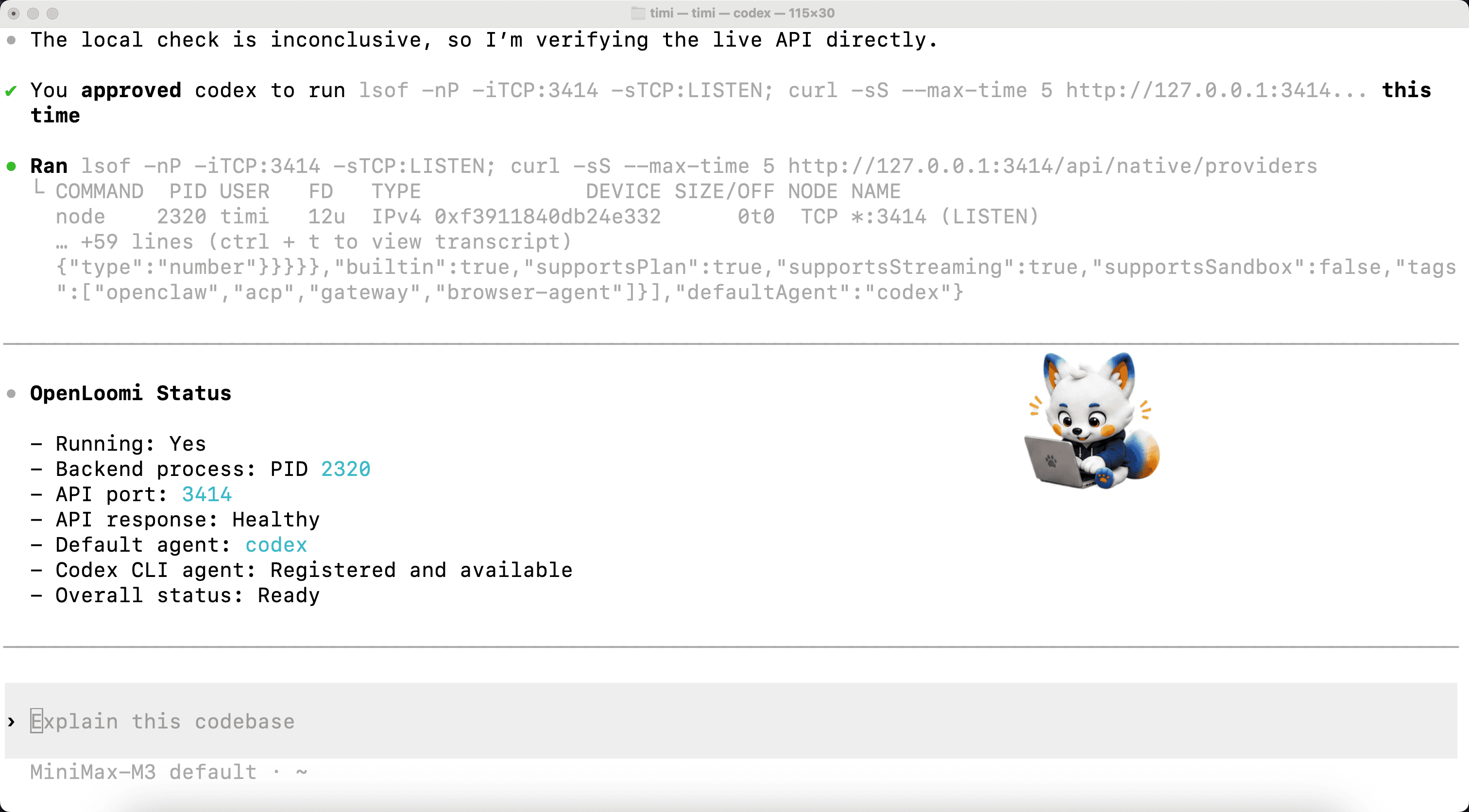
8. @OpenLoomi status returns the canonical JSON
For any triage or bug report, paste the JSON output verbatim. The shape never changes: mode / installed / version / tokenPresent / aiProviderConfigured / nativeRuntime / apiReachable / hooksInstalled / ready / nextAction / reason / source — with source: "codex-plugin" instead of "claude-plugin".
9. Codex hooks — bundled by default, no install step
Unlike the Claude plugin (where /openloomi:hooks install is opt-in), the Codex plugin declares its lifecycle hooks in plugins/codex/hooks/hooks.json and they are bundled into every session automatically. The full event surface Codex maps to pet states:
| Codex event | Pet state set |
|---|---|
SessionStart | presenting |
UserPromptSubmit | thinking |
PreToolUse | working |
PermissionRequest | needsinput |
PostToolUse | thinking |
SubagentStart | juggling |
SubagentStop | thinking |
Stop | happy |
Each handler is a thin node .../scripts/loomi-bridge.mjs state <name> --event <event> --quiet call with a 5s timeout. The bridge never blocks the Codex turn; if the runtime API is unreachable it logs a single line and exits 0.
10. Hooks status — confirm install
The Codex plugin's hooks are always-on, so the equivalent of "hooks status" is just @OpenLoomi status — the JSON reports hooksInstalled: true and source: "codex-plugin" whenever the hooks/hooks.json block is present in the loaded plugin.
You should see:
hooksInstalled: true- Plugin path:
plugins/codex/hooks/hooks.json source: "codex-plugin"nativeRuntime: codex(when OpenLoomi is configured to use Codex as its agent executor)
If hooksInstalled is false, check that you launched Codex with --plugin-dir plugins/codex (or that the marketplace-installed copy shipped the hooks/ directory).
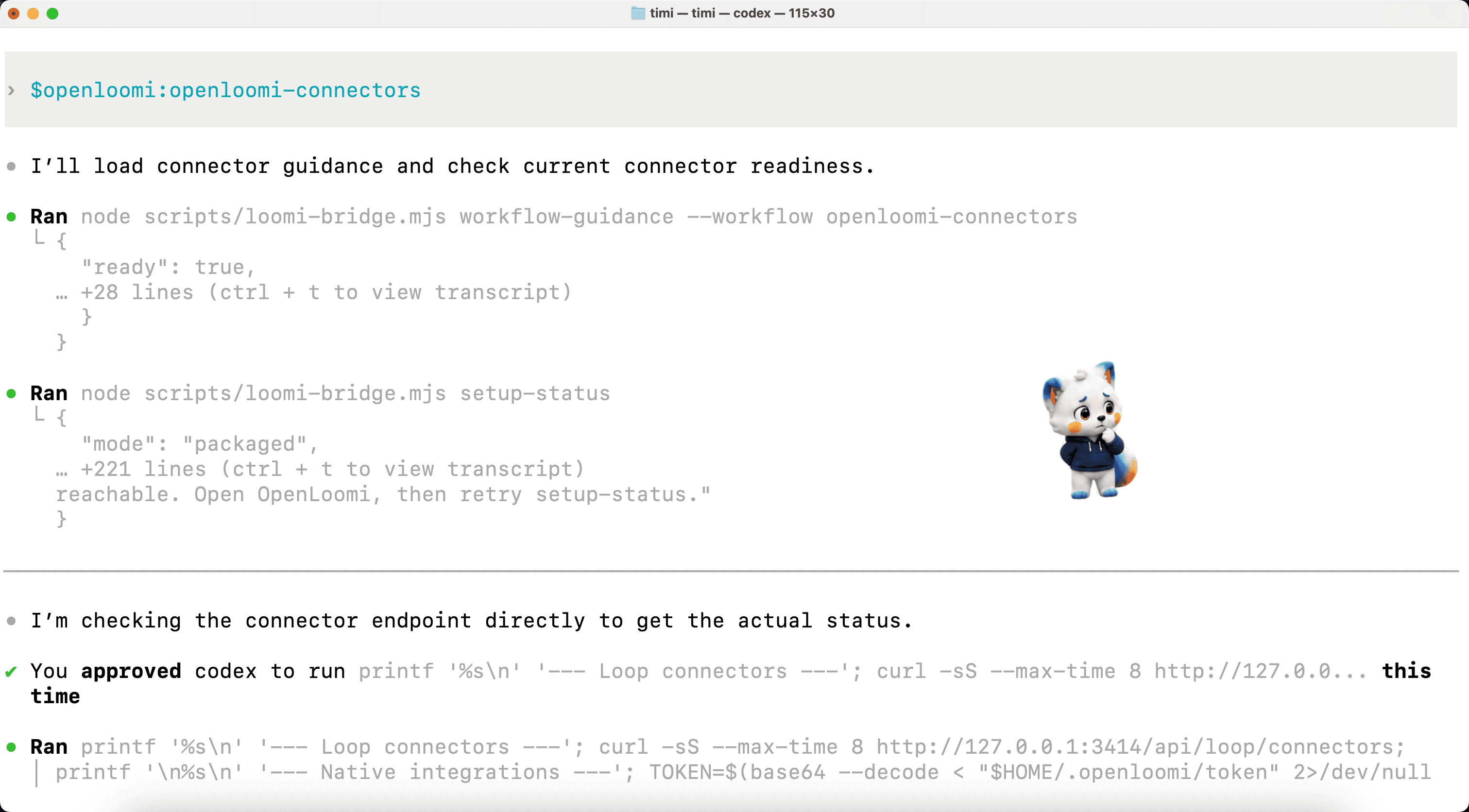
11. Connect your apps with @OpenLoomi connectors
The wizard walks you through three independent y/N choices: install the composio skill, enable Screen Memory (Preferences → Chronicle → Screen Memory in the desktop app), and connect a messaging connector (native 7 platforms via openloomi-connectors, or 1000+ via composio).
Before the wizard runs, Codex preflights openloomi-connectors — loads its workflow guidance, calls setup-status, and probes GET /api/loop/connectors to see what the runtime already knows.
12. After Composio connects — 6 active apps in your workspace
The next Codex turn can list what you're wired up to. In this run: Gmail, Google Calendar, Google Drive, GitHub, Linear, Slack — all through Composio, with the workspace org and test user echoed back.
Connected via Composio (6 active): Gmail, Google Calendar, Google Drive, GitHub, Linear, Slack
Org: timi_workspace · Test user: pg-test-…
The probe at this point showed all six toolkits reachable, with a happy Pet sprite reflecting the successful run.
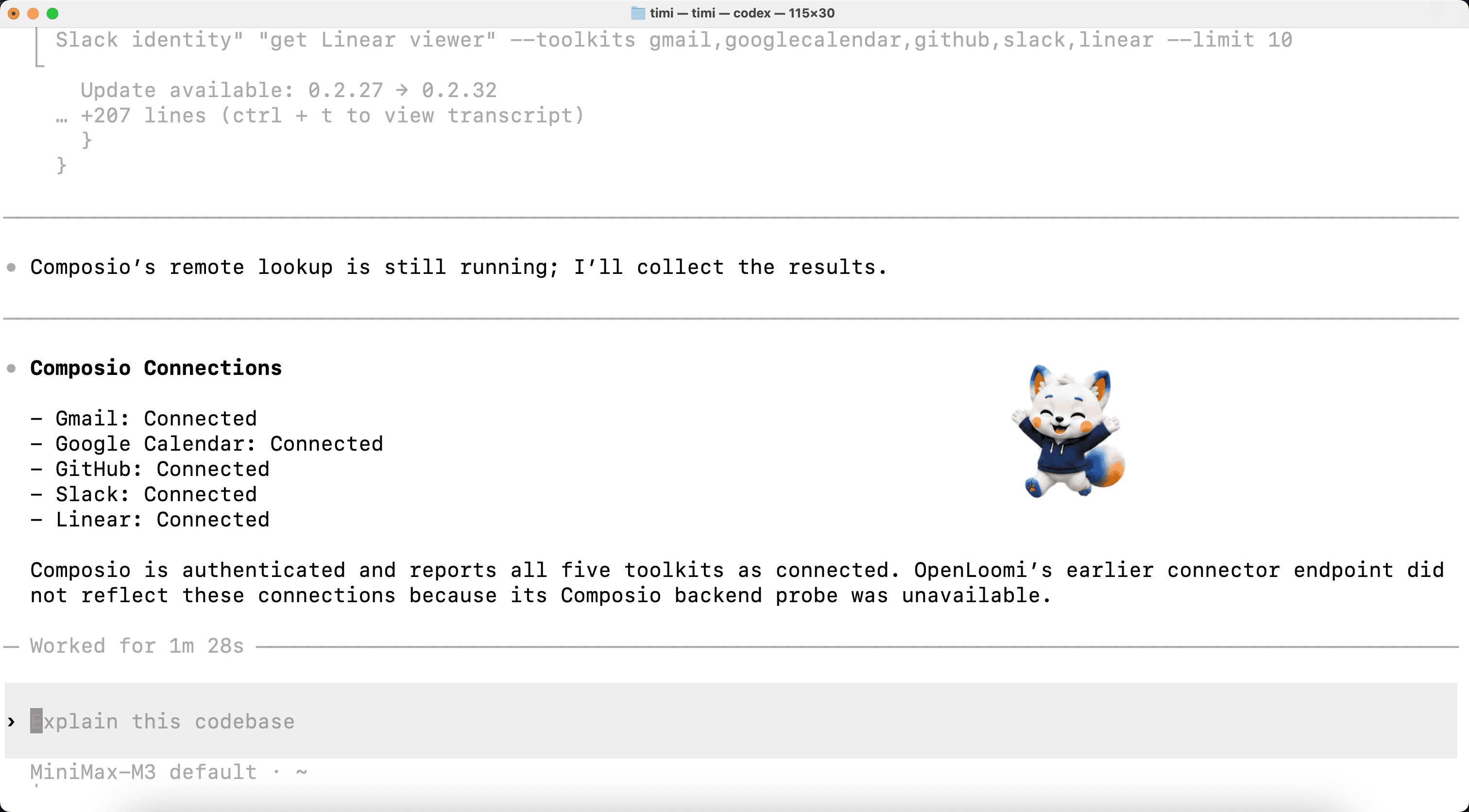
Run note (real data, not a copy): the screenshots for step 12 and step 14 were captured in two different sessions. Step 12's probe landed cleanly with all six Composio apps connected. Step 14's probe was taken later, after the local Composio surface had gone unreachable (
composio backend unreachable (DNS / ConnectionRefused)), so the Loop dashboard flipped every connector back toneeds_setup. That isn't a regression — it's how the dashboard honestly reports a dead connector backend.
13. @OpenLoomi memory — see what's already in your local memory
The first time the memory skill is invoked in a session, OpenLoomi prints a short welcome banner with example queries ("Search all my memory for Project X" / "Show recent Gmail insights" / "What did I know about John in January?" / "List my knowledge-base documents" / "Remember that I prefer morning meetings" / "Find related insights for insight_xxx"). Codex then re-invokes it a few times to prime the search side before falling through to the digest.
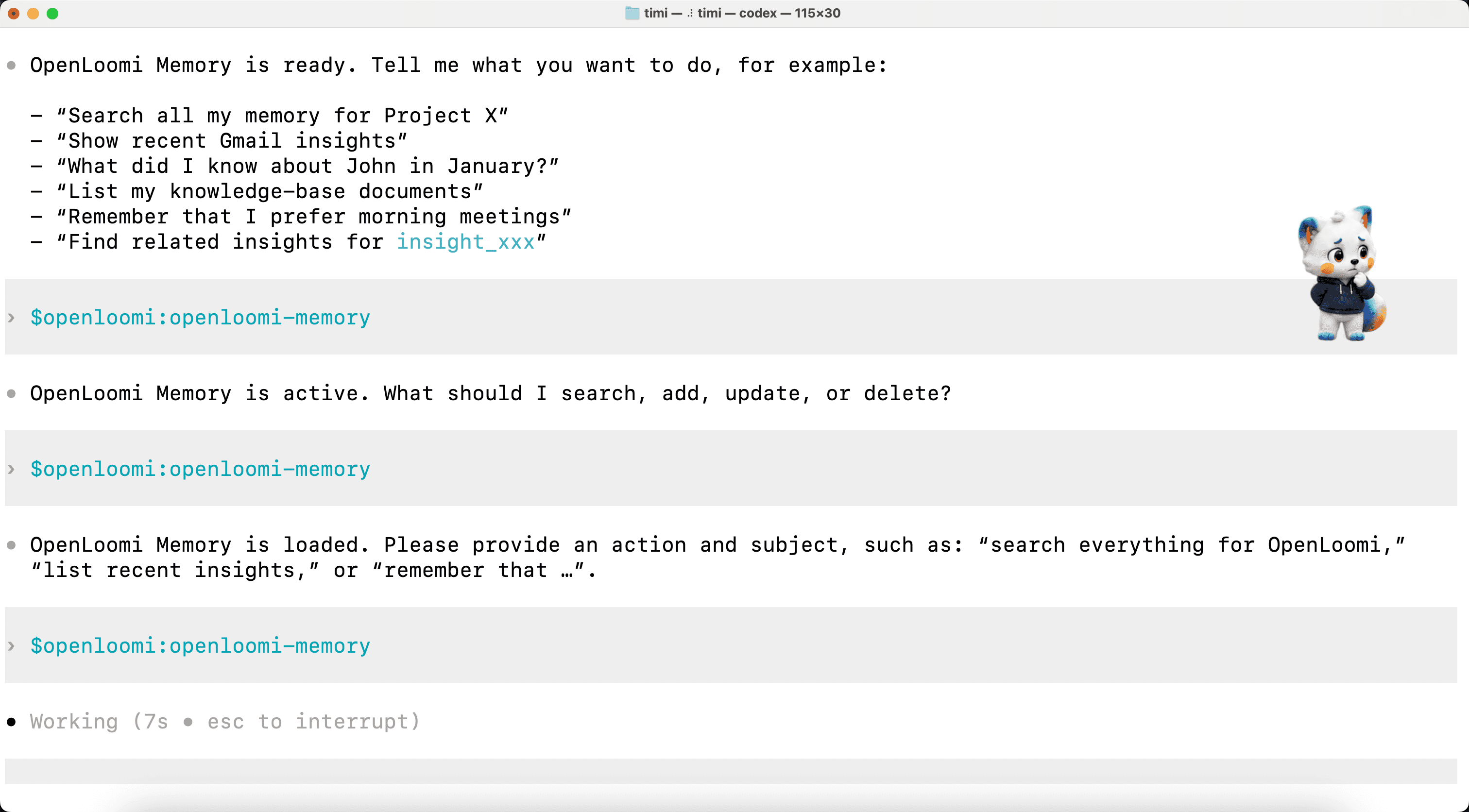
> @OpenLoomi memoryThe command searches the local memory + knowledge base + insights and returns a digest of what OpenLoomi already knows. In this run, the digest is "Today's OpenLoomi Insights (UTC 2026-07-19)" pulled via list-insights --days=1, with a "From Loomi" callout ("Sarah's signature says 'Head of Product' — memory still says PM" — the same drift the Loop is about to surface as a CONTACT_UPDATE card), a Volume paragraph (200+ session-hook captures), a Timeline (latest first) list (17:06 / 17:05 Codex session 019f7b56 Stop hooks, 16:08 earlier Codex capture, 15:50 Claude Code session e80da64c final note "完成, 最后健全性检查", 15:28 Claude Code session aa64ea6f TypeScript type check passed, with more Codex captures spread across 14:xx–16:xx UTC), a Shape of every item paragraph (platform = codex | claude-code, importance / urgency = General, dedupeKey = null, description only carries the hook event, not the transcript), Takeaways at the end.
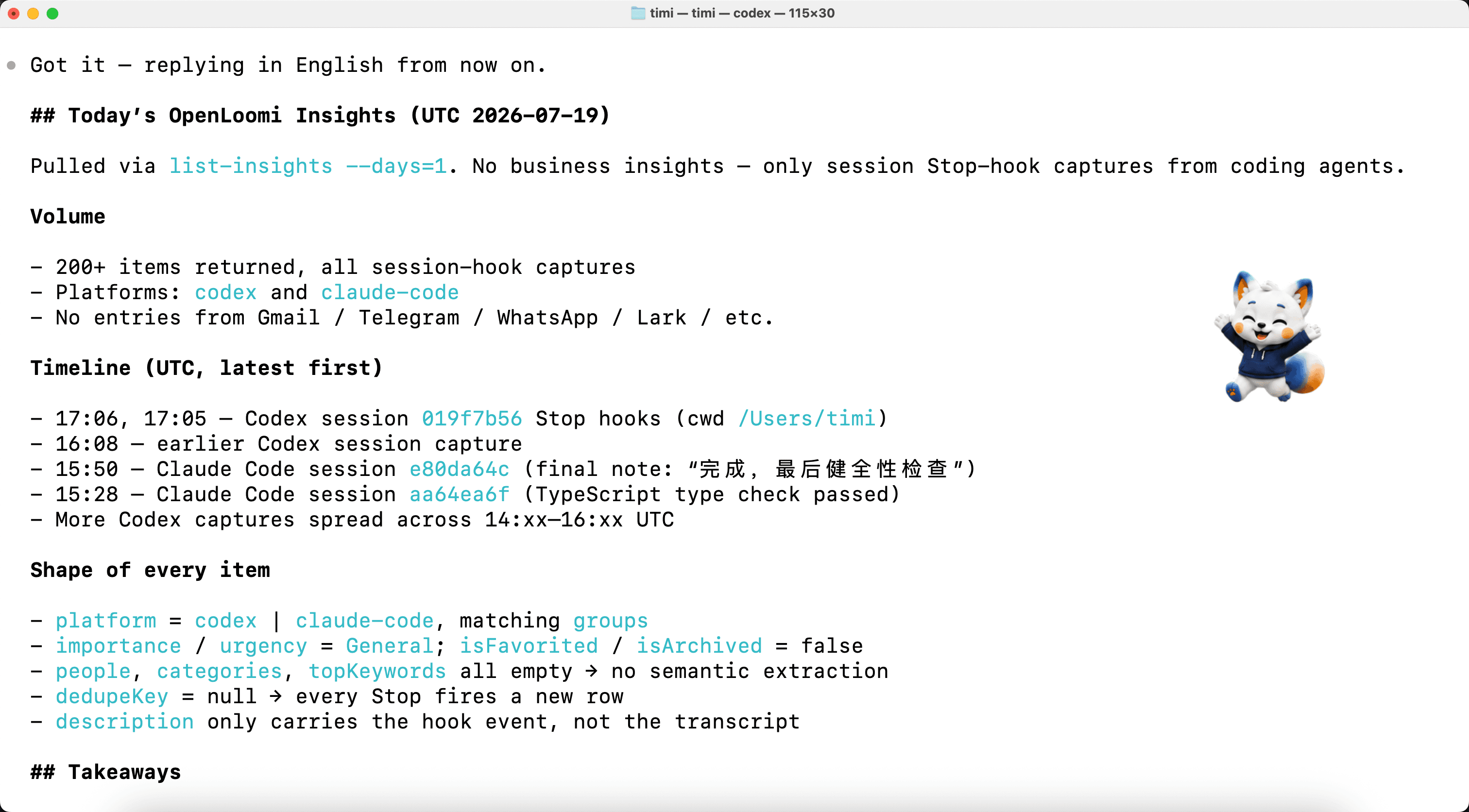
This is the read-only doorway into OpenLoomi's local memory. For a deeper search, pass a query: @OpenLoomi memory <query>.
13b. Write to memory from Codex with add-memory
Reading is half the story — you can also write. From any Codex turn, invoke openloomi-memory add-memory "<text>" --file=<path> and the entry lands in ~/.openloomi/data/memory/<path>. The actual run captured here used the lower-level POST /api/insights route to add "Tom is my boss (manager → direct report)" with type: relationship and file: people/tom.md. The runtime created ~/.openloomi/data/memory/people/tom.md containing "Tom is my boss. Role: boss. Relationship: manager → direct report." and returned insight ID b5cde372-eb1b-4698-a4f0-bff6a26496f5. The entry is immediately searchable via search-memory "boss" or search-all "boss tom".
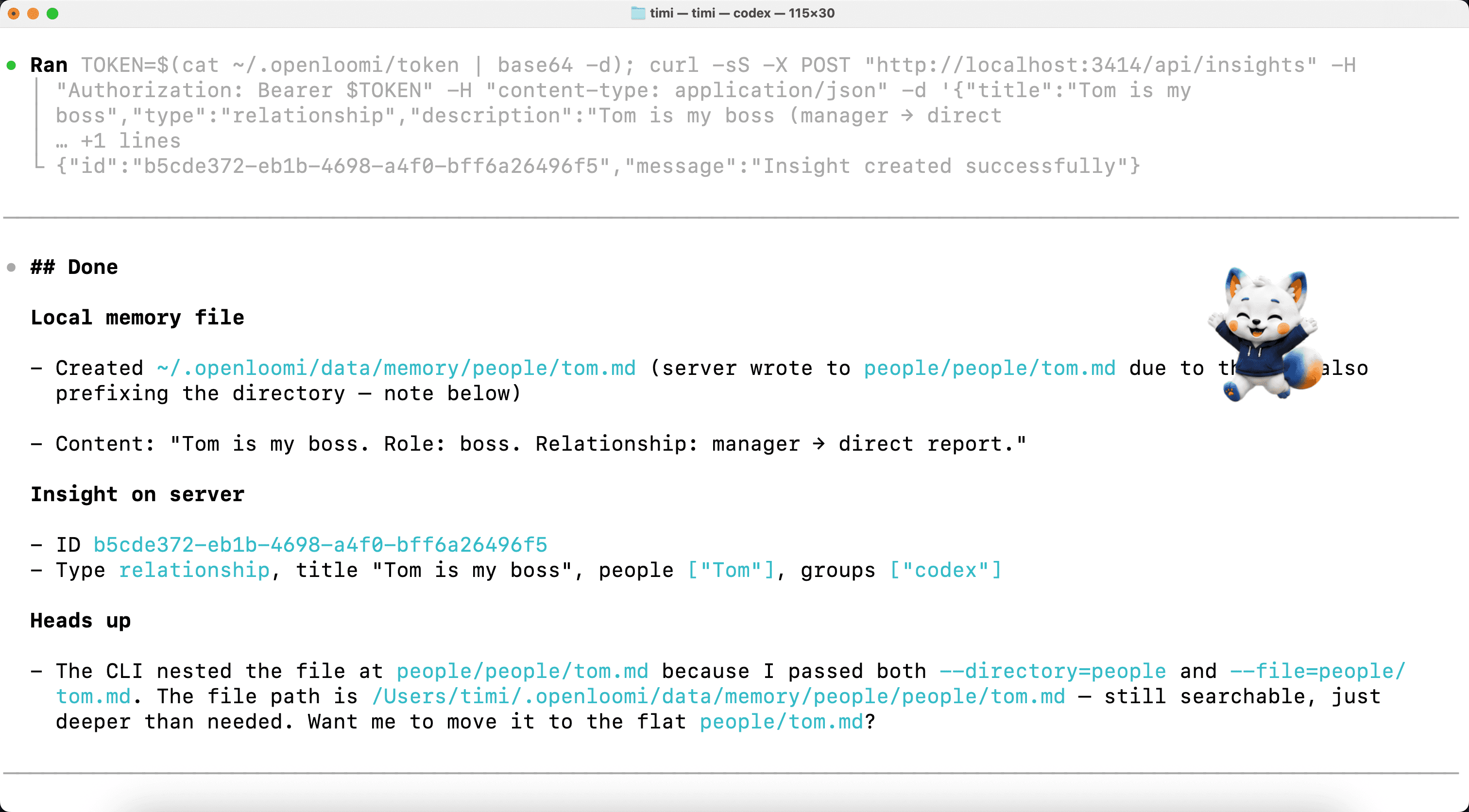
14. @OpenLoomi loop — see the Loop dashboard snapshot
> @OpenLoomi loopThe command hits GET /api/loop/state and returns the Loop dashboard: enabled status + last tick, counts (pending decisions / done / dismissed / signals seen), per-connector health (needs_setup / local-only / linked), prefs in effect (tick frequency, brief time, quiet-when-empty, desktop notifications, …), and actionable notes (e.g. "all 5 Composio-backed connectors share one failure: the local Composio surface isn't reachable — Loop can't pull signals until you bring the Composio backend back online").
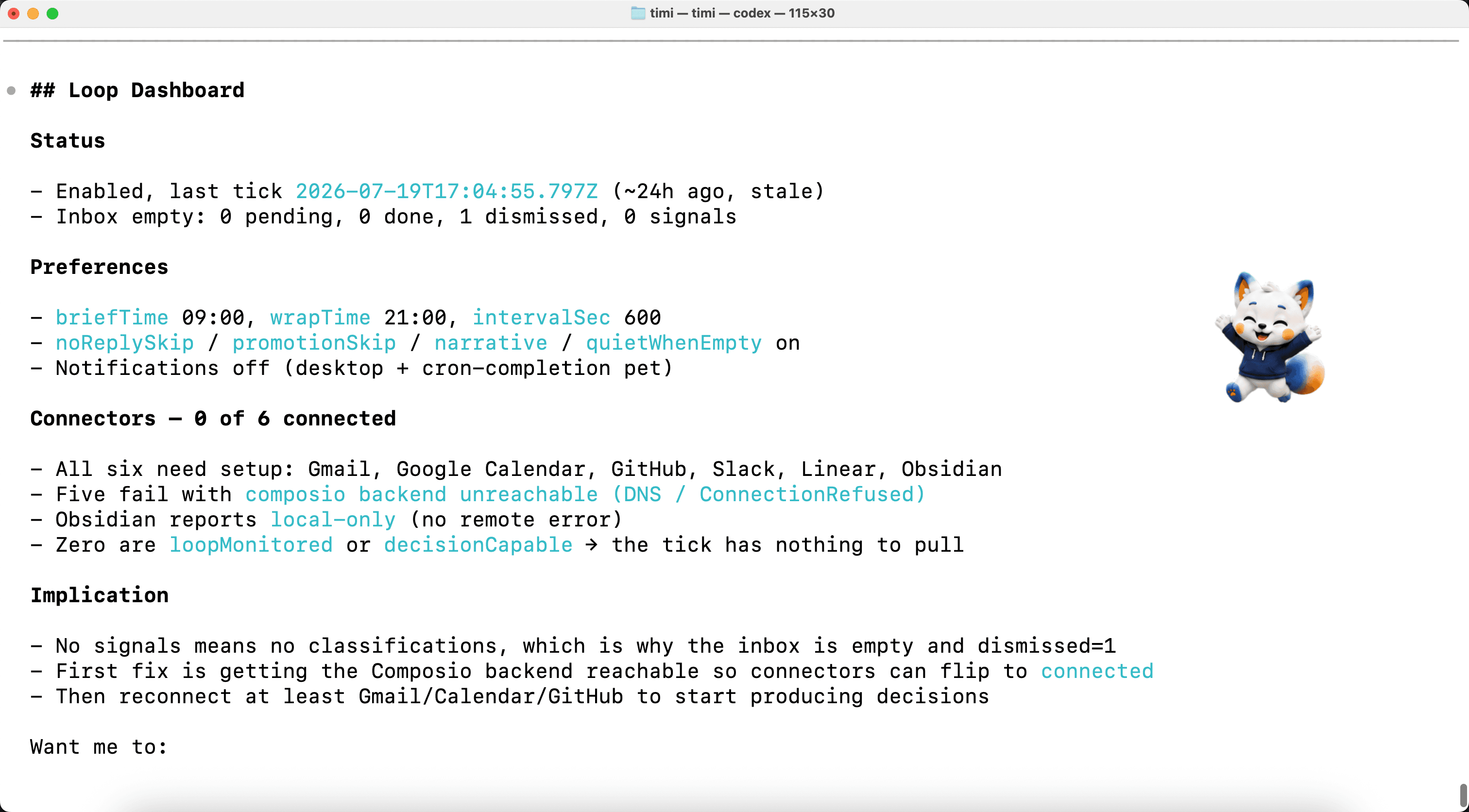
This is purely a dashboard snapshot — the Loop never takes destructive actions from this command. For actions, the Loop pops cards in the desktop app (step 15) and you decide there.
15. The Loop starts surfacing decision cards in the desktop app
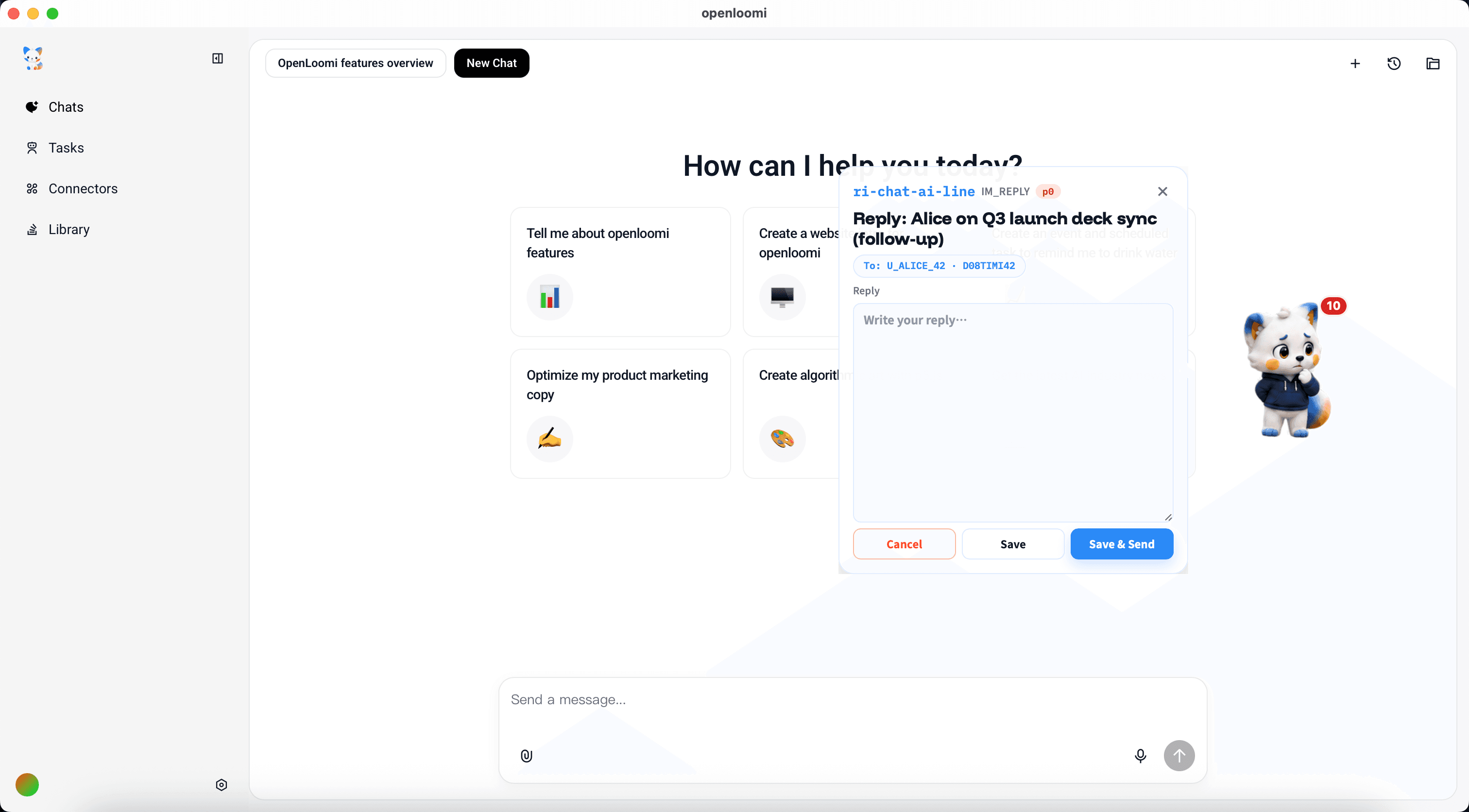
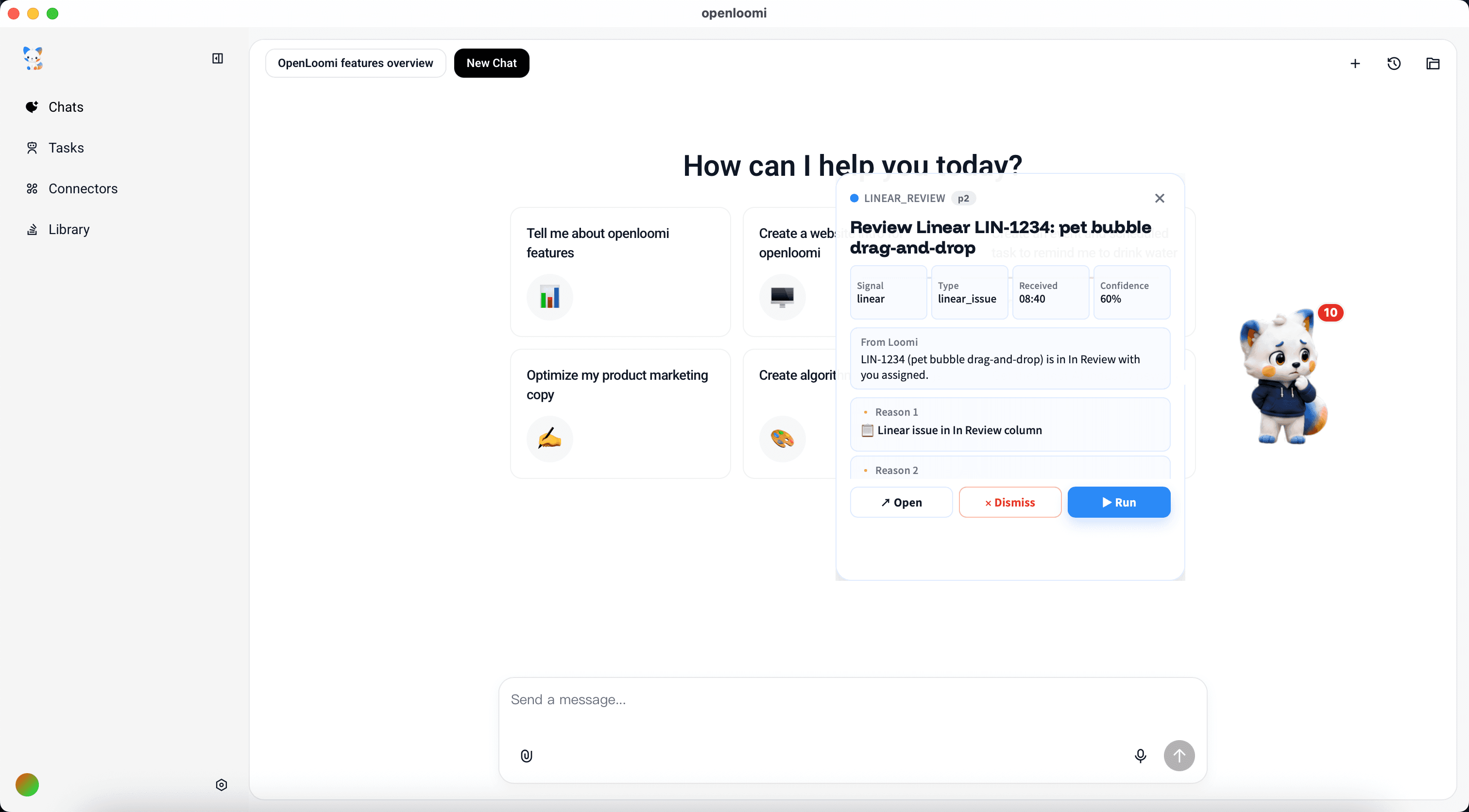
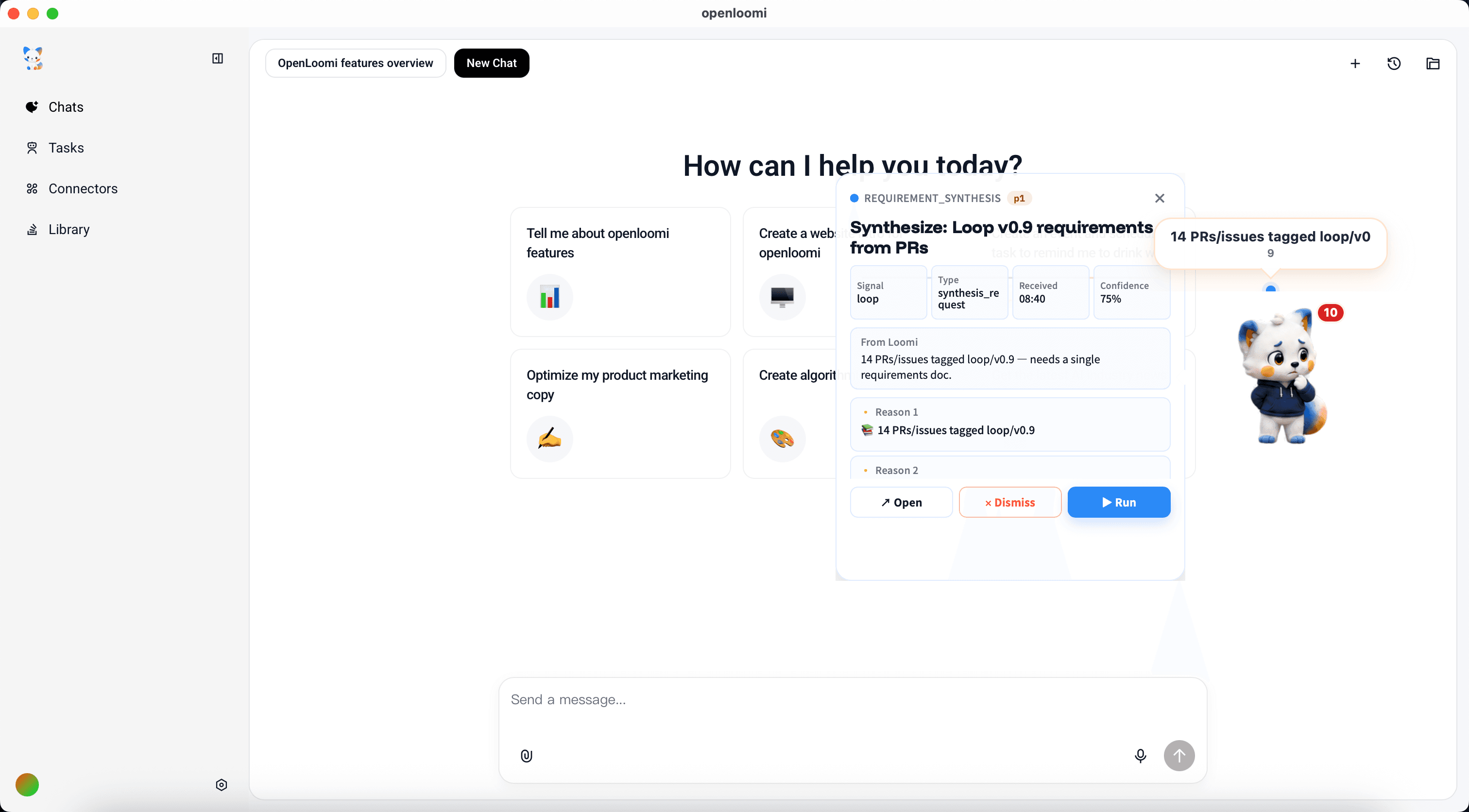
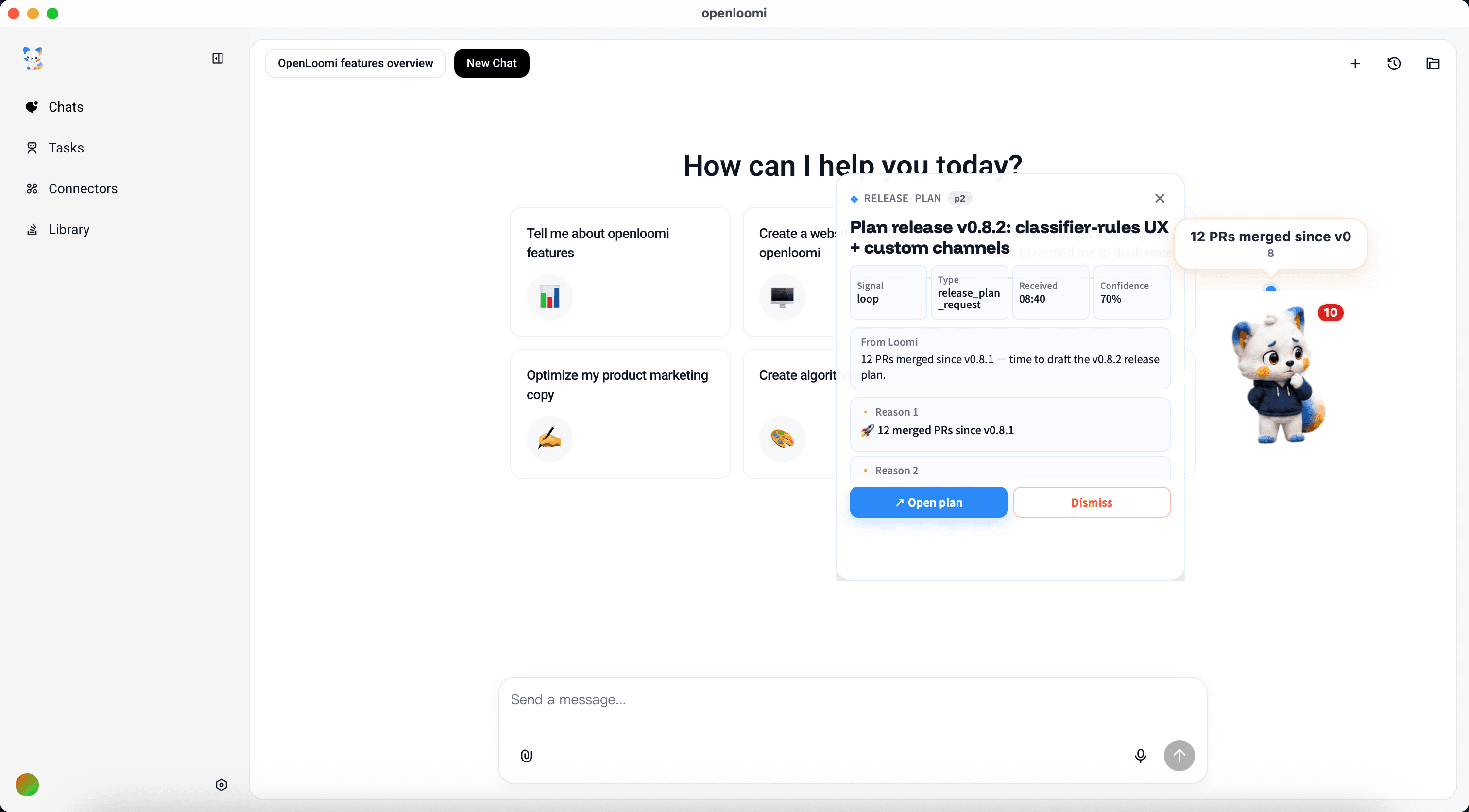
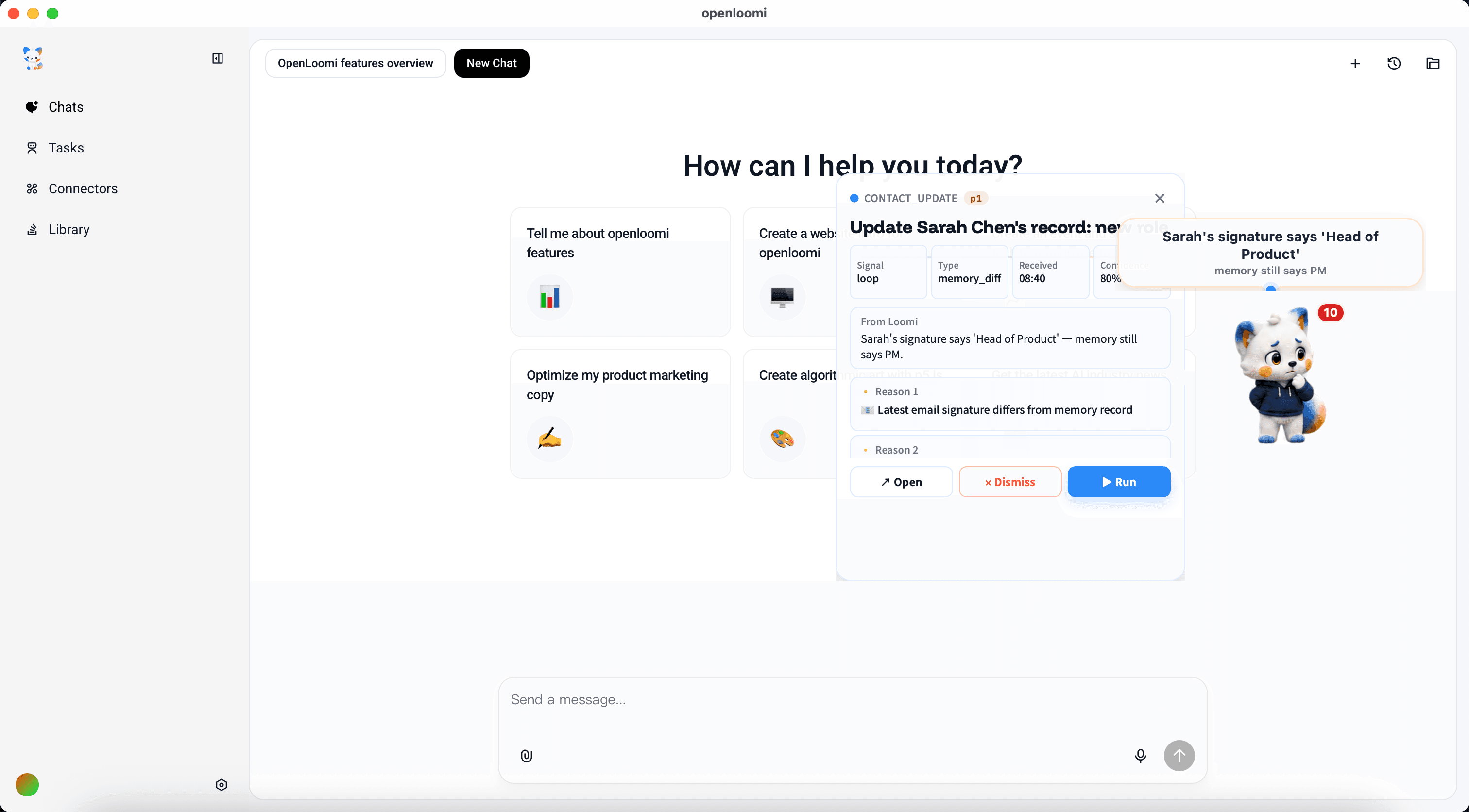
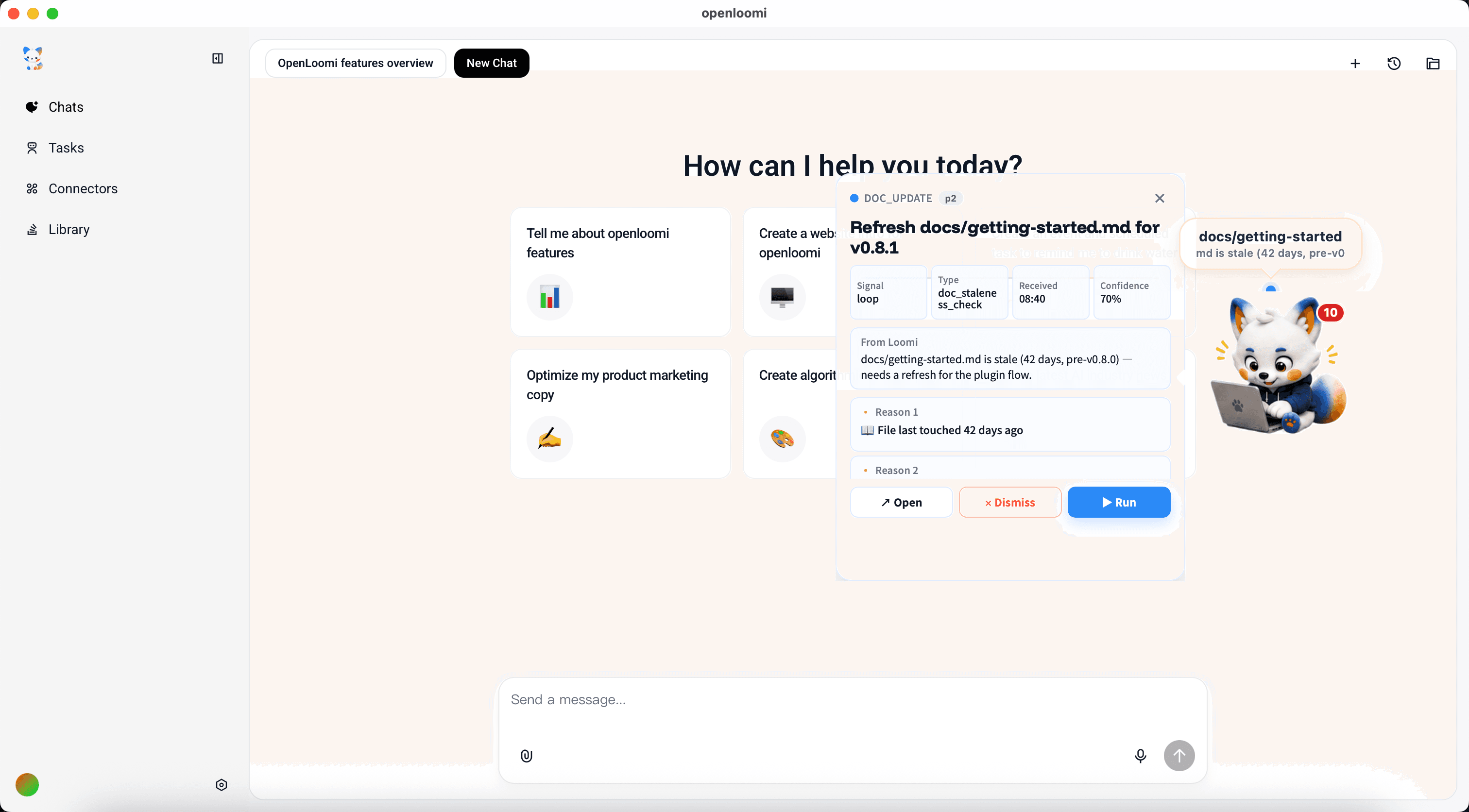
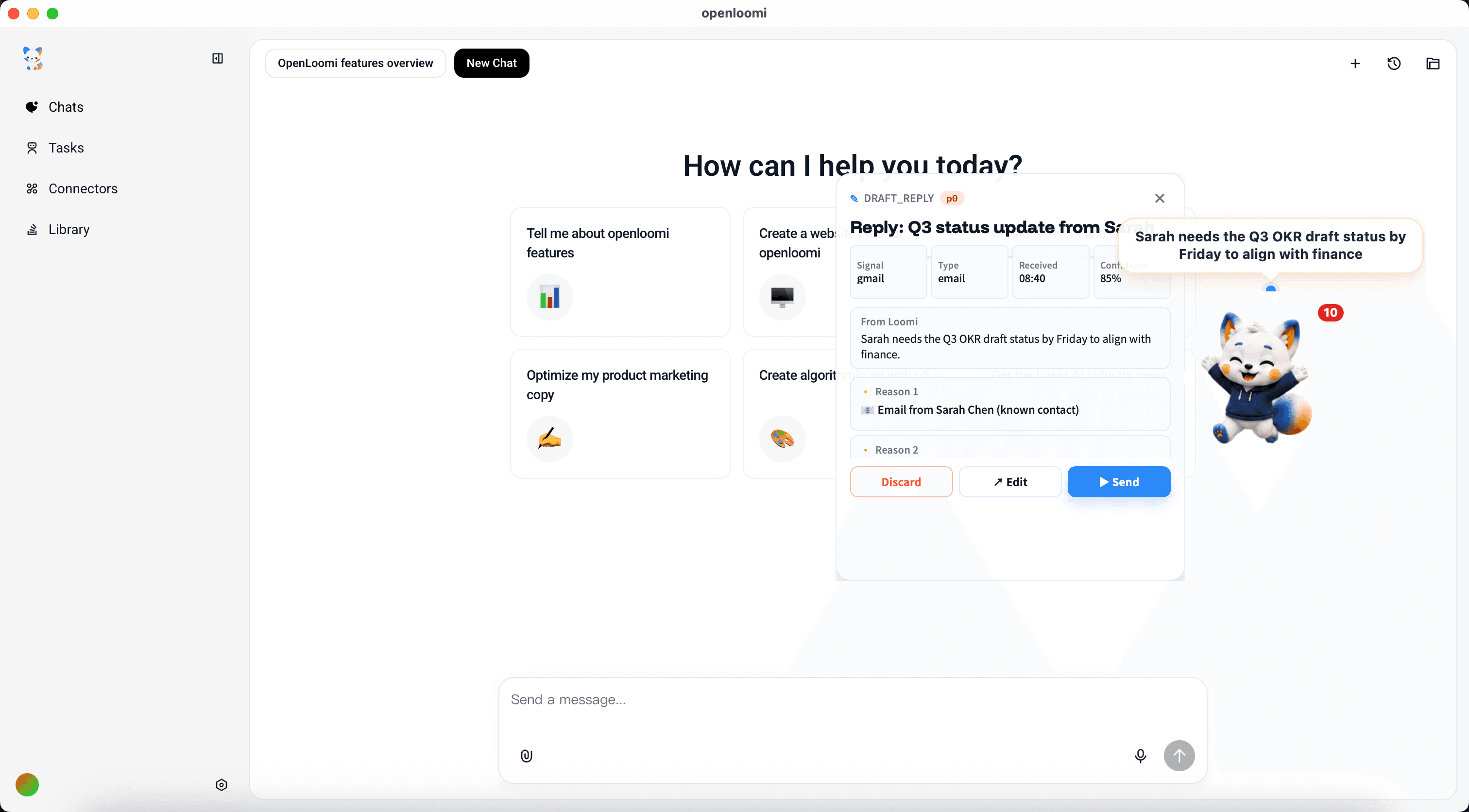
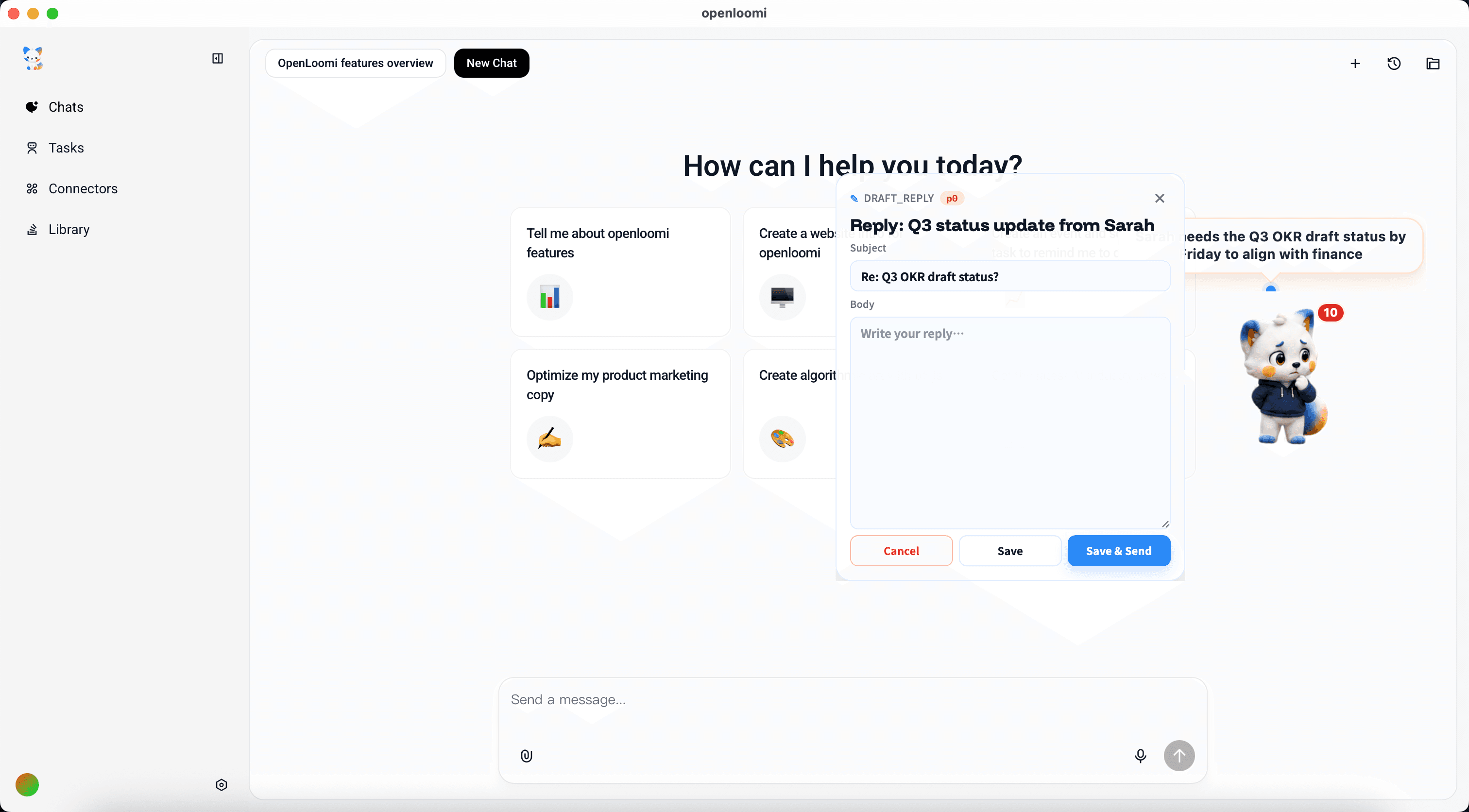
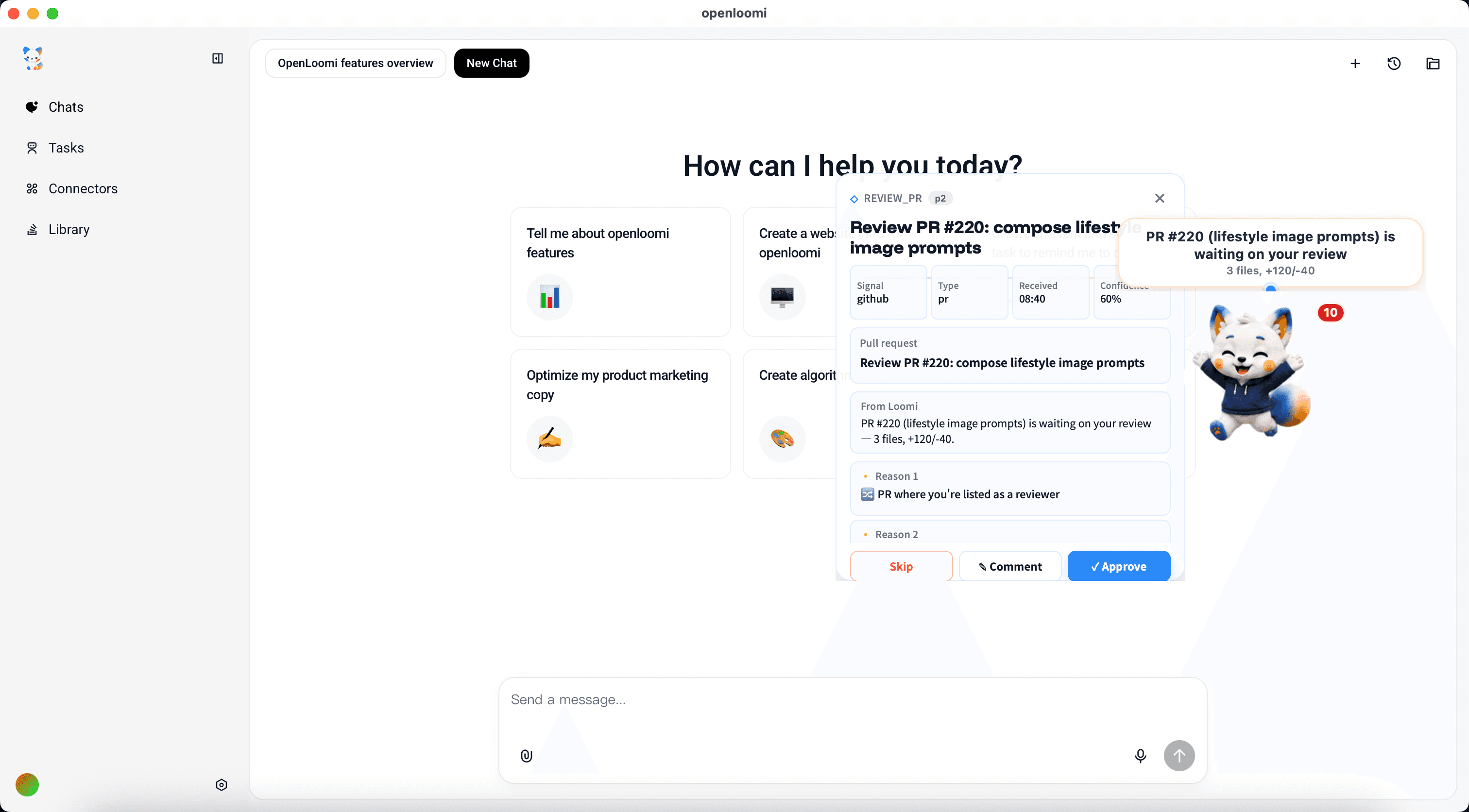
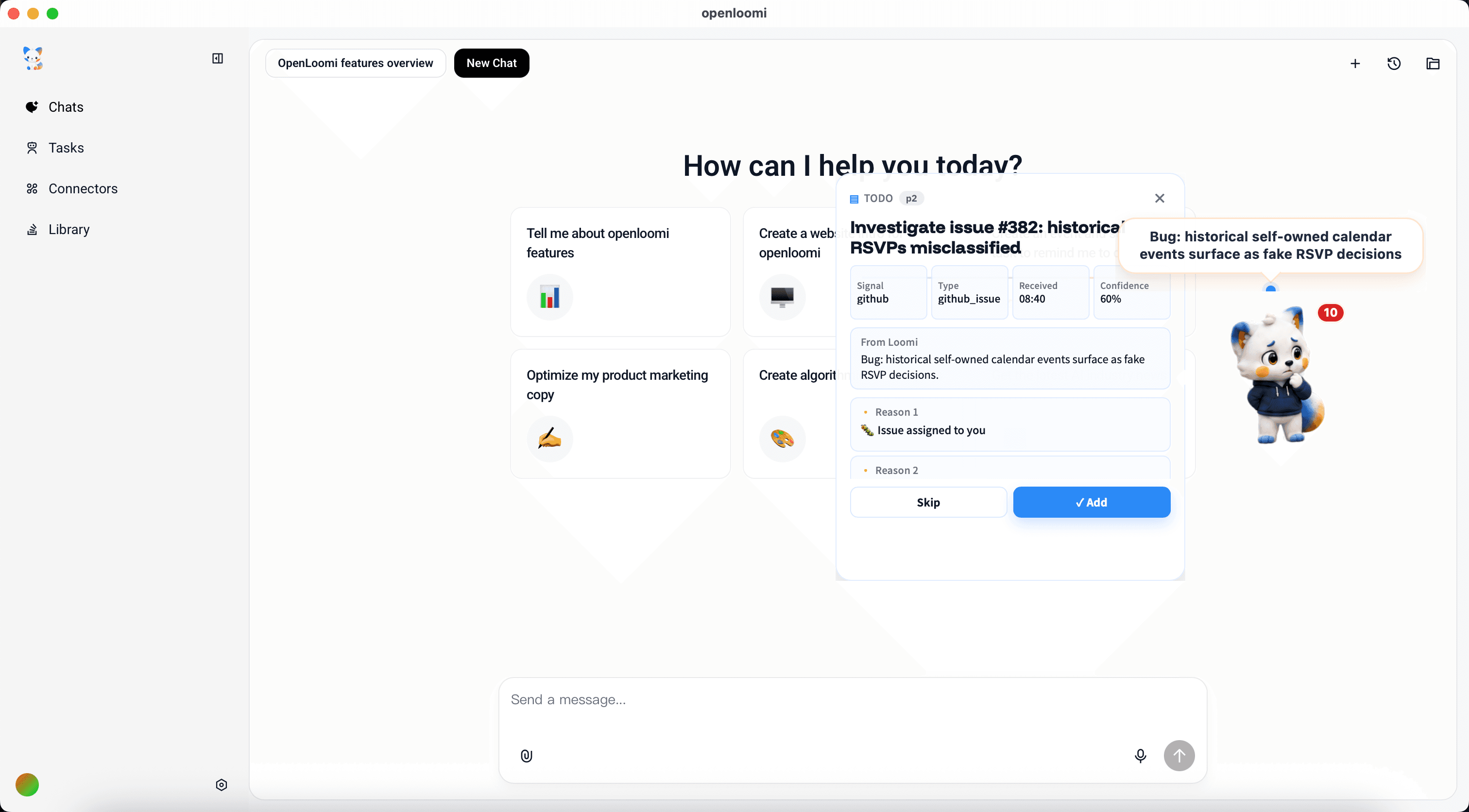
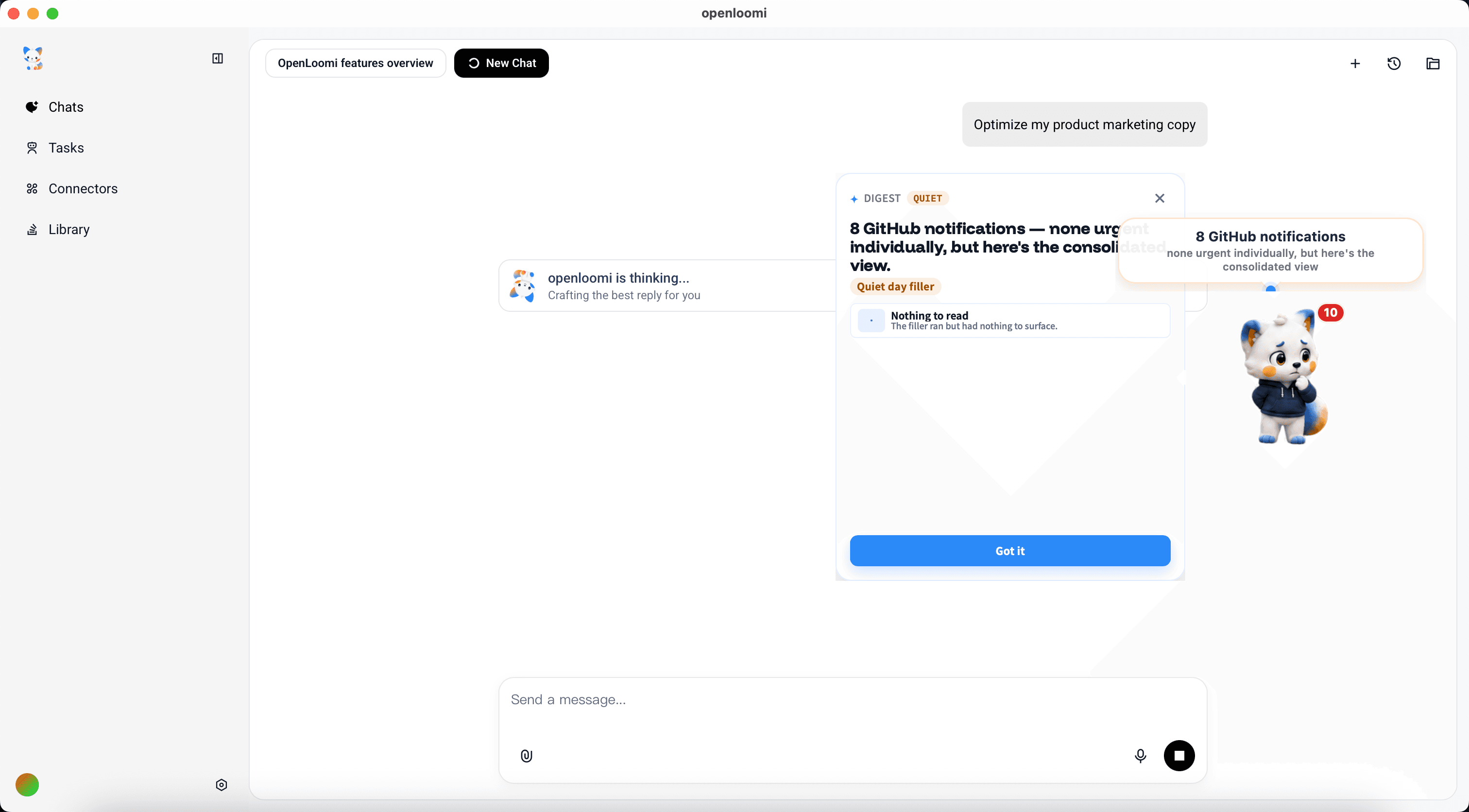
This is what the system looks like once it's humming. OpenLoomi's Loop is the proactive execution brain: it watches your connected signals, classifies them into decision types, and pops a card into the desktop app with the reasoning trace and the actions you can hit.
Every card has the same shape: Signal + Type + Received + Confidence at the top, the From Loomi explanation, the Reason 1 / Reason 2 evidence, and the action buttons at the bottom.
The Loop ships with these decision types out of the box:
| Decision type | What it does | Example |
|---|---|---|
RSVP | Reply Yes / No to a calendar invitation | "Reverb Q3 review — Wed 10:00 PT, organizer Sarah, conflicts with standup" |
IM_REPLY | Draft a reply to a known contact | "Alice is bumping the Q3 deck timeline — Thursday is close" |
EMAIL_REPLY | Pre-draft an outbound email | "Sarah needs the Q3 OKR draft status by Friday" |
LINEAR_REVIEW | Triage a Linear issue assigned to you | "LIN-1234 (pet bubble drag-and-drop) is in In Review with you assigned" |
REQUIREMENT_SYNTHESIS | Cluster PRs/issues into a requirements doc | "14 PRs/issues tagged loop/v0.9 — needs a single requirements doc" |
RELEASE_PLAN | Draft a release plan from merged PRs | "12 PRs merged since v0.9.0 — time to draft the v0.9.0 release plan" |
CONTACT_UPDATE | Update a contact record when memory drifts | "Sarah's signature says 'Head of Product' — memory still says PM" |
DOC_UPDATE | Refresh a stale doc for the next version | "docs/getting-started.md is stale (42 days, pre-v0.9.0)" |
REVIEW_PR | Surface a PR waiting on your review | "PR #220 (lifestyle image prompts) is waiting on your review" |
DEADLINE_REMINDER | Surface an upcoming due date | "v0.9.0 release plan due Friday — 3 PRs blocking the cut" |
TODO | Add a follow-up to your todo list | "Bug: historical self-owned calendar events surface as fake RSVP decisions" |
DIGEST (QUIET) | Consolidate a flood of low-priority signals | "8 GitHub notifications — none urgent individually, but here's the consolidated view" |
A few examples in detail:
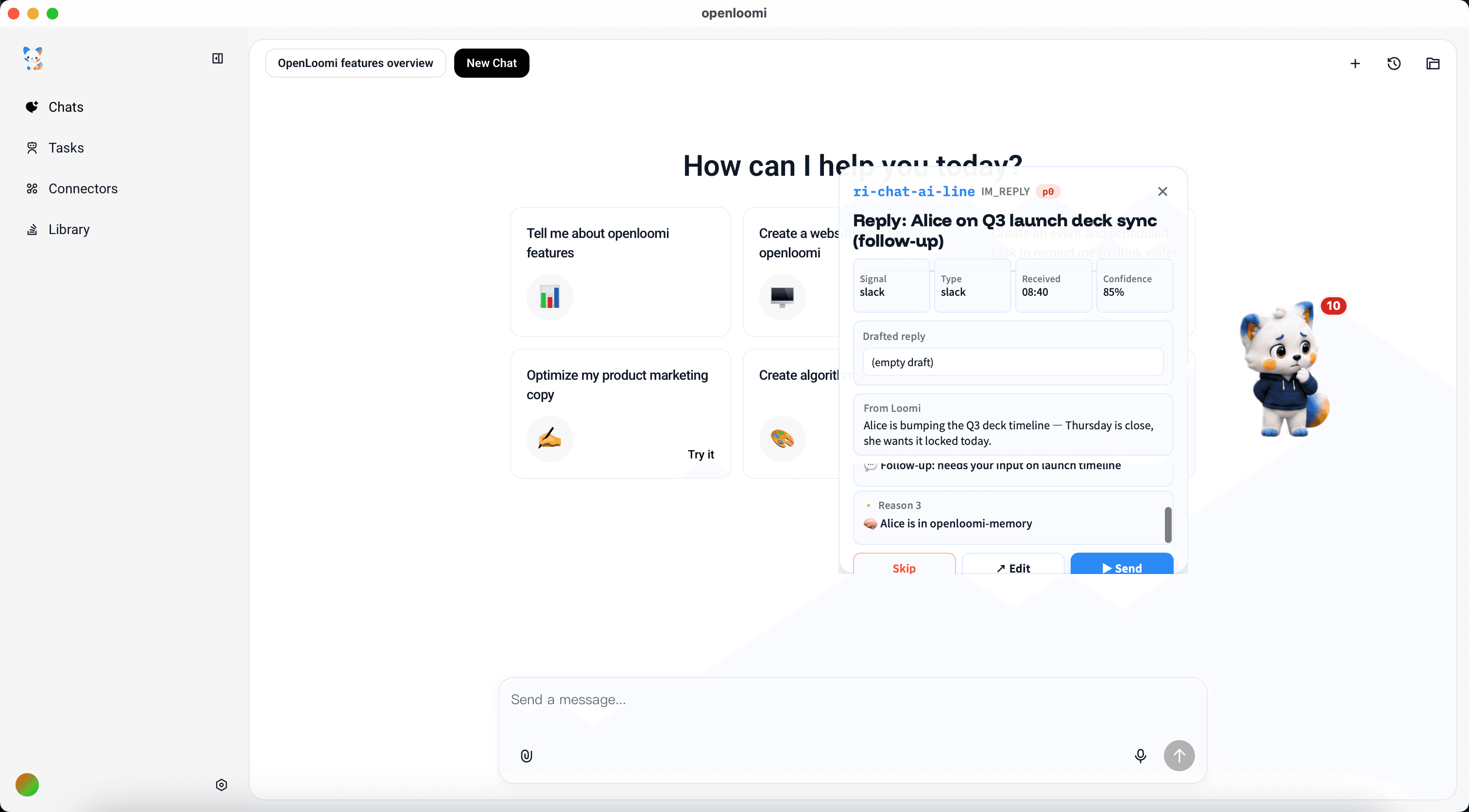
15b. From the card — Dry run / Edit / Run / Dismiss
The action row at the bottom of every card turns a recommendation into a real outcome. The exact buttons depend on the card type:
RSVP(calendar invitation): Attend (primary) · Decline (outline) · View original (ghost). Tap Attend or Decline and OpenLoomi fires yourYes/Nostraight back through the connected Google Calendar as acalendar_rsvpaction — no opening the event yourself to click the RSVP buttons.- Reply / update cards (
IM_REPLY,EMAIL_REPLY,REVIEW_PR,LINEAR_REVIEW,REQUIREMENT_SYNTHESIS,RELEASE_PLAN,CONTACT_UPDATE,DOC_UPDATE,DEADLINE_REMINDER,TODO): Dry run (outline) · Edit · Run (primary when ready) · Dismiss (ghost).Dry runpreviews the exact draft or plan without firing;Runschedules the action through the right connector —email_replyvia Gmail,im_replyvia Slack / iMessage,github_reviewvia the GitHub Reviews API,linear_reviewvia Linear,requirement_synthesis/release_plan/doc_updateinto the local knowledge base,contact_updateinto memory,todointo the local todo store. - Quiet digests (
DIGEST/QUIET_DIGEST/github_notification): Mark as read only — read-only aggregations, nothing to execute.
Two affordances live outside the action row so they never collide with the decision itself:
- Card-level Dismiss sits in the header kebab (three-dot menu). Dismissing a card never accidentally declines a meeting. A mute rule is created for that signal scope, so the same hint won't resurface today.
- Cancel scheduled action appears for ~30 s after you tap Run / Attend / Decline. The action is queued as a cron job before it actually fires —
Cancelstops it. A per-card audit history (under the technical details) records every attempt with its terminal state (completed/skipped/blocked/failed/cancelled/superseded), so contradictory responses (e.g. RSVP "No" then "Yes") appear side-by-side instead of overwriting each other.
If the underlying connector refuses (the runner returns blocked or failed), the action row stays open with a one-tap retry — the card never silently flips to done when nothing actually happened.
16. Register your own decision types
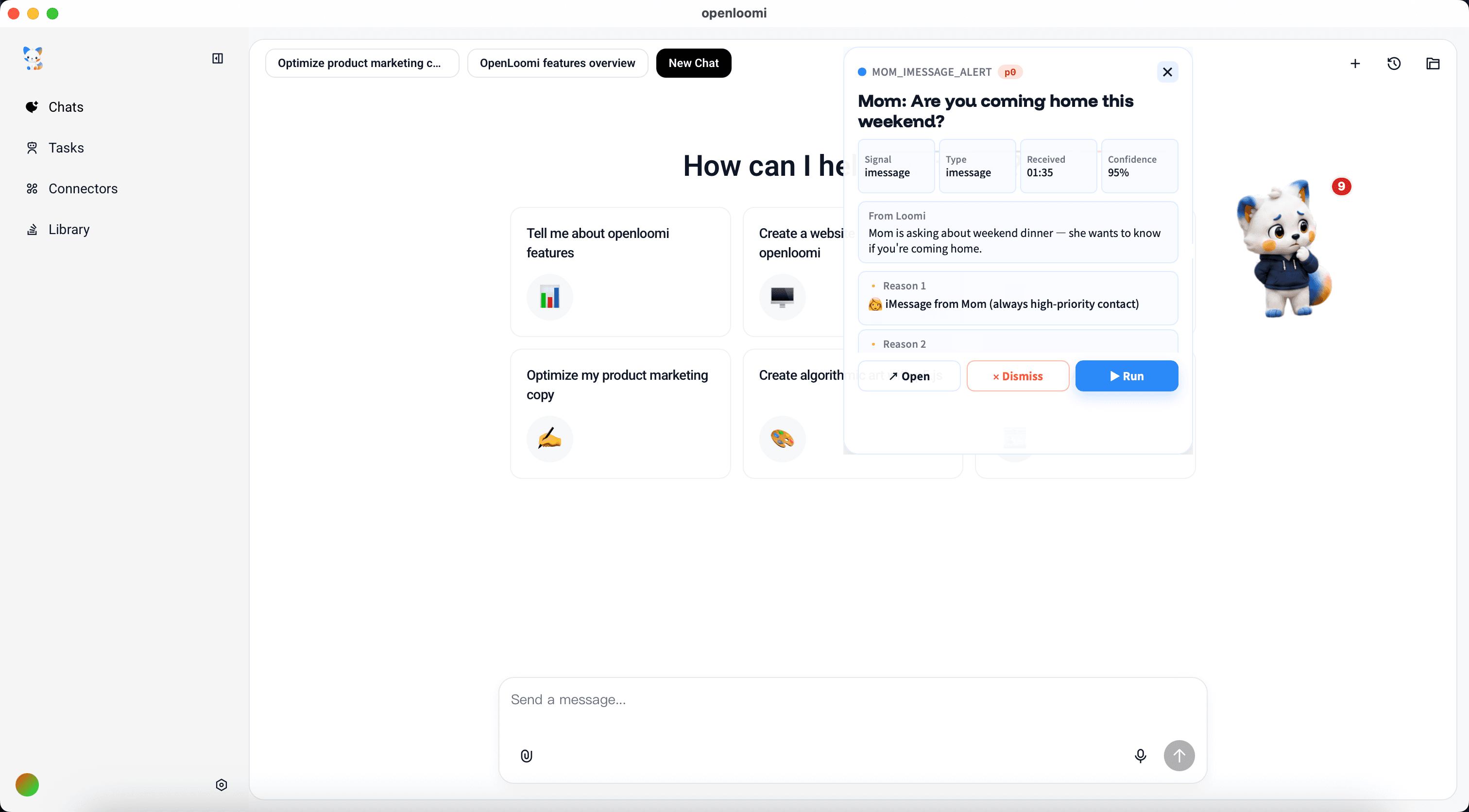
The Loop is extensible. Drop a PUT /api/loop/types against the local runtime and your custom card joins the queue.
TOKEN=$(cat ~/.openloomi/token | base64 -d)
curl -s -X PUT -H "Authorization: Bearer $TOKEN" -H "Content-Type: application/json" \
  http://localhost:3414/api/loop/types \
  -d '{
    "id": "mom_imessage_alert",
    "label": "Mom iMessage",
    "icon": "👩",
    "actionKind": "todo",
    "description": "Triggers when mom sends an iMessage — surfaces as a high-priority todo so you never miss her"
  }'
17. The custom type fires on the next signal
The next iMessage from mom surfaces the new card with your icon, label, and a high-priority todo action.
Auto-enable & first-use setup
Once installed via the marketplace the plugin is enabled automatically. Its primary skill (openloomi) and companion sub-skills are picked up from plugins/codex/.codex-plugin/plugin.json → skills on the next Codex start. No additional registration step is required — mentioning @OpenLoomi (or any of the trigger phrases listed in the skill front-matter) routes into the bridge.
Drive the full first-use setup from a single command:
node plugins/codex/scripts/loomi-bridge.mjs setupOr, from a Codex thread:
@OpenLoomi Run first-use setup.The setup command is an auto-enable wizard that walks a small state machine in one invocation:
1. status_check       → read setup-status
2. install            → download + install OpenLoomi from the official
                        GitHub release (only when --yes/--confirm is set)
3. runtime_env        → write OPENLOOMI_AGENT_PROVIDER=codex to the host
                        GUI launchd / environment.d, or print Windows
                        user-environment guidance
4. launch_desktop     → open OpenLoomi Desktop and wait for the local API
                        to come up (configurable via --max-wait)
5. initialize-session → mint a guest/session token via the local API and
                        write ~/.openloomi/token
6. status_check       → final readiness check
The wizard stops early at any step that requires explicit user action:
- Install requires
--yesor--confirm. Without it, the wizard returnssetup: "awaiting_user_action"withreason: "INSTALL_CONFIRMATION_REQUIRED". It will never download OpenLoomi silently. - AI provider configuration is never auto-run. Secret entry must happen in OpenLoomi-owned UI or interactive CLI surfaces. After the wizard finishes,
status.aiProviderConfiguredmay still befalse; in that case follow theconfigure-ai-providerguidance from theopenloomi-installsub-skill. - Source checkout (
SOURCE_FOUND_APP_NOT_BUILT) stops the wizard withnextAction: "build_or_install_openloomi". The plugin never builds OpenLoomi from source automatically.
The wizard returns structured JSON so Codex (or any other caller) can render each step:
{
  "ok": true,
  "setup": "ready",
  "steps": [
    { "step": "status_check", "ok": true, "reason": "INSTALL_REQUIRED" },
    { "step": "install", "ok": true },
    { "step": "runtime_env", "ok": true, "after": "codex" },
    { "step": "launch_desktop", "ok": true },
    { "step": "initialize-session", "ok": true, "tokenWritten": true },
    { "step": "status_check", "ok": true, "reason": "READY" }
  ],
  "status": {
    "installed": true,
    "appPath": "/Applications/OpenLoomi.app",
    "appRunning": true,
    "version": "openloomi-desktop 0.9.0",
    "tokenPresent": true,
    "executionProviderReady": true,
    "executionProviderSource": "native_codex_runtime",
    "ready": true,
    "nextAction": null
  },
  "message": "OpenLoomi is ready and the desktop app is wired to Codex."
}
Flags accepted by setup:
| Flag | Effect |
|---|---|
--yes / --confirm | Authorize the install step when OpenLoomi is missing. Without it the wizard is read-only. |
--max-wait <ms> | How long to wait for the local API after launching the desktop app. Default 30000. |
--non-interactive | Fail fast instead of waiting for the local API. Useful in CI. |
setup is idempotent — re-run it any time to recover from SESSION_INITIALIZATION_REQUIRED, re-apply OPENLOOMI_AGENT_PROVIDER=codex after a Codex upgrade wiped the launchd env, re-mint a guest/session token after deleting ~/.openloomi/token, or confirm that all steps still resolve to READY after an OpenLoomi Desktop upgrade. The wizard has a hard ceiling of 8 chained transitions per invocation.
Bridge commands
You can run any bridge command directly from a shell, without going through Codex. From the OpenLoomi source checkout:
node plugins/codex/scripts/loomi-bridge.mjs version
node plugins/codex/scripts/loomi-bridge.mjs setup-status
node plugins/codex/scripts/loomi-bridge.mjs workflow-guidance
node plugins/codex/scripts/loomi-bridge.mjs install-instructions
node plugins/codex/scripts/loomi-bridge.mjs install-openloomi --confirm
node plugins/codex/scripts/loomi-bridge.mjs initialize-session
node plugins/codex/scripts/loomi-bridge.mjs configure-ai-provider
node plugins/codex/scripts/loomi-bridge.mjs help
version prints the bridge identity, the current plugin phase, and the full command list:
{
  "name": "openloomi-codex-bridge",
  "version": "0.9.0",
  "pluginPhase": "runtime-provider-readiness",
  "commands": [
    "codex-runtime-info",
    "configure-ai-provider",
    "help",
    "initialize-session",
    "install-instructions",
    "install-openloomi",
    "pet",
    "run",
    "set-codex-runtime-env",
    "setup",
    "setup-status",
    "version",
    "workflow-guidance"
  ]
}| Command | Does | Notable failures |
|---|---|---|
version | Prints bridge identity, plugin phase, and full command list | — |
help | Lists all bridge commands with usage | — |
setup-status | Stable readiness JSON — see Readiness contract | INSTALL_REQUIRED, OPENLOOMI_API_UNREACHABLE |
setup | End-to-end first-use wizard (see above) | awaiting_user_action, step_limit_reached |
install-instructions | Returns platform-specific install guidance without performing the install | — |
install-openloomi | Downloads + installs OpenLoomi from the official GitHub release. Requires --confirm | INSTALL_CONFIRMATION_REQUIRED |
initialize-session | Mints a guest/session token via the local API and writes ~/.openloomi/token | SESSION_INITIALIZATION_REQUIRED |
codex-runtime-info | Structured JSON for the Codex-as-default-runtime switch plan, prerequisites, and companion env vars | — |
set-codex-runtime-env | Writes OPENLOOMI_AGENT_PROVIDER=codex to host GUI env (launchd / environment.d) or prints Windows steps | — |
pet <state> | Sets the Pet to a state (happy, thinking, …); see Pet mirror | INVALID_STATE, ENDPOINT_MISSING |
state | Stop-hook helper that archives session context into OpenLoomi memory | always exits 0 |
archive | Stop-hook payload reader that POSTs {type: "note", groups: ["codex"]} to /api/insights | always exits 0 |
workflow-guidance | Returns structured guidance for the workflow skills (loop, memory, connectors, …) | — |
Codex as default runtime
The packaged desktop app routes chat and agent requests through the Claude provider by default. To run the same desktop binary against the local Codex CLI instead, set OPENLOOMI_AGENT_PROVIDER=codex in the environment the desktop app actually inherits.
node plugins/codex/scripts/loomi-bridge.mjs set-codex-runtime-env codex
# macOS:   writes via launchctl setenv
# Linux:   writes ~/.config/environment.d/openloomi-codex.conf
# Windows: prints manual steps (System Settings → Environment Variables)

# Then quit and reopen OpenLoomi so the new env reaches the web server.
Flags accepted by set-codex-runtime-env:
| Flag | Effect |
|---|---|
<value> | Defaults to codex. Other supported values: claude, opencode, hermes, openclaw. |
--unset | Clear OPENLOOMI_AGENT_PROVIDER from the host environment. |
--dry-run | Describe what would happen without performing the write. |
macOS caveat: the desktop app's web server runs inside the GUI launchd session, not your terminal.
export FOO=barin a terminal does not reach the running web server. After setting the variable you must Quit and reopenOpenLoomi.appso the new env is inherited by the freshly forked web process. On Linux a per-user env file works after the next login, and on Windows you edit the user environment via System Settings.
For a permanent shell-side switch on macOS or Linux, append the export to your shell rc so future shells remember it:
echo 'export OPENLOOMI_AGENT_PROVIDER=codex' >> ~/.zshrcThe shell export helps the bridge itself; the set-codex-runtime-env step is what makes the GUI launchd domain and the desktop session pick the variable up.
Companion env vars
All read by apps/web's native-agent env resolver at startup:
| Variable | Default | Purpose |
|---|---|---|
OPENLOOMI_AGENT_CODEX_COMMAND | codex | Binary to invoke (overrides PATH lookup) |
OPENLOOMI_AGENT_CODEX_MODEL | (none) | Optional model override |
OPENLOOMI_AGENT_CODEX_PROFILE | (none) | Optional -p <name>. Use profiles for model selection and Linux/Windows network policy. The runtime persists the choice in openloomi.config.toml; per-profile env vars live in codex-profile-env.plist (macOS) so the GUI launchd domain inherits them. |
OPENLOOMI_AGENT_CODEX_SANDBOX | Platform-specific | read-only | workspace-write | danger-full-access. Plan is always read-only; Linux/Windows execution defaults to workspace-write. macOS execution maps the default and explicit workspace-write to danger-full-access so localhost and remote services remain reachable. Use read-only for offline isolated execution. |
OPENLOOMI_AGENT_CODEX_ASK_FOR_APPROVAL | on-request | untrusted | on-failure | on-request | never |
OPENLOOMI_AGENT_CODEX_SKIP_GIT_REPO_CHECK | true | Toggle Codex's working-directory git check |
OPENLOOMI_AGENT_CODEX_FULL_AUTO | false | Set true to allow --full-auto under bypassPermissions |
OPENLOOMI_AGENT_CODEX_TIMEOUT_MS | 120000 | CLI runtime budget in ms |
Prerequisites that must hold before the desktop app will actually drive Codex:
which codexresolves to a working Codex CLI binary (install viabrew install --cask codexornpm i -g @openai/codex).~/.codex/config.tomlis configured andOPENAI_API_KEY(or the Codex CLI's other auth) is available to the spawned process.
Verification after launch: the desktop app's GET /api/native/providers should return codex inside agents and defaultAgent: "codex". If you still see defaultAgent: "claude" after running set-codex-runtime-env and reopening the app, the env change did not stick — re-run launchctl getenv OPENLOOMI_AGENT_PROVIDER in a terminal to confirm the GUI session actually has it.
Workflow skills
The plugin ships these sub-skills under plugins/codex/skills/:
| Skill | Role |
|---|---|
openloomi | Main entry point — triggers on OpenLoomi / Loomi mention and dispatches to the right sub-skill. |
openloomi-install | Walks install, first-use setup, AI provider setup, and SESSION_INITIALIZATION_REQUIRED recovery flows. |
openloomi-loop | Run attention-loop and follow-up workflows. |
openloomi-connectors | Check whether Slack, GitHub, Gmail, Calendar, and other sources are configured before acting. Reports status only. |
openloomi-memory | Search or write memory through OpenLoomi-owned runtime surfaces. Thin wrapper — does not implement memory storage. |
openloomi-api | OpenLoomi HTTP API reference (auth, chat, RAG, workspace, integrations, feedback). Triggered by API/backend questions. |
openloomi-feature-guide | Product overview, capabilities, and how-tos for non-developer questions like "what can openloomi do". |
composio | Third-party 1000+ app integration router (Gmail, Slack, GitHub, etc.) via the Composio CLI. Platform-agnostic; not OpenLoomi business logic. |
The workflow-guidance bridge command returns structured guidance for the three workflow skills (openloomi-loop, openloomi-memory, openloomi-connectors). All other skills are documentation or routing helpers. The plugin must not copy OpenLoomi connector, memory, or loop logic into Codex — runtime implementations stay inside the OpenLoomi desktop runtime.
Useful workflow prompts from a Codex thread:
@OpenLoomi Use the memory workflow to recall relevant context.
@OpenLoomi Use the loop workflow to plan the next step.
@OpenLoomi Check connector readiness for this task.
@OpenLoomi Hand this task to Loomi for follow-up.
@OpenLoomi Use Loomi to summarize the current task in one sentence.
Pet mirror hooks
Hooks are opt-in via plugins/codex/hooks/hooks.json (declared in .codex-plugin/plugin.json). They mirror Codex lifecycle events onto the OpenLoomi Pet without making authorization or control-flow decisions — best-effort UI feedback only. Memory archive, follow-up scheduling, permission decisions, and connector behavior stay inside OpenLoomi-owned runtime surfaces.
| Codex event | Pet state |
|---|---|
SessionStart | presenting |
UserPromptSubmit | thinking |
PreToolUse | working |
PermissionRequest | needsinput |
PostToolUse | thinking |
SubagentStart | juggling |
SubagentStop | thinking |
Stop | happy |
Hooks use the same runtime-accepted source: "codex-plugin" value when posting to /api/pet/state. The state <state> --event <event> command is hook-safe: it never fails the Codex turn, never prompts, and returns hook: "skipped" when OpenLoomi is not ready, the token is missing, or the Pet endpoint is unavailable.
You can also drive the Pet directly from the bridge:
node plugins/codex/scripts/loomi-bridge.mjs pet happy
node plugins/codex/scripts/loomi-bridge.mjs pet working
The valid states are: happy, idle, juggling, needsinput, presenting, sleeping, sweeping, thinking, working.
Readiness contract
setup-status returns stable JSON that downstream tools (and the setup wizard) consume:
| Field | Meaning |
|---|---|
mode | packaged | source | unconfigured |
installed | desktop app found |
appPath | resolved OpenLoomi Desktop app path (e.g. /Applications/OpenLoomi.app) |
appRunning | whether the desktop app process is currently running |
version | detected OpenLoomi version |
tokenPresent | a local auth token exists |
session | tokenPresent, guestBootstrapSupported, guestBootstrapMode |
aiProviderConfigured | a direct OpenAI-compatible or Anthropic-compatible AI provider is configured |
aiProviderStatus | runtime_configured | unavailable |
executionProviderReady | direct AI provider or native Codex runtime can execute tasks |
executionProviderSource | ai_provider | native_codex_runtime | null |
nativeRuntimeActive | /api/native/providers reports Codex as the active default native runtime |
nativeRuntime | summarized /api/native/providers probe result |
connectorStatusAvailable | whether the local API can report connector status |
apiReachable | local HTTP API responded |
ready | everything needed is in place |
nextAction | what to do next (see below) |
checks | detailed provider / connector / runtime checks (e.g. aiProviderRuntime.providers[]) |
aiProviderConfigured: false does not necessarily block native Codex CLI
execution. When /api/native/providers reports defaultAgent: "codex" and the
Codex agent metadata is present, setup-status may still be ready: true with
executionProviderSource: "native_codex_runtime". Direct AI provider settings
remain relevant for features that explicitly use OpenLoomi-owned model-provider
configuration.
nextAction values
| Value | Fix |
|---|---|
install_openloomi | Install the desktop app. |
provide_install_or_repo_path | Provide an explicit OPENLOOMI_INSTALL_DIR / OPENLOOMI_REPO_DIR. |
build_or_stage_openloomi_ctl | cd $OPENLOOMI_REPO_DIR/apps/web/src-tauri && cargo build --release. |
initialize_openloomi_session | Run setup so the bridge can mint a guest/session token. |
open_openloomi | Launch the desktop app once so the local API can mint a session. |
configure_ai_provider | Configure a model provider in OpenLoomi-owned settings. |
configure_connectors | Wire up Slack / GitHub / Gmail / Calendar sources as needed. |
show_openloomi_skills | Surface workflow-guidance or the openloomi-* sub-skills. |
return_without_bridge | Nothing to do — return the result without crossing the bridge. |
run | Ready. Run the task. |
reason values
| Reason | Meaning |
|---|---|
READY | All checks passed. |
OPENLOOMI_APP_INVALID | Discovery resolved a path but it isn't a working OpenLoomi Desktop app. |
SOURCE_FOUND_APP_NOT_BUILT | Source checkout detected but the OpenLoomi Desktop app hasn't been built yet. |
INSTALL_REQUIRED | No install discovered — install-openloomi --confirm is the next step. |
OPENLOOMI_API_UNREACHABLE | OpenLoomi is installed but the local HTTP API isn't responding on 127.0.0.1:3414/3515. |
SESSION_INITIALIZATION_REQUIRED | OpenLoomi is installed but ~/.openloomi/token is missing or unreadable. |
CODEX_RUNTIME_ACTIVE / _INACTIVE | Status of the native Codex runtime the desktop app is currently using. |
INSTALL_CONFIRMATION_REQUIRED | Install was requested without --confirm. |
CONNECTOR_SETUP_REQUIRED | One or more connector sources are not configured. |
INSTALLER_DOWNLOADED / AUTOMATIC_INSTALL_FAILED | Install artifact download / verification / launch outcome. |
OpenLoomi guest mode is supported. A missing token is not treated as a requirement for account registration. The bridge tries two guest endpoints in order:
POST /api/remote-auth/guest— the JSON bearer flow. Preferred when the running build exposes it.POST /api/auth/guest?redirectUrl=/followed byGET /api/auth/tokenusing theSet-Cookieheader — the legacy cookie-based flow. Falls back here only when the JSON endpoint returns 404 or is unreachable before any response, so a transient 5xx or empty payload on the JSON path still tries the cookie path before giving up.
Both paths write the same ~/.openloomi/token file and report session.tokenPresent: true.
Secret handling
Codex chat, argv, stdout, and stderr must never receive or print:
- model provider API keys;
- OAuth access tokens or refresh tokens;
- connector app secrets;
- OpenLoomi auth tokens;
- local secure-storage contents.
The bridge may report only status-only fields such as:
OPENLOOMI_AUTH_TOKEN present/missing
~/.openloomi/token present/missing
guest/session initialization available/unavailable
AI provider configured/missing
AI provider runtime status available/unavailable
AI provider hasApiKey/baseUrl/model presence
connector configured/missing
local API reachable/unreachable
Example safe output:
{
  "aiProviderConfigured": false,
  "checked": [
    { "key": "OPENAI_API_KEY", "present": false, "source": "env" },
    { "key": "OPENAI_BASE_URL", "present": true, "source": ".env.local" }
  ]
}
The bridge may report key names and presence. It must not print values. The bridge may receive a guest/session token from the local OpenLoomi API only to write the standard ~/.openloomi/token file — it must keep the token out of argv, stdout, stderr, logs, and the Codex transcript.
Architecture
Codex
   → OpenLoomi Codex plugin
      → OpenLoomi skill entrypoint
         → loomi-bridge
            → discovery and install layer
            → first-use native runtime wiring layer
            → readiness layer
            → OpenLoomi skill guidance layer
            → optional Codex hook layer
            → OpenLoomi Desktop runtime (local HTTP API at 127.0.0.1:3414 / :3515)
                  → memory
                  → connectors
                  → loop
                  → model provider
                  → OpenLoomi Pet
The plugin stays thin. It calls OpenLoomi-owned runtime surfaces instead of copying connector, memory, or loop implementations into Codex.
Troubleshooting
OPENLOOMI_APP_INVALID— discovery resolved a path but it isn't a working OpenLoomi Desktop app. Reinstall or pointOPENLOOMI_INSTALL_DIR/OPENLOOMI_APPat a valid bundle.SOURCE_FOUND_APP_NOT_BUILT— the source checkout was detected, but the OpenLoomi Desktop app hasn't been built yet. Build it perapps/web/src-tauri/README.md, or install the packaged release.OPENLOOMI_API_UNREACHABLE— the desktop app is installed but the local HTTP API isn't responding. Launch OpenLoomi Desktop and retrysetup-status.SESSION_INITIALIZATION_REQUIRED— OpenLoomi is installed but the local guest/session token could not be created. Open OpenLoomi Desktop once so the local API can mint a guest session, then re-runsetup-statusorsetup.AI_PROVIDER_REQUIRED/AI_PROVIDER_STATUS_UNAVAILABLE— prefer setting the OpenLoomi desktop runtime to Codex so OpenLoomi can reuse the user's existing Codex CLI runtime. If you choose a separate AI provider fallback, configure it in OpenLoomi Desktop. Secrets must stay in OpenLoomi-owned UI or secure storage. If the local API is unreachable, the plugin reports status as unavailable rather than falsely reporting missing configuration.Codex still shows an old plugin version— remove and re-add the marketplace, restart Codex, and start a new thread. The cached plugin lives at~/.codex/plugins/cache/openloomi/openloomi/<version>.- Pet control returns
ENDPOINT_MISSING— non-blocking. The bridge returns a polite notice that the route is pending; Pet control resumes automatically once OpenLoomi ships it. - Pet control returns
API_UNREACHABLE— no local API responded on3414/3515. Start OpenLoomi Desktop and retry. composio surface reachablereports unreachable from a Codex-driven session — first confirm the active execution sandbox. On macOS, current OpenLoomi releases mapworkspace-writetodanger-full-access; restart the updated desktop app if an older process is still using the blocked sandbox. An explicitread-onlysetting still blocks network access. On Linux/Windows, use a Codex profile with network access enabled or select a sandbox appropriate for the host's isolation boundary, restart OpenLoomi, and retry.
Related
- Claude Code Plugin — the Claude Code counterpart
- Codex CLI Runtime — the internal runtime
- Attention Agent — the Pet that mirrors plugin lifecycle events
- Getting Started — install + first run
- Connectors — what the Codex plugin can reach
- Memory — what the Codex plugin reads from