Automation
Have AI automatically execute tasks at specified times. Set it and forget it — OpenLoomi handles the rest.
Local-only execution. All conversations and data are stored locally on your device. The app must remain open for scheduled tasks to run.
Automation vs Loop: Loop is the judgement engine that watches your day and proposes decision cards. Automation is the executor — you write a prompt, pick a schedule, and OpenLoomi runs it. Both are powered by the same Scheduled Jobs runtime under the hood.
Goal
By the end of this page you should be able to:
- Create a scheduled task with a cron, interval, or one-time schedule.
- Audit past executions and enable/disable tasks without losing their history.
- Combine Automation with Skills to turn it into a cross-app executor.
Before you begin
- OpenLoomi Desktop is installed and the local API on
127.0.0.1:3414(or:3515) is reachable. - At least one AI provider is configured — see Getting Started.
- The desktop app stays open during the scheduled run window.
Overview
Automation is the executor half of OpenLoomi's proactive layer: while Loop watches your day and proposes actions, Automation lets you write a prompt, attach a schedule, and let OpenLoomi run it on its own.
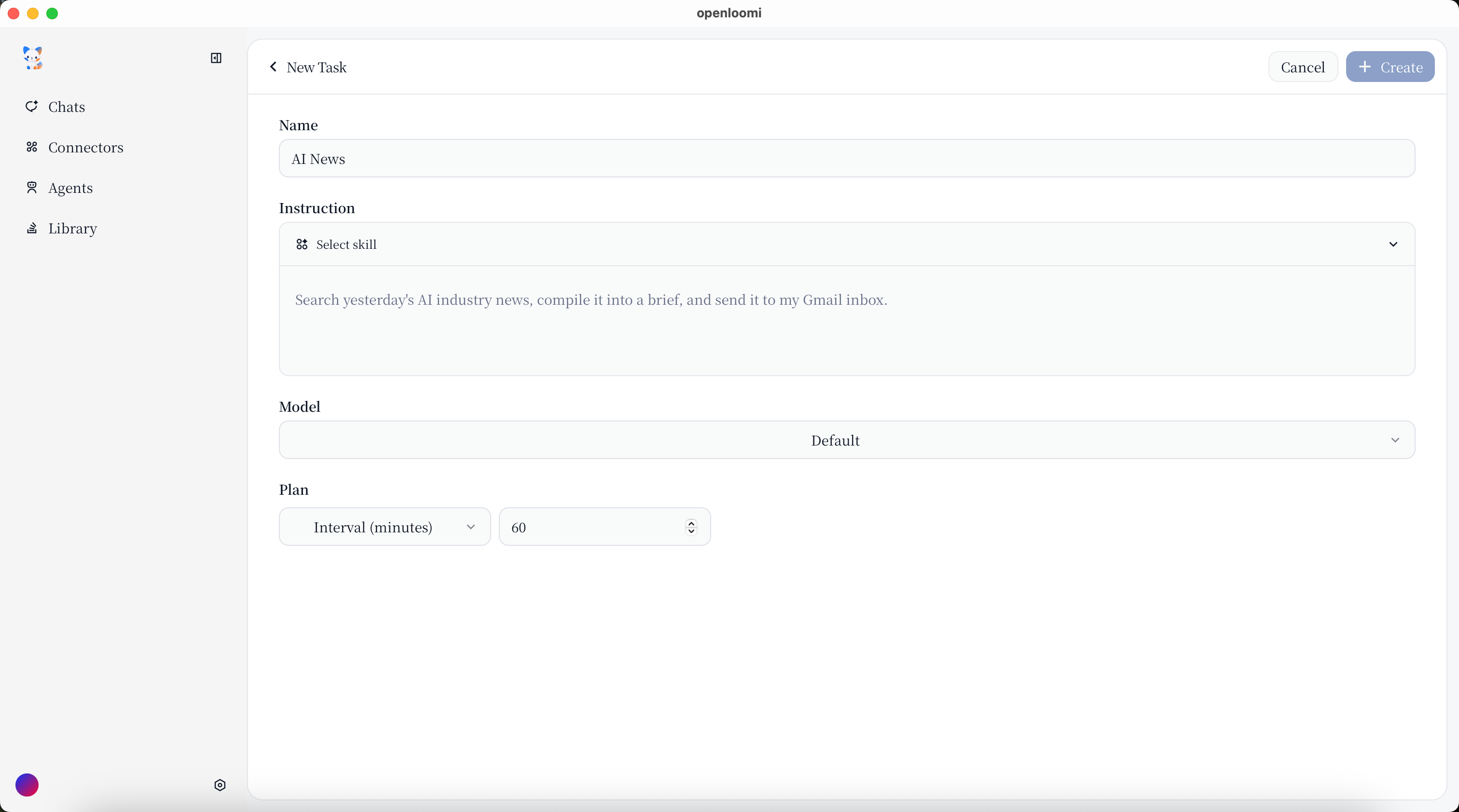
Common uses:
- Daily news summaries
- Weekly report generation
- Periodic data refreshes
- Custom reminders
How to create
- Go to the Agent page, then select Automation.
- Click "New Task".
- Fill in the task fields:
| Field | Description | Example |
|---|---|---|
| Task Name | Give the task a name | "Daily News Summary" |
| Task Description | Tell AI what to do | "Search latest AI news, summarize and send to me" |
| Schedule Type | Cron / Interval / Once | 0 9 * * * = 9am daily |
| Timezone | Time reference | "Asia/Shanghai" |
Schedule types
Cron expression
Use standard cron syntax for flexible scheduling:
0 9 * * *— Every day at 9am0 9 * * 1— Every Monday at 9am0 0 1 * *— First day of every month
Interval
Run every X minutes/hours:
- Every 30 minutes
- Every 2 hours
- Every 6 hours
One-time
Run once at a specific time:
- December 25, 2026 at 10am
- January 1, 2027 at 9am
Manage tasks
View tasks
- See all your scheduled tasks in one place.
- View task status (enabled/disabled).
- See next scheduled run time.
The calendar view displays all your scheduled tasks in a visual timeline, making it easy to track when tasks are set to execute.
Task actions
- Enable / Disable — Turn tasks on or off.
- Run Now — Execute immediately without waiting.
- View History — See past execution results.
- Edit — Modify task configuration.
- Delete — Remove a task.
Execution history
- View all past executions.
- See success/failure status.
- Review output logs.
Example use cases
Daily news summary
Task: "Search latest AI news, summarize top 5 stories and email to me"
Schedule: Every morning at 8am
Weekly report
Task: "Generate weekly report on all project progress"
Schedule: Every Friday at 5pm
Periodic reminder
Task: "Check calendar for upcoming meetings, remind me 15 minutes before"
Schedule: Every 30 minutes
Tips
- Start with simple tasks to test the system.
- Use descriptive task names for easy management.
- Check execution history regularly to verify tasks run correctly.
- Combine with Skills for powerful automations.
Verify
- Cron tasks: confirm the first run hits within the next minute boundary and the calendar view shows the new entry.
- Interval tasks: confirm the task appears with
Next runrecalculated based on the interval. - One-time tasks: confirm the task disappears from the active list after firing.
Troubleshooting
- Task didn't fire. Make sure the desktop app was open at the scheduled time and your laptop wasn't sleeping; macOS may suspend background processes.
- Wrong timezone. Re-edit the task and pick the timezone you actually live in — cron expressions are evaluated in the task's timezone, not your system clock.
- "Run Now" shows an empty output. Check Execution History for the error message and your AI provider's credentials.
Related
- Loop — the judgement engine that proposes decision cards
- Skills — extend automation with reusable prompts
- Connectors — let automation act across Gmail, Slack, GitHub, Linear
- Getting Started — install + first run