Attention Agent
At 9 AM, the moment you sit down at your desk, before you've even opened your inbox, a small fox (Loomi) peeks out in the bottom-right corner of your screen with a bubble that reads: "Sarah's meeting invite still needs an RSVP — due today at 11."
That's the Attention Agent — the always-on desktop companion built into OpenLoomi. It doesn't fight for your attention; it nudges you, gently, at the moments that matter.
The Attention Agent is a transparent little fox named Loomi that lives on top of your desktop. 168×168, always-on-top, with its own expression animations. It proactively tells you "what's waiting for you today", but it never interrupts what you're doing. Close the main OpenLoomi window and Loomi doesn't go away — it retreats into the system tray and comes back the moment you tap it.
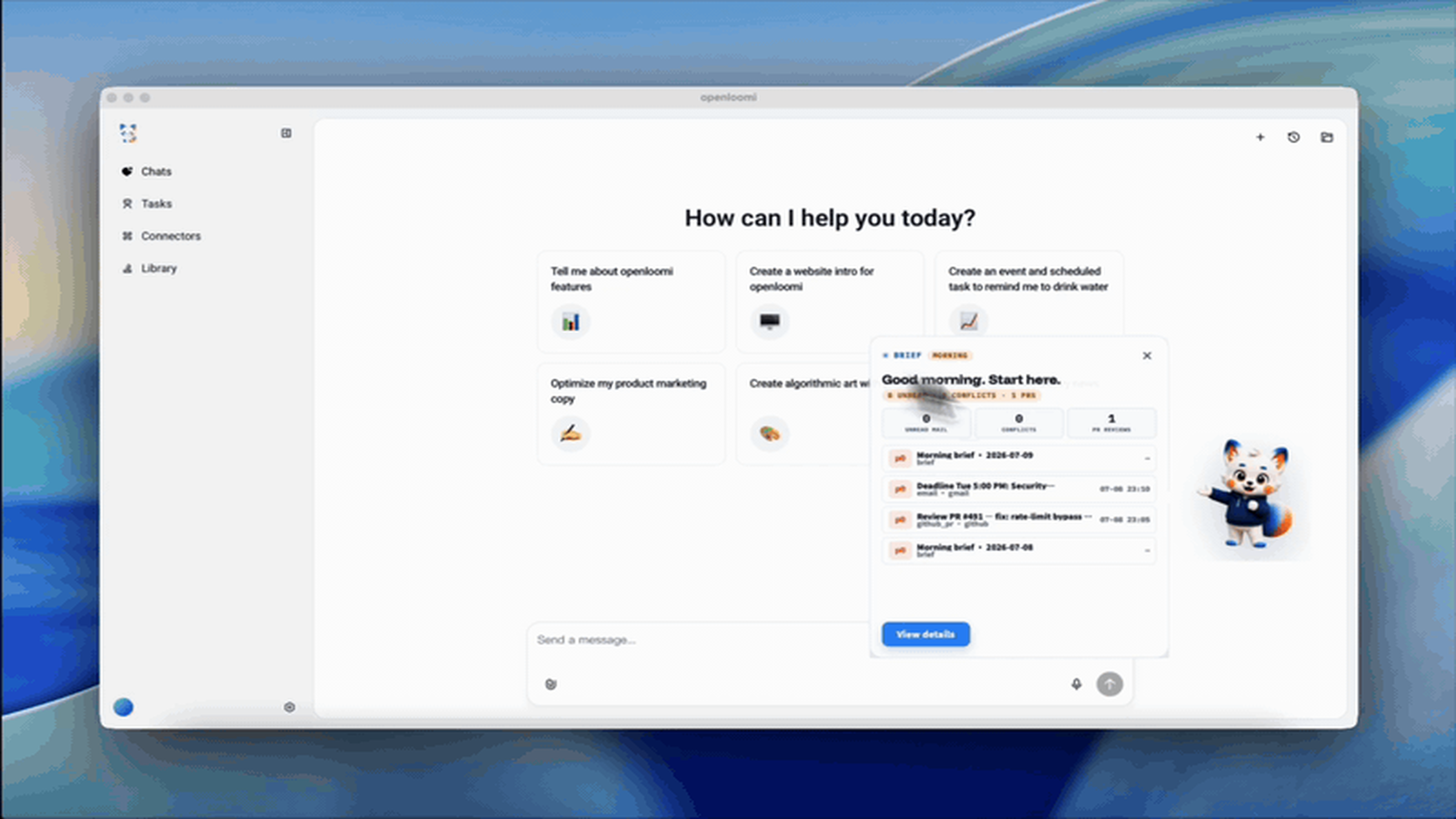
In the screenshot above: it's 9 AM, Loomi has slid a morning briefing panel onto your desktop showing 8 unread emails, 0 calendar conflicts, 1 PR review waiting, and the top three items you actually need to act on today — with a single View details button that takes you straight to the full thread in Chat.
💡 The Attention Agent is the messenger, Loop is the brain. Loomi only ever surfaces what Loop has decided you should see — tap any bubble and you land in the full Chat thread.
Overview
The Attention Agent is not a chat window, not a toolbar, and not a notification centre. It's more like a partner at your desk — appearing only in the few key moments when you actually need a reminder:
- 🔔 A new email arrives — but only the one that truly needs your reply
- ⏰ A calendar event slides past your usual response window
- 📋 At 9 AM sharp, today's to-do glides gently into your view
- ✅ At 6 PM, you get a recap of what was handled for you today
- ❓ You asked the main window something with a long answer — Loomi pops a one-line summary first
The principle: never intrusive, only present in the right instant.
When Loomi Shows Up
☀️ 9 AM — Today's To-Do
Every morning at 9 AM, Loomi pulls today's items from your email, calendar, Linear, Slack, and code-review queue, ranks them by priority, and slides a small card into the corner of your screen. A glance is enough to know what's ahead.
The actual ranking and decision-card generation comes from Loop; the Attention Agent is just the messenger.
✉️ Incoming email — only the ones that need you
Not every email triggers a bubble. Loomi only pops up when all three of these hold:
- The sender is on the "important contacts" list in OpenLoomi Memory
- The subject or body contains an action word — "RSVP", "please confirm", "reply", "get back to me"
- The email has passed your usual reply window (default 4 hours) and is still unanswered
Which platforms Loomi reads from depends on your Connectors — toggle a connector off and the Attention Agent stops seeing those signals.
📅 Calendar invites past their RSVP window
When a meeting invite has been sitting unanswered for over 24 hours, Loomi sways gently at your desk until you respond. Tap the bubble to accept, decline, or propose a new time without ever opening your calendar app.
🌙 6 PM — Today's Done
Every evening at 6 PM, Loomi delivers a recap of what Loop handled for you during the day — emails sent, RSVPs logged, Linear tickets closed. The goal: a clean mental inbox before you log off.
🪟 When the main window is closed
Close the main OpenLoomi window and Loomi doesn't disappear. It shrinks into the system tray (Windows / Linux) or the menu bar (macOS), still watching the door for new reminders.
Gestures
Loomi isn't a one-way notifier. It responds to a handful of gestures:
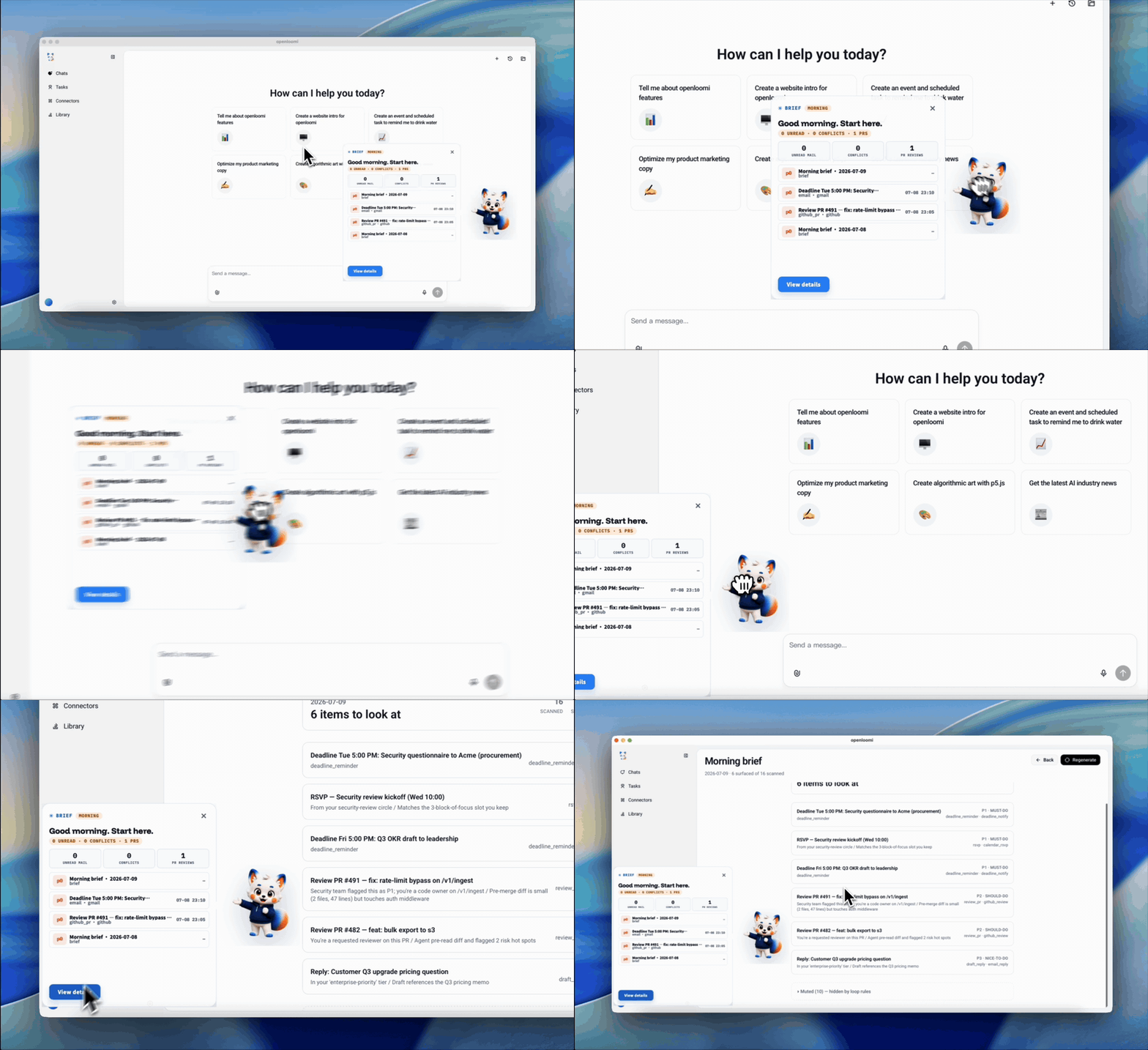
| Gesture | How | What Happens |
|---|---|---|
| Tap a bubble | Click the bubble next to Loomi | Opens the matching detail view — a Chat thread for emails, a calendar card for invites |
| Drag Loomi | Drag Loomi anywhere on screen | Loomi remembers the spot and stays there next time |
| Right-click Loomi | Right-click for the context menu | Pause reminders · Check now · Open main window · Quit |
| Double-click Loomi | Double-click | Summons the main OpenLoomi window directly |
| Reply to it | Tap a bubble → "I'll handle it" | The main window pre-fills a reply draft; you just confirm |
If you don't want to be interrupted in a moment — say, during a demo — right-click and pick Pause reminders for 1 hour. Loomi quiets down and slips on a little sleep-mask animation. You can also set recurring quiet hours (e.g. evenings, weekends) in Settings → Attention Agent.
🃏 Decision Cards You Can See
Loomi bubbles whatever Loop decides. Here's the full catalog of card types currently shipping — built-in types plus two representative custom examples — and what each one looks like when it lands in your queue. Every card arrives with the same four-button tray (Approve / Edit Draft / Later / Skip); only the type, label, and confidence differ.
Built-in card types
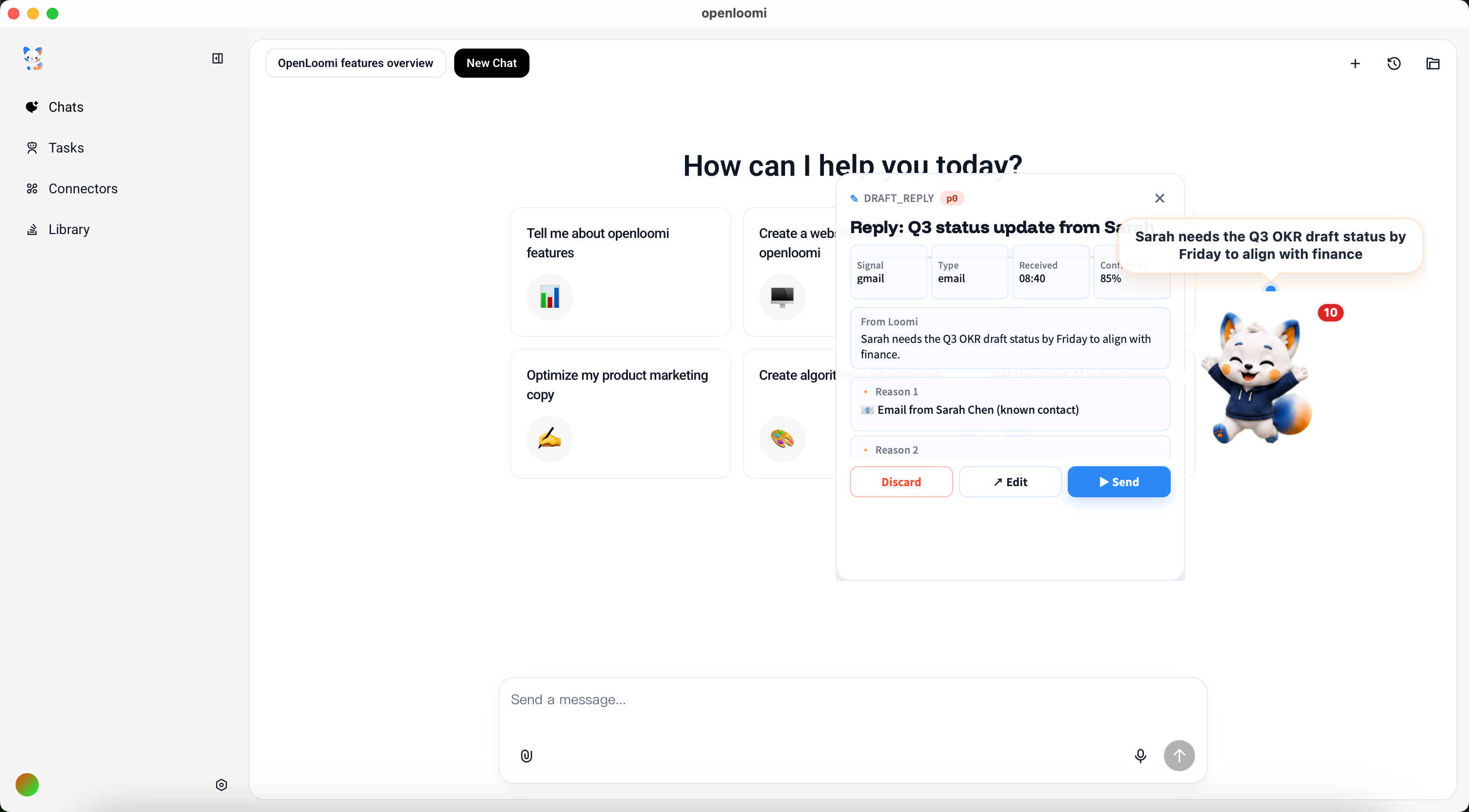
email_reply
Inbound email from someone on your important contacts list, with an action keyword in the subject or body ("RSVP", "please confirm", "reply by Friday"), past your usual reply window. Loop drafts a reply on your behalf.
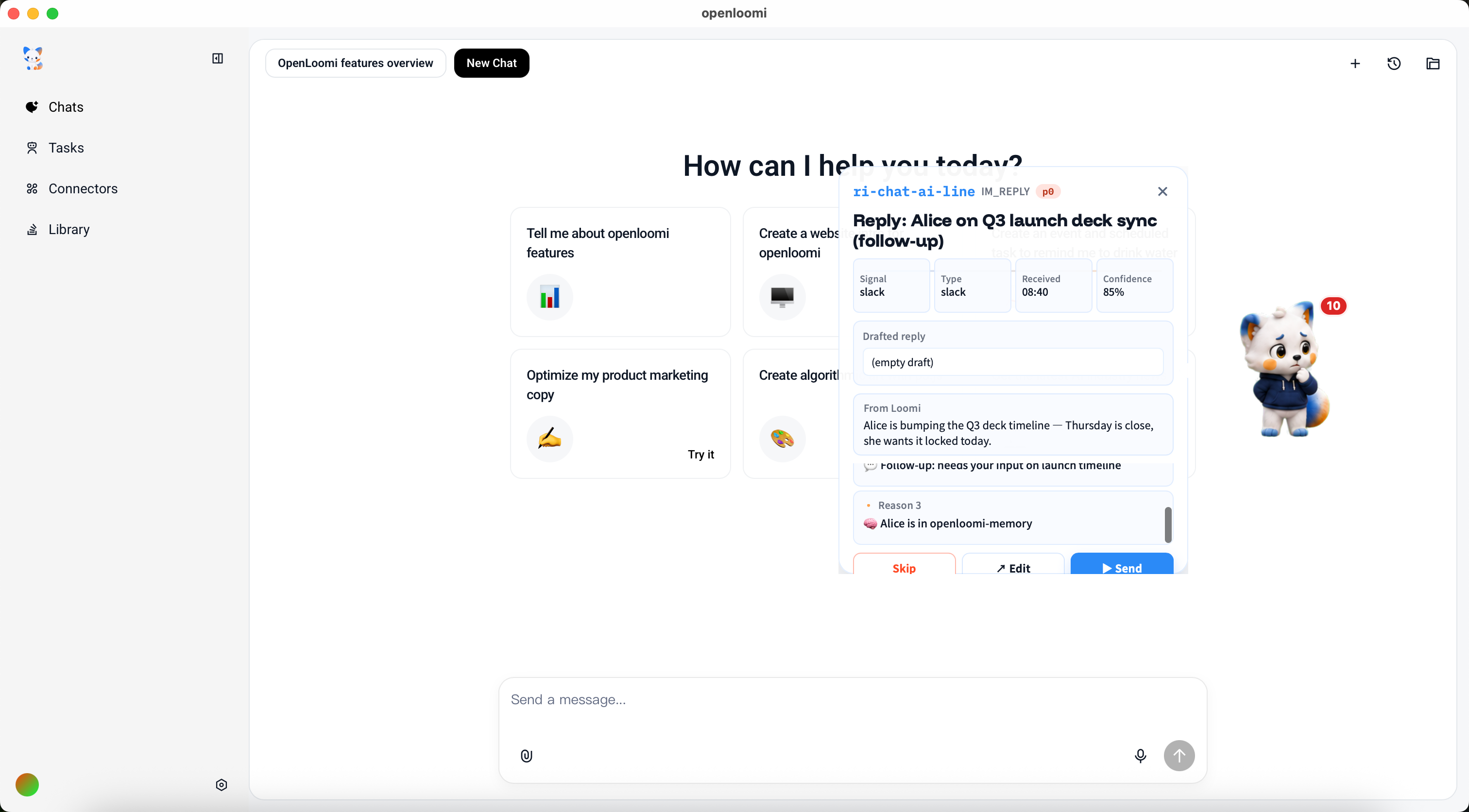
im_reply
DM from a contact inside one of your connected messaging apps (Telegram / WhatsApp / iMessage / Lark / QQ) that you haven't responded to. Loop drafts a reply that matches your tone, drawing on prior conversation history from memory.
review_pr
Open GitHub PRs where you're a reviewer and the author has pinged you. Loop summarises the diff, the linked issue, and your last open question on the thread before you click through.
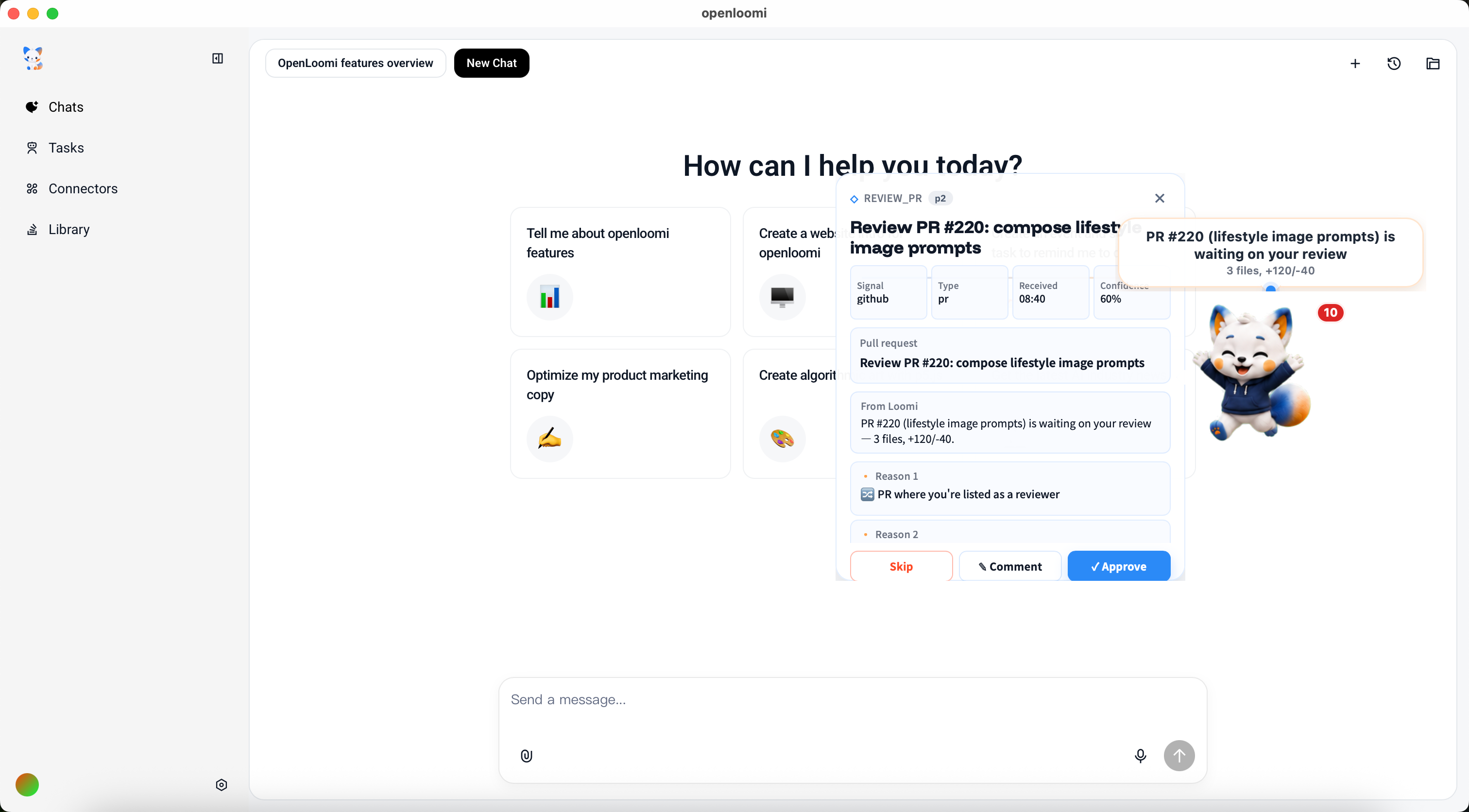
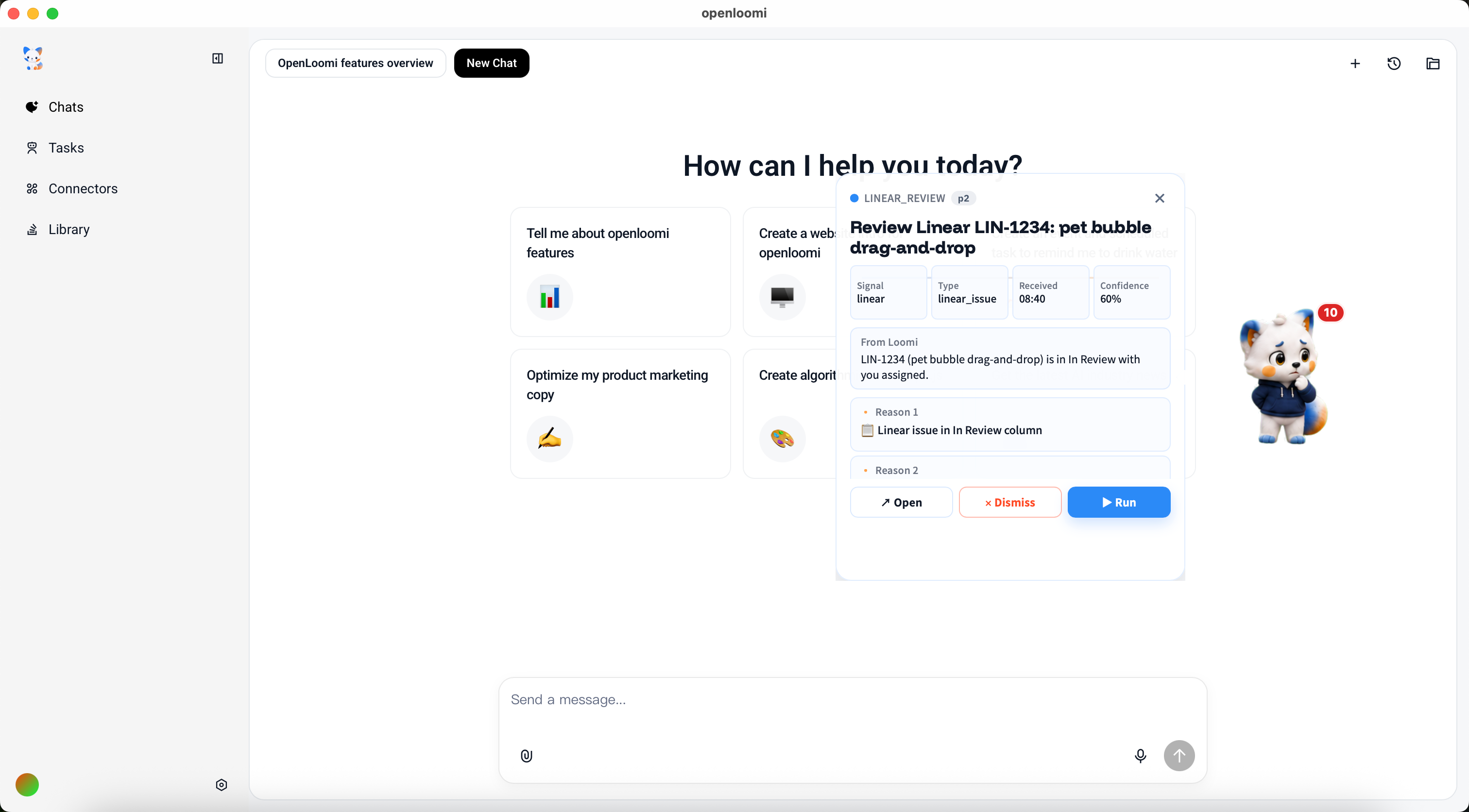
linear_review
Linear tickets where you're a reviewer, a status change was made, or @-OpenLoomi was set. Loop pulls the issue body, recent comments, and related PRs into the card preview.
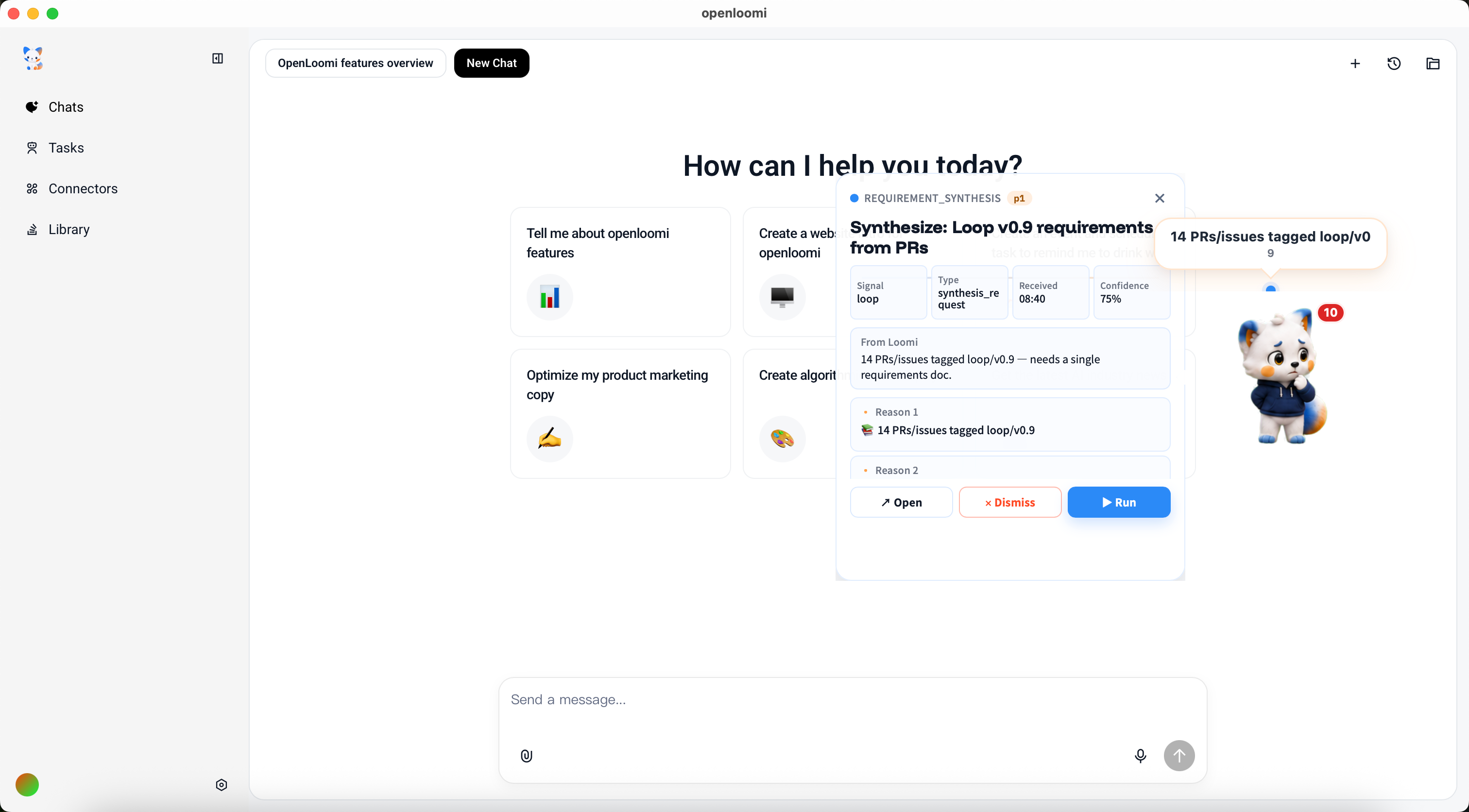
requirement_synthesis
Several tagged PRs/issues mention the same theme ("v0.9 launch", "classifier-rules UX"). Loop clusters them into one synthesis card so a single Approve produces a cross-cutting spec, roadmap delta, or migration note.
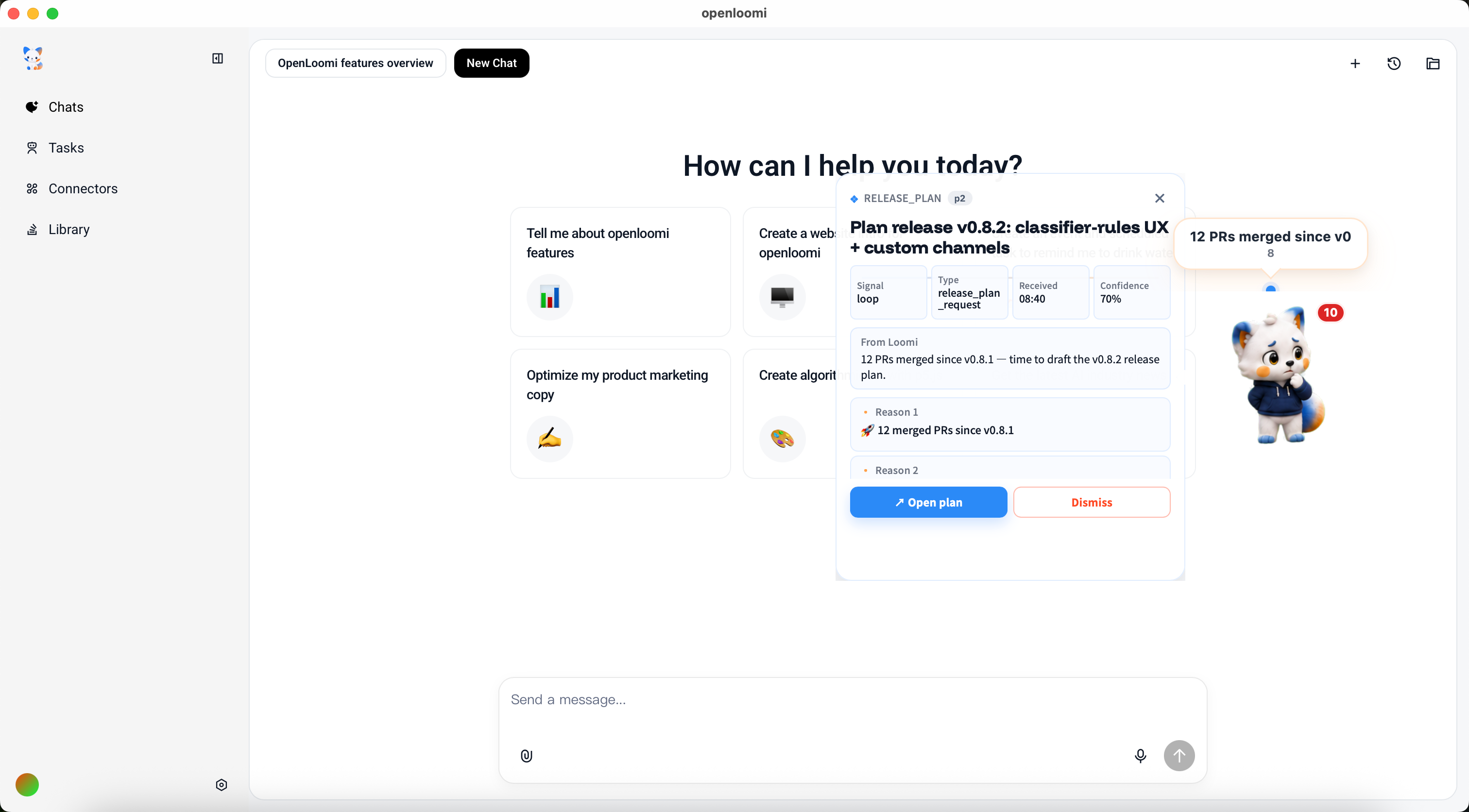
release_plan
Multiple requirements_synthesis cards converge on the same release window. Loop promotes them into a release plan card — features, breaking changes, rollout order, owners — ready to paste into your changelog or release thread.
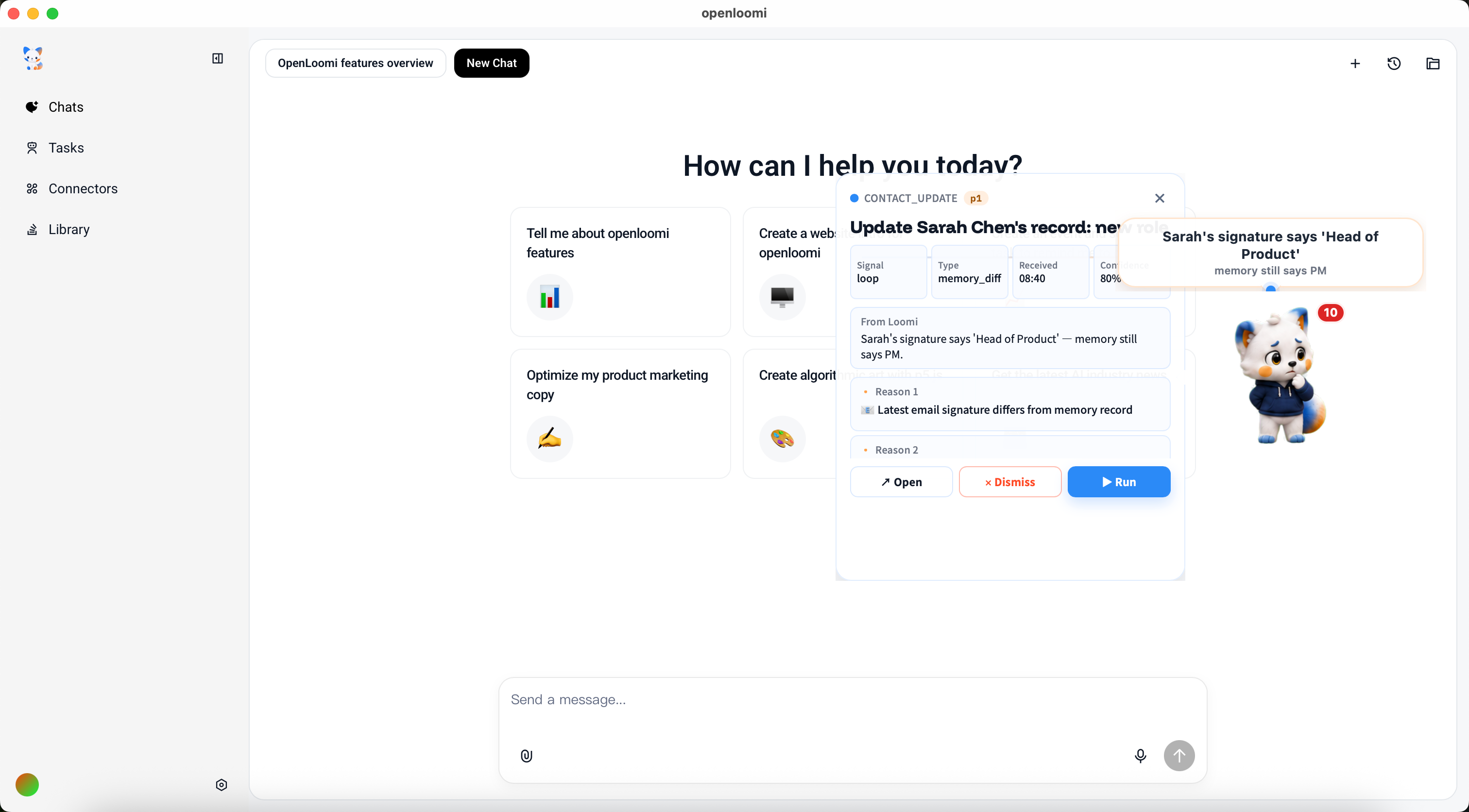
contact_update
People on your important-contacts list had a public signal — promotion, new role, link in bio, publication. Loop matches it to the existing people/<name>.md memory file and proposes a contact-card update.
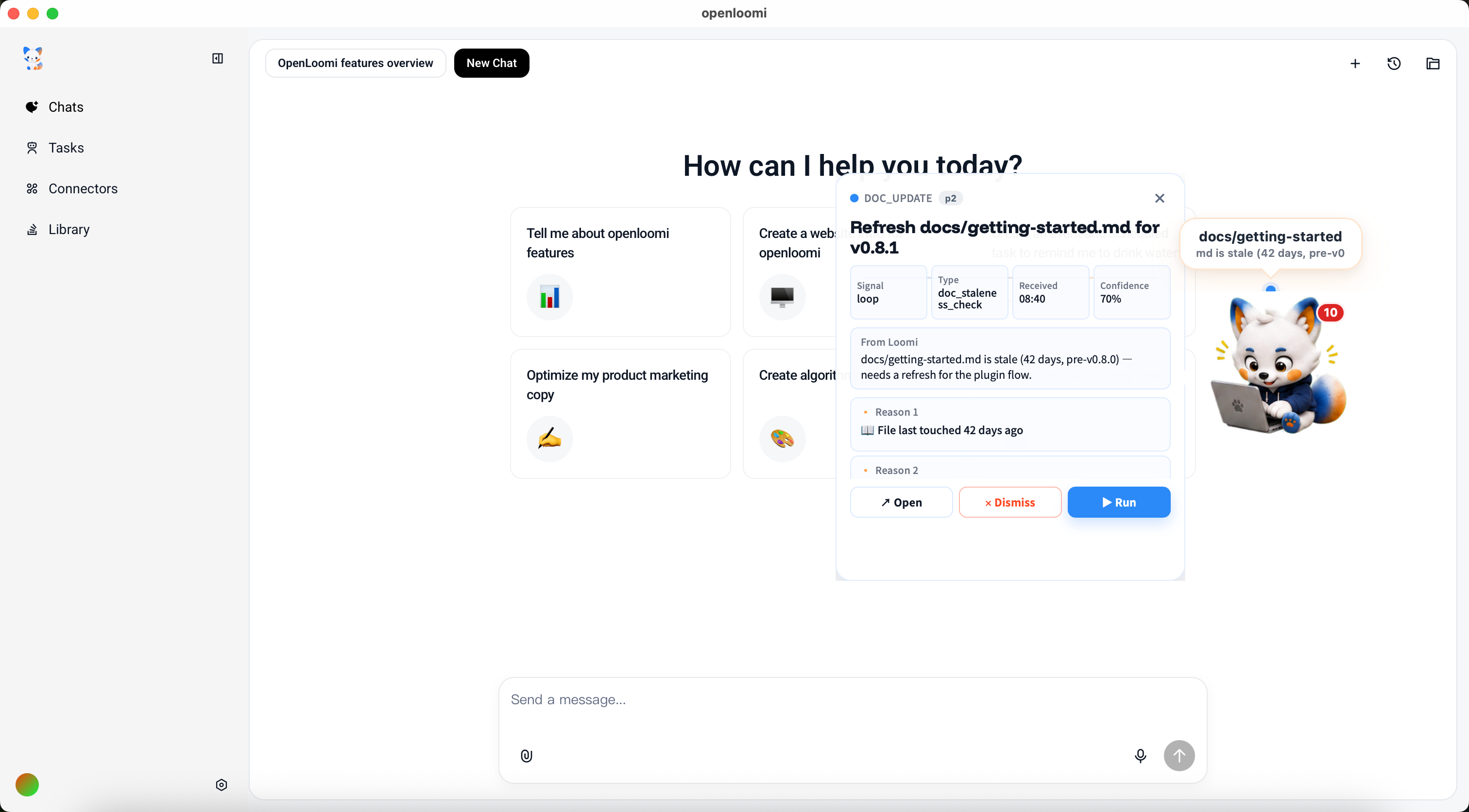
doc_update
A memory-tracked document (a wiki page, a project Notion page, a runbook in your vault) hasn't been touched in N days and now has new context to add. Loop proposes the doc edit so stale docs can't drift.
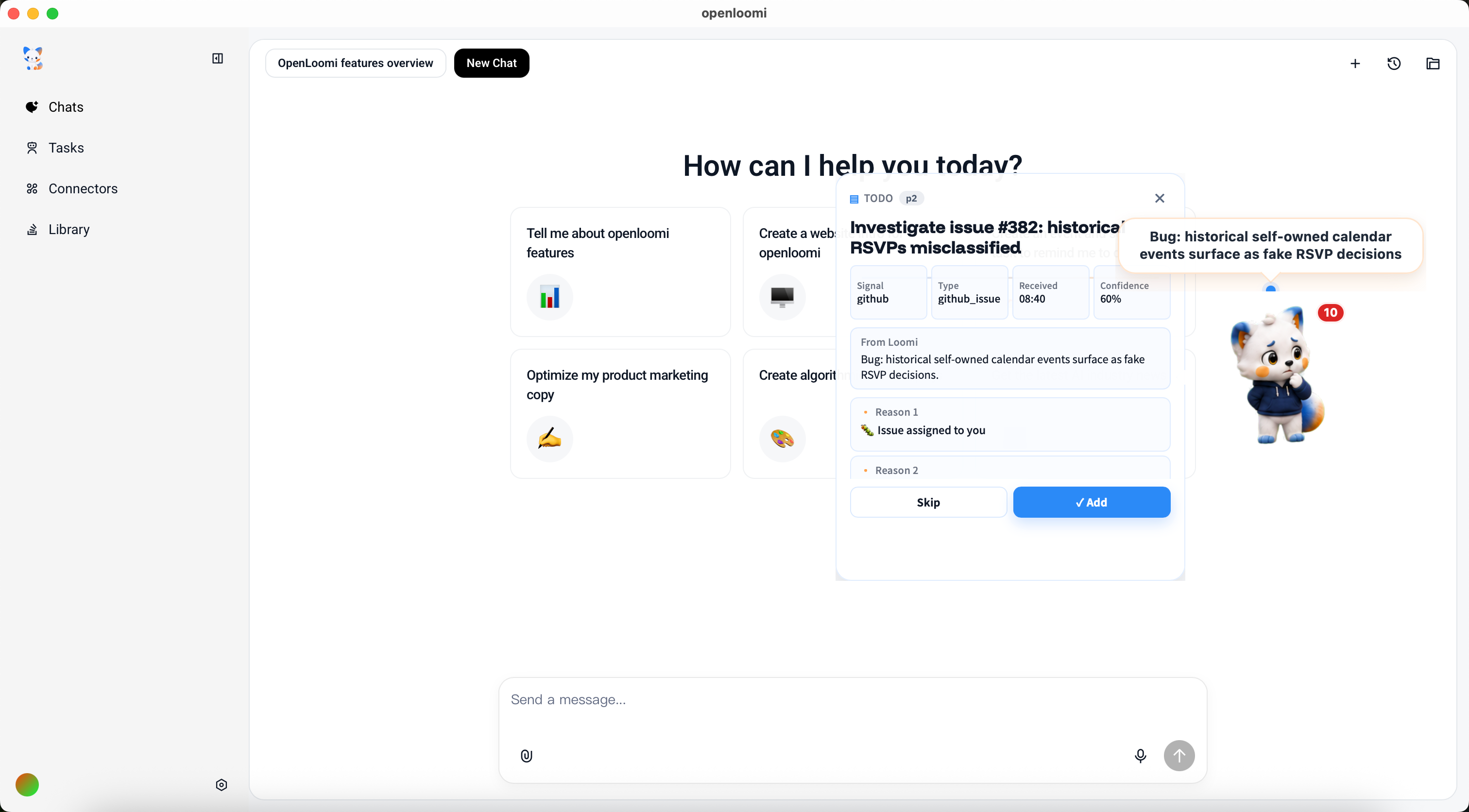
todo
Anything that doesn't fit the typed actions above — a voice memo, a screenshot, a bookmarked article — is bucketed into a todo. Loop writes the card so you can act later; the source is preserved in the payload for one-tap retrieval.
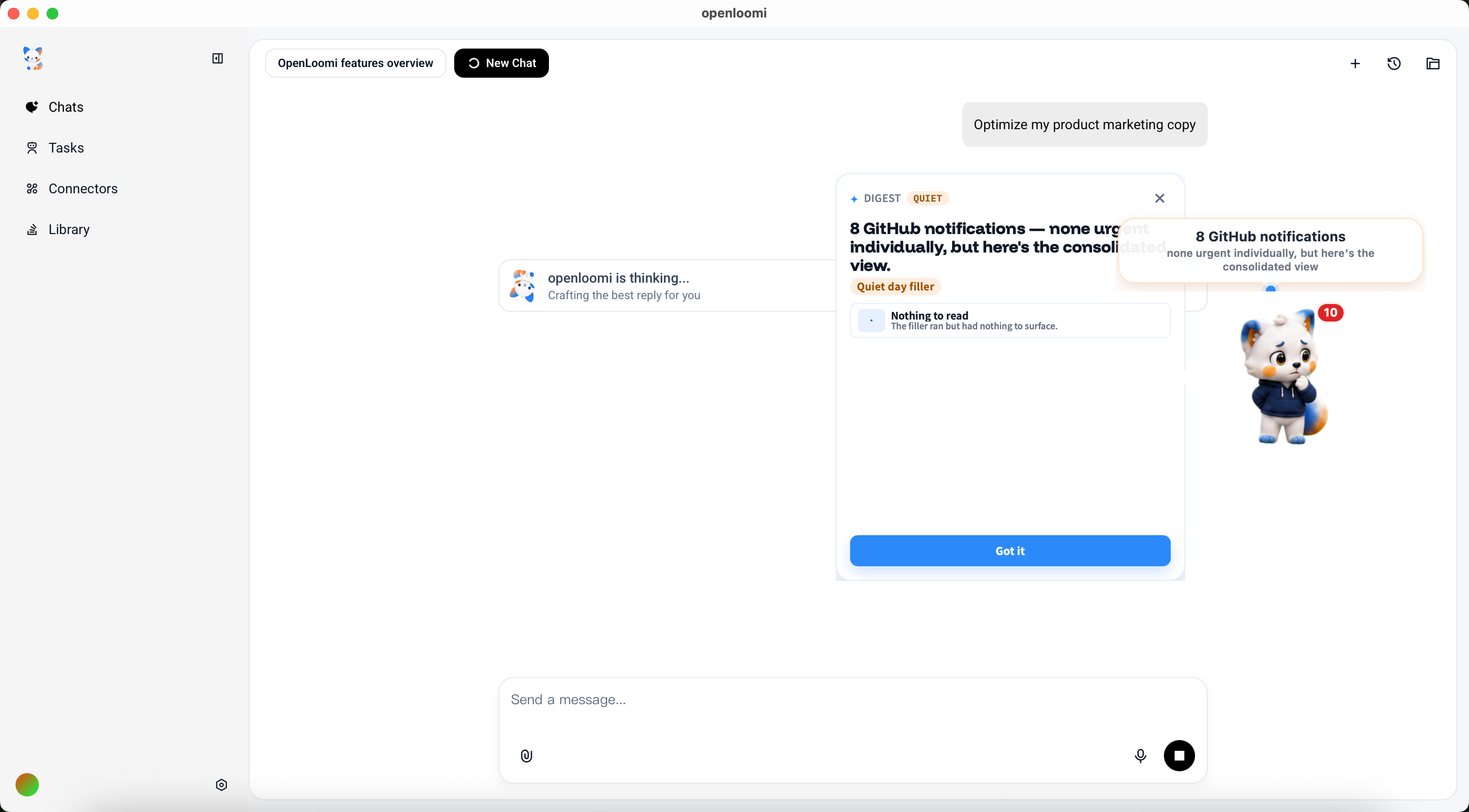
digest (QUIET)
A noise-only day — 6 GitHub notifications, 3 low-priority Slack threads — would normally surface as 9 separate cards. Loop instead rolls them into a single digest card. It counts toward nothing, flags as QUIET, and never turns red.
Custom card types (representative examples)
These are the two custom types our own team uses day-to-day — both registered through the same openloomi-loop skill without writing any new code. The full extension walkthrough lives in the next section.
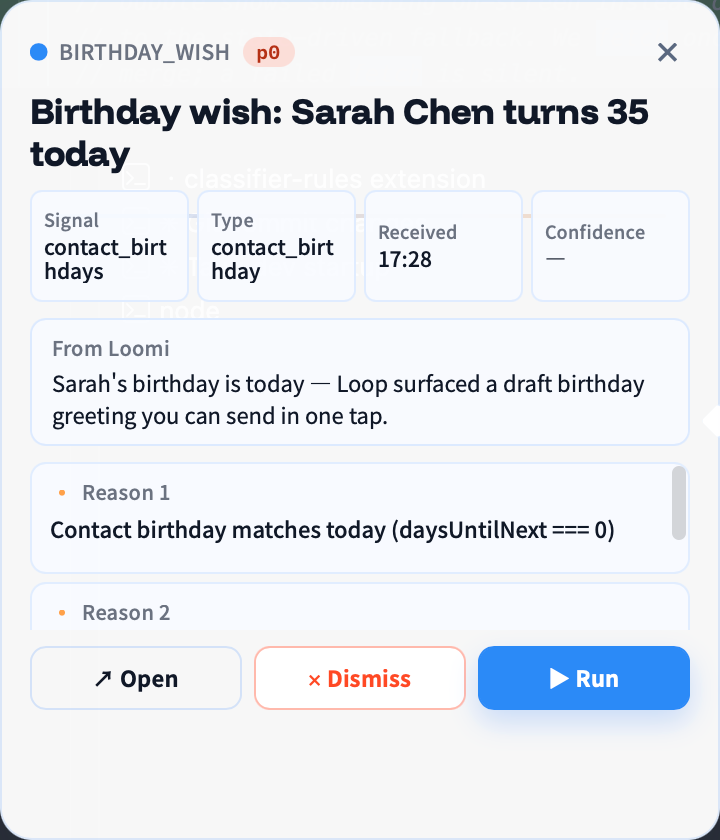
birthday_wish
Pulled from the memory people/<name>.md files — the date-of-birth field. Pinned to fire 0 days out via a classifier rule (signal.type eq "contact_birthday" and signal.payload.daysUntilNext eq 0). Loomi bubbles the card before 9 AM so you don't miss it.
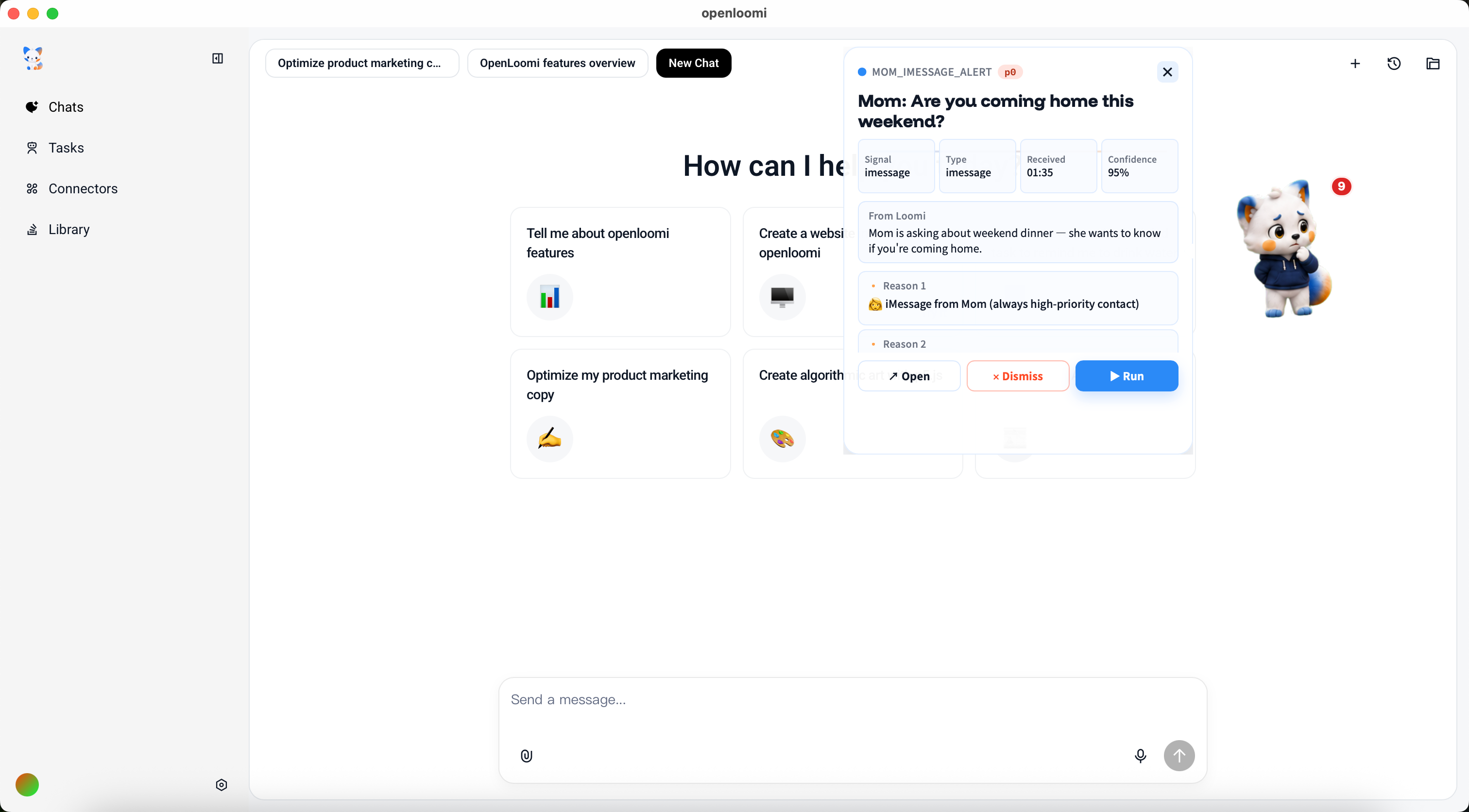
mom_imessage_alert
A custom type wired to incoming iMessage from a specific contact (your mom's number). High priority, no dry-run — the rule sets confidence ≥ 0.95 and the card lands with the red ⚠ OUTBOUND label before anything else in the queue.
💡 Every card goes through the same four-gesture flow — Approve / Edit Draft / Later / Skip. What changes between cards is the badge, the label, the action kind, and the suggested next step. To add your own types, jump to Custom Decision Types & Signal Sources below.
Custom Decision Types & Signal Sources
Loomi is the messenger for Loop, so anything Loop can decide, Loomi can surface — including the custom decision types and custom signal channels you register yourself. If you don't know what those are yet, read the Extending Loop section first; the short version is that you can teach Loop new kinds of cards (e.g. a birthday_wish type for birthday greetings) and new sources of signals (e.g. Stripe charges) without writing any code.
How a custom type becomes a bubble
When you register a custom decision type, three things change at the next tick:
- The classifier sees it. Loop's prompt now lists your custom ids (e.g.
birthday_wish) alongside the built-ins, with theactionKindeach one maps to. The agent can therefore pick them the same way it picksemail_replyorim_reply. - The card UI renders it. Decision cards in the main OpenLoomi window, in the pet card, and in the bubble that Loomi shows use the
labelandiconyou provided — so abirthday_wishcard arrives withri-cake-2-lineand the text "Birthday wish" instead of falling back to a generic icon. - The bubble tone adapts. When Loomi shows a one-liner summary for that card, it pulls from your custom
labelrather than a hard-coded string. The same applies to the chip Loomi tints on the card list.
So once the type is registered, there's nothing else to configure for Loomi — it picks up the extension the same way the rest of Loop does.
How a custom channel feeds Loomi
Registering a custom channel adds a new source of signals on top of the five built-ins (Email / Calendar / GitHub / Slack / Linear). The signal flow is unchanged — the watcher pulls, the classifier judges, the queue holds the cards, Loomi surfaces them — but the source list is now yours to extend.
Concretely, the next tick will:
- Throttle-poll the channel on its own
pollIntervalSec(default 600 s, minimum 60 s) using Composio under the hood. - Stamp every record with the channel's
signalType(e.g.stripe_charge) so the classifier and the audit log know which source produced it. - Inject a "User-defined channels" block into the tick prompt describing the
payloadShape— so the agent knows whatstripe_chargerecords look like and can prioritise them correctly.
From Loomi's perspective, a stripe_charge decision card and a email_reply decision card are the same kind of thing — both become a bubble with the same gestures, the same Approve / Edit Draft / Later / Skip actions, and the same audit-trail treatment.
💡 Loomi stays out of the extension API. The
openloomi-loopskill talks to Loop's local JSON registries (~/.openloomi/loop/custom-types.jsonandcustom-channels.json); Loomi just observes. You never need to teach the pet anything — it inherits.
How classifier rules pin what Loomi surfaces
Beyond teaching Loop new kinds of cards and new sources of signals, you can also pin the routing for specific signal patterns — so the LLM can't drift and accidentally surface a generic email_reply card when you really wanted a birthday_wish card. That's what classifier rules do. A rule is a tiny safe AST of field predicates (signal.type eq "contact_birthday" and signal.payload.daysUntilNext eq 0, for example) plus a then block that forces type / actionKind / a confidence floor.
Because the rule is enforced twice (in the prompt the agent sees and in a server-side post-processor that rewrites the persisted decision), Loomi ends up bubbling the card you actually wanted. A typical example:
| Without a rule | With a rule |
|---|---|
Same-day birthday signal → LLM classifies as email_reply (generic) → Loomi shows an email-reply card | Same signal → rule pins type=birthday_wish, actionKind=email_reply, confidence ≥ 0.9 → Loomi shows a 🎂 Birthday wish card with your custom icon |
A rule with then.type = "noop" does the opposite — it suppresses the decision entirely so the bubble never appears for that pattern. Rules live in ~/.openloomi/loop/classifier-rules.json, are registered via the same openloomi-loop skill (or the PUT /api/loop/classifier-rules HTTP endpoint), and apply on the very next tick — no rebuild needed. There's also a POST /api/loop/classifier-rules/dry-run endpoint that previews which rules would fire on a given signal, so you can iterate on the AST before going live.
How to Find It
The Attention Agent is on by default. After installing the OpenLoomi desktop app:
- First launch — Loomi walks out from the bottom-right corner and introduces itself.
- Can't find it? — Click the OpenLoomi icon in the system tray (Windows / Linux) or menu bar (macOS), then pick Show Attention Agent.
- Want to turn it off? — Right-click Loomi → Quit, or open the main OpenLoomi window → Settings → Attention Agent.
💡 Loomi is transparent by default — it doesn't get in the way of your work. If you'd like it more visible, the settings panel lets you add a faint background, adjust the scale (default 168×168), or pin it above full-screen apps.
Tips
- Let Loomi sit on a second monitor. If you use a primary display for focus work, dragging Loomi to your secondary screen gives you reminders without breaking your flow.
- Tune the quiet hours. Schedule pause windows around deep-work blocks, recurring meetings, or after-hours — so Loomi only nudges you when you're actually available to act.
- Pair it with Loop. Loomi alone is a polite messenger; pair it with Loop and you get the full proactive desk — Loop decides what matters, Loomi makes sure you actually see it.
- Trust the memory layer. Loomi's "important contacts" list comes from OpenLoomi Memory. The more you use OpenLoomi, the smarter the filter gets — give it a week before you tune anything.
FAQ
Does Loomi watch everything I do?
No. Loomi only reads signals tied to you from the platforms you've explicitly connected (email, calendar, chat). It does not read your screen, keyboard, or clipboard. See Privacy & Security for the full breakdown of what the Attention Agent does and doesn't see.
Can I have it remind me of only certain things?
Yes. In the main OpenLoomi window → Settings → Attention Agent, you can toggle each reminder source independently:
- Email reminders (the ones that need a reply)
- Calendar reminders (overdue RSVP)
- Today's to-do (every day at 9 AM)
- Today's done (every day at 6 PM)
Each can have its own schedule or be turned off entirely.
Does it eat up resources?
The Attention Agent is lightweight — just a 168×168 transparent window, no continuous network calls. All the heavy lifting ("scan email / calendar") runs in OpenLoomi's background; Loomi's only job is to surface the result at the right moment.
Can I use it across multiple screens?
Yes. Loomi defaults to the bottom-right of your primary monitor, but wherever you drag it — which monitor, which corner — it remembers.
Can I switch the pet's look?
Yes. Loomi ships with two built-in themes (fox and capybara) and a fully file-driven customization layer:
-
Switch theme — right-click Loomi →
Theme → Capybara(orFox). -
Custom themes — drop a folder at
~/.openloomi/pet-custom/<name>/with PNGs namedidle.png,thinking.png,presenting.png, etc. Loomi auto-discovers them and they appear in the theme picker.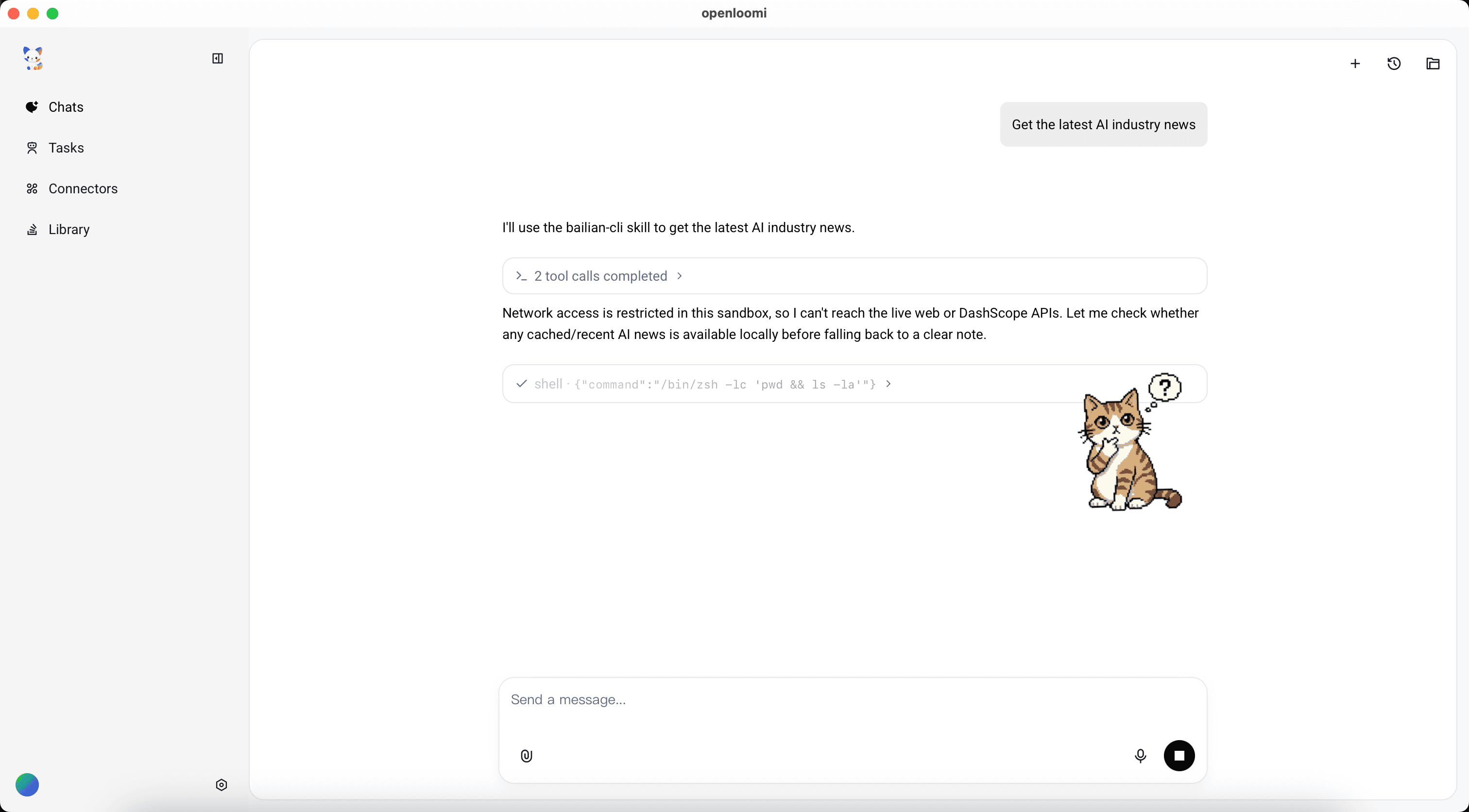
The kawaii theme above was registered by dropping three PNGs (
idle.png,thinking.png,presenting.png) at~/.openloomi/pet-custom/kawaii/. Both the sidebar avatar and the chat-sidethinkingsprite repainted in under 250 ms with no app restart — that's the config watcher doing its job. -
Per-state overrides — edit
~/.openloomi/pet-config.jsonto point individual states at any PNG on disk:{ "version": 1, "activeTheme": "capybara", "customThemesDir": "~/.openloomi/pet-custom", "overrides": { "fox": { "idle": "/Users/me/Pictures/my-fox-idle.png" } } } -
External edits auto-apply — the config watcher listens for changes and re-paints within ~250 ms; no app restart needed.
-
presentingstate — when a decision moves todoneand you haven't reviewed it yet, Loomi shows thepresentingsprite + bubble ("All wrapped up — ready when you are"). Click the bubble to flip back tohappy.
Can the right-click menu start agentic tasks?
Yes. Loomi's right-click menu can show local prompt action shortcuts from ~/.openloomi/pet-actions.json. Each shortcut is a named task prompt that routes into the normal Loomi agent runtime.
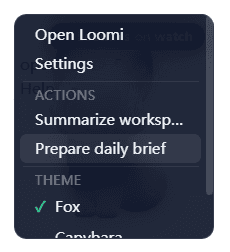
The flow is:
- Define one or more enabled prompt actions in
~/.openloomi/pet-actions.json. - Right-click Loomi and choose the named shortcut from the Actions section.
- The widget emits only the selected action id.
- Rust re-reads the local config, resolves the matching prompt, frames it as an agent task, and sends it into chat.
- The normal Loomi agent runtime decides which available tools, skills, connectors, or local helpers to use.
- Privacy-sensitive or destructive actions should still require confirmation inside the agent workflow.
The widget only receives id and label; the prompt body stays host-side until Rust resolves the selected actionId.
Local prompt actions are configured in ~/.openloomi/pet-actions.json:
{
  "version": 1,
  "enabled": true,
  "actions": [
    {
      "id": "daily-brief",
      "label": "Prepare daily brief",
      "prompt": "Prepare a concise daily brief from my available OpenLoomi context. Include open priorities, recent updates, and anything that needs my attention. Ask before contacting external services or changing data.",
      "enabled": true
    },
    {
      "id": "workspace-summary",
      "label": "Summarize workspace",
      "prompt": "Summarize the current workspace or active project context. Identify the main goal, recent changes, blockers, and the next safe steps. Do not modify files unless I explicitly confirm.",
      "enabled": true
    }
  ]
}
The supported schema is intentionally small: top-level version and enabled, plus up to 8 valid actions[] entries with id, label, prompt, and optional enabled. Invalid ids, empty labels, empty prompts, duplicates, disabled actions, and target-only entries are ignored. Missing, empty, malformed, disabled, or unsupported configs render no prompt shortcuts; the Pet falls back to the base menu: Open Loomi / Settings / Theme / Quit.
If a shortcut needs real external capability, expose it to the agent through an appropriate tool surface such as a skill, connector, MCP server, CLI, OpenLoomi API route, or trusted loopback helper. The right-click menu itself does not execute shell commands and does not directly call remote services. Fields like target, url, method, or command strings are not executable action definitions for this menu.
What's the difference between the Attention Agent and Loop?
- The Attention Agent is the little pet on your desktop, gently reminding you in your line of sight.
- Loop is the proactive execution engine in the background, picking up scattered signals and turning into decision cards waiting for your approval.
The two work as a pair: the "Today's To-Do" and "Today's Done" that Loomi pushes are essentially Loop's output, surfaced to your eyes by the Attention Agent. To see how that pipeline actually works, read Loop next.
Do custom Loop types & channels show up in the bubbles?
Yes. When you register a custom decision type or a custom channel (e.g. a birthday_wish type or a Stripe charges source), Loomi picks them up on the very next tick — same bubble, same Approve / Edit Draft / Later / Skip actions, but with your custom label and icon rendered on the card and in the bubble summary. See the Custom Decision Types & Signal Sources section above for the full flow.
Can I force specific signal patterns to always become a specific card?
Yes — register a classifier rule and Loop will pin the routing for that pattern. The card Loomi bubbles is then deterministic, regardless of how the underlying LLM interprets the signal. Rules support a noop action too, which suppresses the decision so the bubble never appears for that pattern. See the How classifier rules pin what Loomi surfaces section above for the example and the safe-AST predicate syntax.
Related
- Loop — the judgement engine that produces Decision Cards
- Memory — supplies the important-contacts filter and project context
- Connectors — which platforms feed the Attention Agent
- Chat — where bubbles deep-link into a full thread
- Plugins — drive Loomi from Claude Code or Codex CLI
- Privacy & Security — what the Attention Agent does and doesn't see
- Glossary — clear up the Attention Agent vs Loomi vs Pet vs Fox naming