Getting Started
This page walks you through your first 10 minutes with OpenLoomi — picking the install path that matches how you work, installing the binary, configuring an AI provider, and confirming a successful first run.
Goal
By the end of this page you should have:
- OpenLoomi running on your machine (or wired into your existing agent shell).
- An AI provider configured so OpenLoomi can answer prompts.
- A clear "first success" — a connector, a memory write, or a Loop tick — depending on your path.
Choose a path
| If you are… | First step | Next step |
|---|---|---|
| A new desktop app user | Download the installer for your OS | Finish permissions and AI configuration, then run a Loop tick |
| A Claude Code developer | Install the Claude Code plugin | Run /openloomi:setup and confirm the readiness table is READY |
| A Codex CLI developer | Install the Codex plugin | Run @OpenLoomi Run first-use setup. and verify the status block |
| A skill-only agent runtime user | Install the OpenLoomi skill pack | Run the agent-native setup skill (e.g. /openloomi:setup) and confirm the readiness table is READY |
| Wiring a runtime / API integration | Pick a runtime in Agent Runtimes | Configure the matching OPENLOOMI_AGENT_* environment variables |
Before you begin
- macOS 13+, Windows 10 (64-bit), or Ubuntu/Debian 20.04+ on x86_64 / ARM64.
- 4 GB of RAM and ~500 MB of free disk space.
- An internet connection for sync and messaging features.
- An API key or local CLI auth for at least one supported AI provider — see AI Configuration.
System Requirements
| OS | Minimum Version | Processor | RAM | Disk Space |
|---|---|---|---|---|
| macOS | macOS 13+ | Apple Silicon (M1/M2/M3/M4) or Intel | 4 GB | 500 MB |
| Windows | Windows 10 (64-bit) or later | x86_64 / AMD64 | 4 GB | 500 MB |
| Linux | Ubuntu 20.04 / Debian 11 or later, or equivalent | x86_64 or ARM64 | 4 GB | 500 MB |
Network: Internet connection required for sync and messaging features.
Linux only: GTK and libnotify libraries are required (usually pre-installed on desktop Ubuntu/Debian systems).
Download
macOS
| Option | Notes |
|---|---|
| Download .dmg installer (Apple Silicon) | Recommended for M1/M2/M3/M4 Macs — double-click to install |
| Download .dmg installer (Intel) | For Intel Macs |
| Homebrew | For developers — see command below |
# If you have a manual installation, remove it first:
# rm -rf /Applications/openloomi.app

# Install via Homebrew
brew tap melandlabs/openloomi https://github.com/melandlabs/openloomi
brew install --cask openloomi

# Upgrade
brew upgrade --cask openloomi

# If install or upgrade fails with "App source is not there", clear cache and reinstall:
# rm -rf ~/Library/Caches/Homebrew/openloomi
# brew uninstall --cask openloomi
# brew install --cask openloomi
Linux (Ubuntu/Debian)
| Option | Notes |
|---|---|
| Download .deb package (x86_64) | For x86_64 / AMD64 systems |
| Download .deb package (ARM64) | For ARM64 systems (e.g., Raspberry Pi, ARM servers) |
sudo dpkg -i openloomi_0.9.0_linux_amd64.deb
sudo apt-get install -f

# Fix resource path (required for v0.9.0 and earlier)
sudo ln -sf /usr/lib/openloomi/_up_ /usr/bin/_up_

# Start the application
openloomi
The symlink above is needed because of a known packaging issue where the
binary looks for resources in /usr/bin/_up_ instead of
/usr/lib/openloomi/_up_. This will be fixed in a future release.
Linux (Fedora/RHEL)
| Option | Notes |
|---|---|
| Download .rpm package | For Fedora, RHEL, and derivatives |
sudo dnf install ./openloomi_<version>_x86_64.rpm
# For ARM64 systems, use openloomi_<version>_aarch64.rpm

# Start the application
openloomi
Windows
| Option | Notes |
|---|---|
| Download .exe installer | Recommended — run the installer to set up OpenLoomi |
| Winget | Coming Soon |
Windows SmartScreen: If Windows shows a warning when running the installer, click "More info" then "Run anyway". This is normal — OpenLoomi is open-source and the code is publicly verifiable. You only need to do this once per machine.
"Unable to Find Entry Point" / GetSystemTimePreciseAsFileTime error: If you see an error about GetSystemTimePreciseAsFileTime not being found in kernel32.dll, your Windows version is too old. OpenLoomi requires Windows 10 (build 1607 or later) or Windows 11. Windows XP, Vista, 7, and 8/8.1 are not supported. To check your version, press Win + R, type winver, and press Enter — or go to Settings > System > About.
Use as a Plugin (For Claude Code / Codex Users)
Don't want to install the desktop app? OpenLoomi also ships as official marketplace plugins that turn your existing agent (Claude Code or Codex CLI) into a front-end for the local OpenLoomi runtime.
| Agent | Install | First-run setup |
|---|---|---|
| Claude Code | /plugin marketplace add melandlabs/plugins/plugin install openloomi | /openloomi:setup |
| Codex CLI | codex plugin marketplace add melandlabs/pluginscodex plugin add openloomi@openloomi | @OpenLoomi Run first-use setup. |
For full documentation, see the plugin docs:
Use as a Skills.sh Skill Pack
For agent runtimes that only consume the skills.sh skill protocol, install the OpenLoomi skill set directly from this repository:
npx skills add https://github.com/melandlabs/openloomi/tree/main/skills \
  --skill openloomi openloomi-setup openloomi-memory openloomi-connectors openloomi-loop openloomi-goals openloomi-api openloomi-feature-guide composio \
  -y
Start with the openloomi or openloomi-setup skill. The first setup pass checks whether OpenLoomi Desktop is installed, whether the local API is reachable, and whether a local session token is available. If OpenLoomi Desktop is missing, the skill points you to the official Downloads section above before continuing.
Permissions
When you first launch OpenLoomi, the system will ask for a few permissions. Each one has a specific purpose — and you can decline any of them. OpenLoomi will continue to work; you'll just lose the feature that requires that permission.
macOS
| Permission | What it lets OpenLoomi do | Can I decline? |
|---|---|---|
| Full Disk Access | Read your iMessage history from the local database so OpenLoomi can surface important conversations in your Event feed | Yes — iMessage sync will be skipped |
| Automation | Send iMessages on your behalf when you ask OpenLoomi to reply or notify someone | Yes — you'll receive drafts instead of automatic sends |
| Notifications | Push alerts when important events are detected (urgent emails, mentions, deadlines) | Yes — check the app manually instead |
How to grant or revoke:
- Open System Settings → Privacy & Security
- Find the permission category (e.g., Full Disk Access, Automation, Notifications)
- Toggle OpenLoomi on or off
You can revisit these settings at any time.
Windows
| Permission | What it lets OpenLoomi do | Can I decline? |
|---|---|---|
| Notifications | Push alerts when important events are detected (urgent emails, mentions, deadlines) | Yes — check the app manually instead |
Windows SmartScreen may also show a one-time warning when running the installer. Click "More info" then "Run anyway" — this is normal for open-source software. You only need to do this once per machine.
Linux
No special permissions are required on Linux. OpenLoomi uses the standard desktop notification system (libnotify) to send alerts if you have granted notification permissions to other apps, OpenLoomi will automatically use them too.
AI Configuration
When you start OpenLoomi for the first time, the desktop app walks you through picking an AI runtime and completing the conversation API setup.
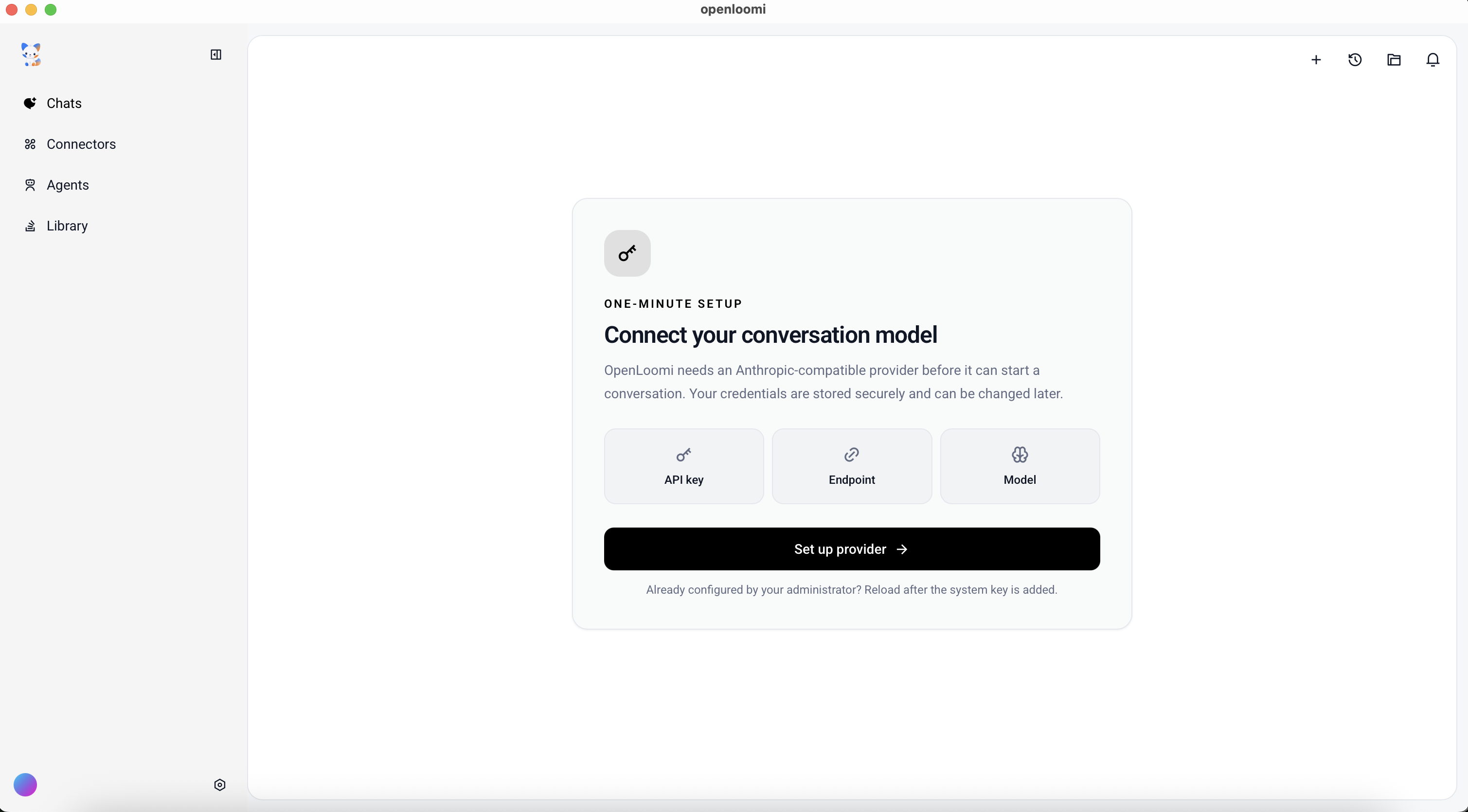
The onboarding screen — pick your AI agent and complete sign-in in a few clicks.
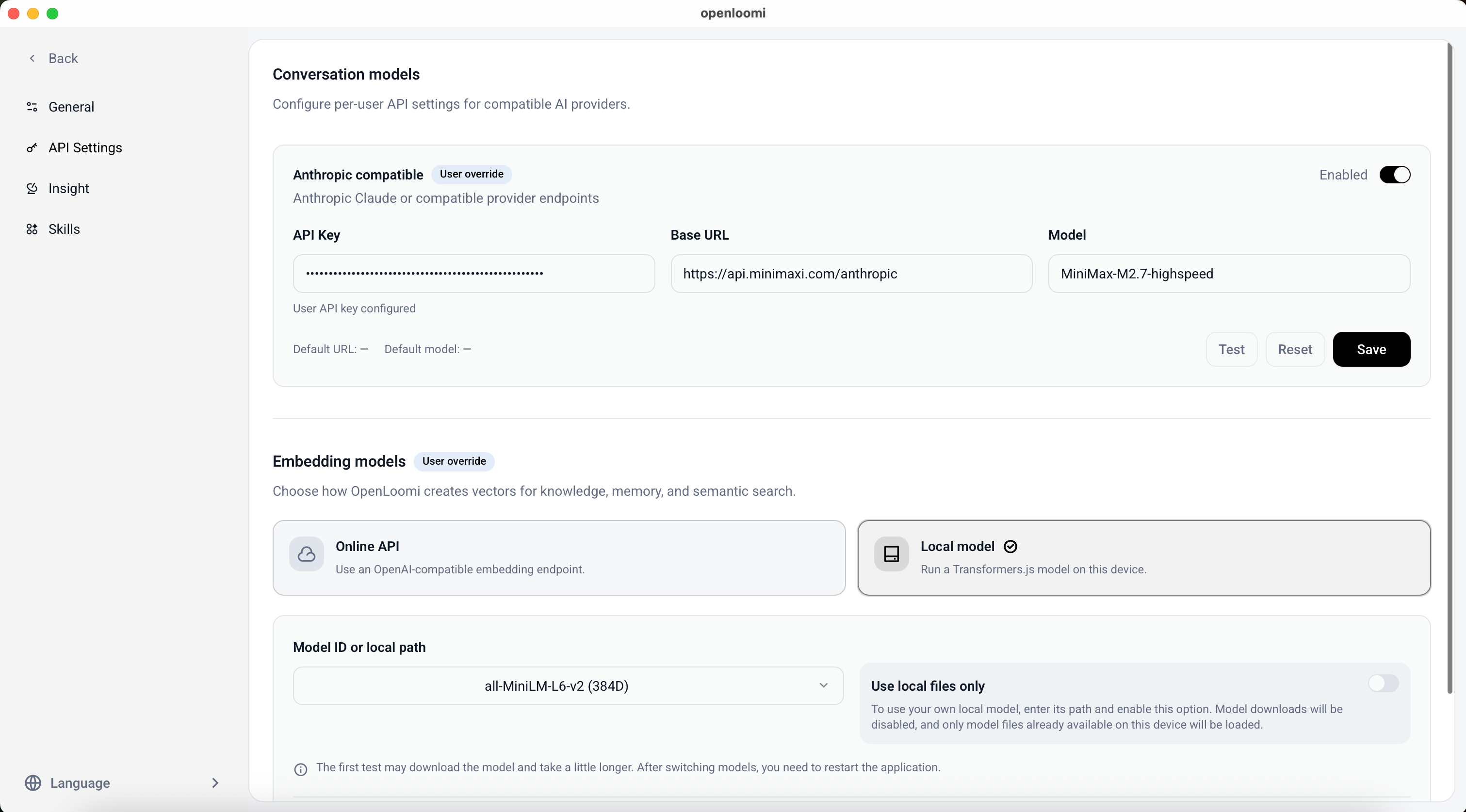
The API Settings panel — enter your provider's base URL, credential, and model name. OpenLoomi passes that per-user configuration to the selected runtime.
For the desktop app, complete runtime and model setup in Settings → Agent runtime and Settings → Conversation models. You do not need to edit Claude configuration files manually.
Default: Claude
OpenLoomi Desktop includes the Claude Agent SDK runtime, so users do not install a separate Claude CLI. Authenticate it with a complete Anthropic-compatible configuration saved in OpenLoomi, or reuse supported Claude authentication already available to the same OS account. For server deployments and shared installations, prefer an API configuration over a personal Claude login.
Supported Agents
| Agent | Status | Notes |
|---|---|---|
| Claude | ✅ Supported | Default built-in runtime |
| Codex | ✅ Supported | Secondary option using local codex exec --json |
| OpenCode | ✅ Supported | Local opencode run integration with JSON event stream |
| Hermes | ✅ Supported | Local hermes acp integration |
| OpenClaw | ✅ Supported | Gateway-backed openclaw acp bridge |
| DeepAgents | 🔜 Coming Soon | Metadata exists; a production adapter is not registered |
In the desktop app, open Settings → Agent runtime to choose Claude, Codex, OpenCode, Hermes, or OpenClaw. Claude uses the runtime bundled with OpenLoomi; the others require their local CLI. Hermes can reuse the current user's saved Anthropic-compatible OpenLoomi API setting, while the remaining CLIs use their runtime-specific authentication or setup. OpenLoomi performs bounded, read-only readiness checks before enabling a switch; it does not start a model request. The saved device preference applies to new tasks and takes precedence over OPENLOOMI_AGENT_PROVIDER; running tasks are not interrupted. Use Use environment/default to remove that override.
Server/headless deployments remain environment-controlled. Claude is used when neither a desktop preference nor OPENLOOMI_AGENT_PROVIDER is set; supported environment values are claude, codex, opencode, hermes, and openclaw.
# OpenCode
OPENLOOMI_AGENT_PROVIDER=opencode
OPENLOOMI_AGENT_OPENCODE_COMMAND=opencode
OPENLOOMI_AGENT_OPENCODE_MODEL=anthropic/claude-sonnet-4.6

# Hermes
OPENLOOMI_AGENT_PROVIDER=hermes
OPENLOOMI_AGENT_HERMES_COMMAND=hermes
OPENLOOMI_AGENT_HERMES_PROFILE=coding

# OpenClaw (configure and start its Gateway first)
OPENLOOMI_AGENT_PROVIDER=openclaw
OPENLOOMI_AGENT_OPENCLAW_COMMAND=openclaw
OPENLOOMI_AGENT_OPENCLAW_GATEWAY_URL=ws://127.0.0.1:18789
OPENLOOMI_AGENT_OPENCLAW_TOKEN_FILE=/path/to/gateway.token

# Codex
OPENLOOMI_AGENT_PROVIDER=codex
OPENLOOMI_AGENT_CODEX_COMMAND=codex
# On macOS, run/execute maps workspace-write to danger-full-access.
OPENLOOMI_AGENT_CODEX_SANDBOX=workspace-write
For Codex, OpenLoomi links to the official installer and shows the login command, but does not run either one automatically. Claude is already bundled with the desktop app. External CLI runtimes receive a restricted environment; use OPENLOOMI_AGENT_ENV_ALLOWLIST only when one needs an additional named variable. Executable paths, runtime models, profiles, Gateway targets, and approval policy cannot be overridden by chat/API request bodies.
Agent runtimes and sandboxes are separate layers: OpenCode, Hermes, OpenClaw, and Codex are registered through AgentPlugin and do not pretend to be sandbox providers. Filesystem or process isolation must still be selected and enforced independently by the host.
See the Agent Runtimes reference for detailed runtime setup and security behavior.
Configure Claude in the desktop app
In Settings → Conversation models, save the API key or gateway token, base URL, and model under Anthropic compatible. Return to Agent runtime, select Re-detect, and choose Claude when its status is Ready. Use Test connection as an endpoint check, then start a new task to confirm the complete Agent SDK path.
Security: OpenLoomi stores the saved credential as an encrypted user setting and only passes it to that user's Claude runtime request. Keep deployment environment files and any external Claude configuration private as well.
Verify
After the desktop app starts and your AI provider is configured:
- The desktop window opens and shows your Loop dashboard.
- The pet widget on the desktop reflects the
thinking→working→happycycle. - Open the chat and ask "what did I work on yesterday?" — OpenLoomi should answer from your local Memory instead of returning an empty response.
If you're on the plugin path, confirm the readiness table lands on READY and /openloomi:status returns { "ready": true }.
Troubleshooting
- App doesn't open on macOS — confirm the binary is in
/Applications(not quarantined in~/Downloads). Re-runbrew install --cask openloomito repair. - API key rejected — verify the credential, base URL, and model in Settings → Conversation models, run Test connection, then retry the task.
- Loop is silent — make sure at least one connector is enabled; otherwise there's nothing to surface.
- Plugin says
OPENLOOMI_NOT_INSTALLED— re-run/openloomi:setupor@OpenLoomi Run first-use setup.to mint a guest session.
Next steps
- Connectors — wire up Gmail, Calendar, Slack, GitHub, Linear, and 1000+ apps via Composio.
- Memory — see how OpenLoomi's tiered storage and forgetting engine work.
- Loop — understand the decision cards Loop will start surfacing.
- Plugins — if you started from the desktop, try driving OpenLoomi from Claude Code or Codex CLI.
What is OpenLoomi?
Open-source, local-first Attention Agent that runs across Claude Code, Codex, OpenCode, Hermes and OpenClaw — your agent continuously understands people, projects and decisions across tools, and writes every approved action back into context.
Connectors
Connect your messaging platforms, email, and productivity tools to OpenLoomi