Messaging Apps
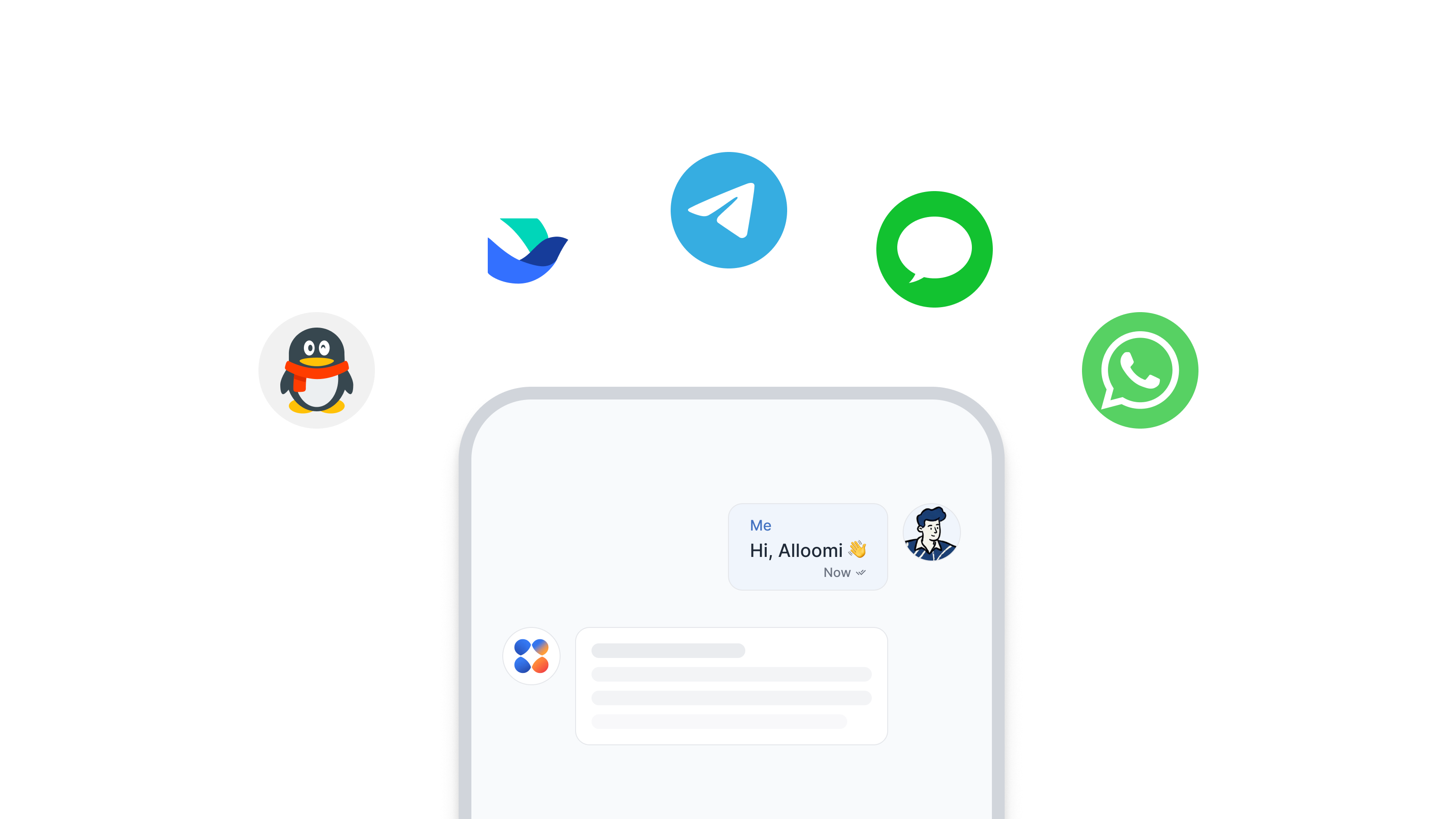
Besides using the OpenLoomi interface, you can also interact with OpenLoomi directly through your favorite messaging apps. Once connected, OpenLoomi becomes your AI assistant within those platforms.
All conversations and data are stored locally on your device. The app must remain open for the messaging-app feature.
Goal
By the end of this page you should be able to:
- Pick the messaging app that fits your workflow (bot-token vs user-account).
- Authorize OpenLoomi inside that app and confirm a round-trip reply.
- Use the same chat to set reminders, run commands, or trigger automations.
Before you begin
- OpenLoomi Desktop is installed and the local API on
127.0.0.1:3414(or:3515) is reachable. - The platform-specific authorization is ready — QR code / phone / bot token / app password depending on the platform.
- The desktop app stays open during normal use; reminders and pushes route through it.
Supported Platforms
| Platform | Status | Features |
|---|---|---|
| Telegram | 🟢 Available | Commands, chat, reminders |
| 🟢 Available | Chat, reminders, notifications | |
| iMessage | 🟢 Available | Chat, reminders, notifications |
| 🟢 Available | Chat, commands, automation | |
| Lark/Feishu | 🟢 Available | Enterprise workflow, commands |
Telegram
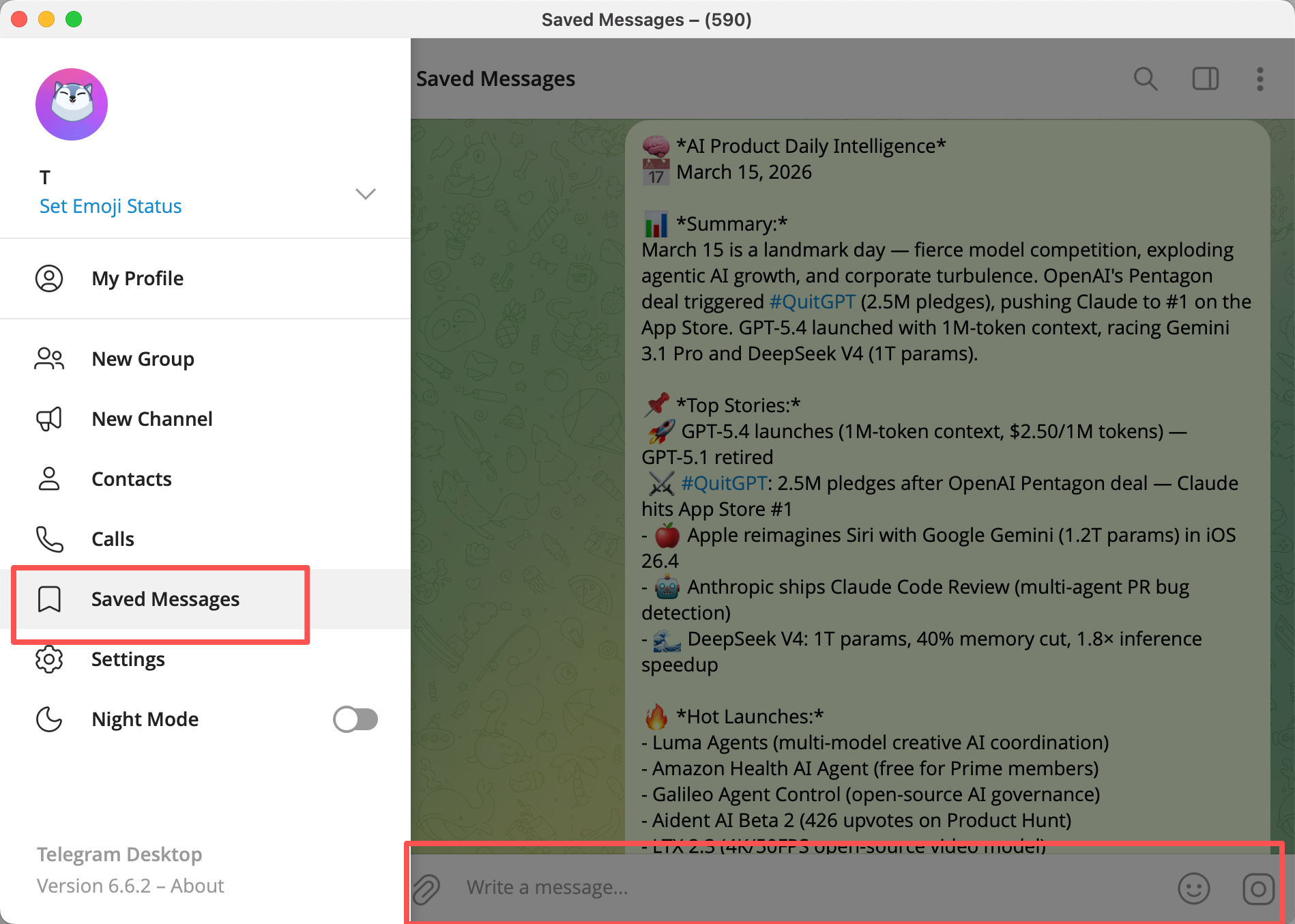
After connecting your Telegram account, you can also chat with OpenLoomi naturally — just send a message to Saved Messages and it will respond.
iMessage
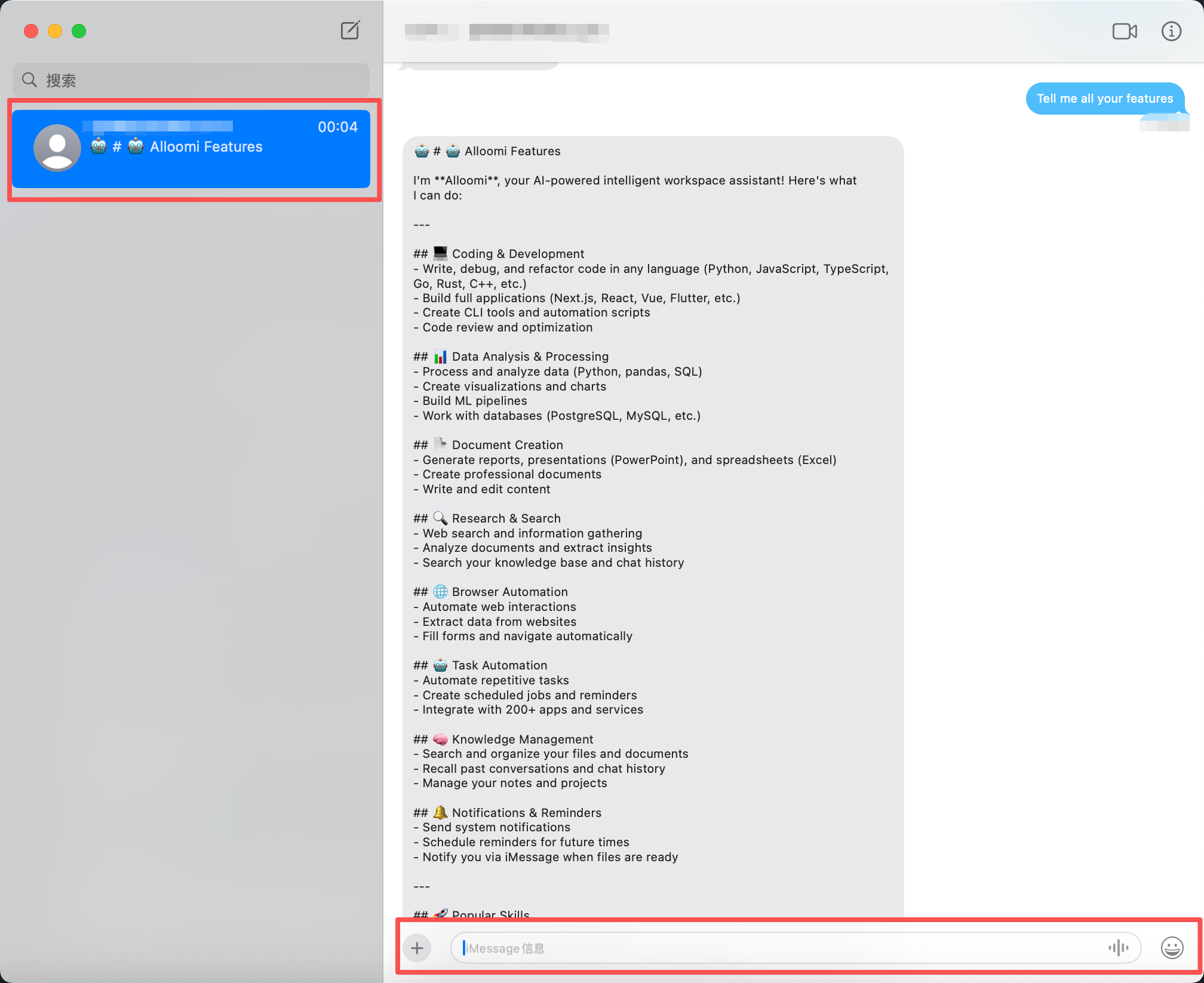
iMessage integration is only available on macOS. Your message data stays on your local device — OpenLoomi only reads recent messages when you use it to generate insights.
- Chat with OpenLoomi naturally
- Set reminders
- Get quick answers from your data
- Manage tasks
Connect via QR code or phone pairing, then use OpenLoomi as your personal assistant:
- Set reminders
- Get quick answers
- Manage tasks
Connect your QQ account to use OpenLoomi as a chat assistant. Once connected, you can:
- Chat with OpenLoomi naturally
- Use commands for quick actions
- Automate workflows
Lark/Feishu
Connect Lark/Feishu to enable enterprise workflow automation. Once connected, you can:
- Automate approval workflows
- Handle group messages
- Integrate with enterprise tools
- Use commands for common tasks
Setting Up
- Go to Settings → Connectors.
- Click Connect on your preferred messaging platform.
- Follow the authorization steps (OAuth, QR code, or device pairing).
- Start chatting with OpenLoomi.
For detailed setup instructions for each platform, see the Connectors guide.
Verify
- The connector shows Connected in Settings → Connectors.
- A message you send yourself (Telegram Saved Messages, WhatsApp self-chat) returns an AI reply in the same thread.
- A bot-platform user who DMs your bot gets an AI response within a few seconds.
Troubleshooting
- No reply arrives. Confirm the desktop app is still running and the local API port is reachable.
- Bot doesn't reply in a group chat. Bots only respond when @mentioned; they do not passively read all group traffic.
- iMessage connector disconnected. Re-grant Full Disk Access and Automation permissions, then restart the app.
- Bot doesn't appear in Lark/Feishu. Confirm the app was published in the enterprise admin console; unpublished apps can't be searched.
Related
- Connectors — full platform setup flows and the Composio authorization mode
- Attention Agent — desktop bubbles for non-messaging events
- Loop — how messages from these apps become Decision Cards
- Memory — where incoming messages are stored
- Automation — schedule cross-app actions triggered from chat
- Privacy & Security — what data the messaging connectors can see