Library
Upload documents and ask AI questions about them. Build your personal knowledge library that OpenLoomi can query.
Overview
The Library feature allows you to:
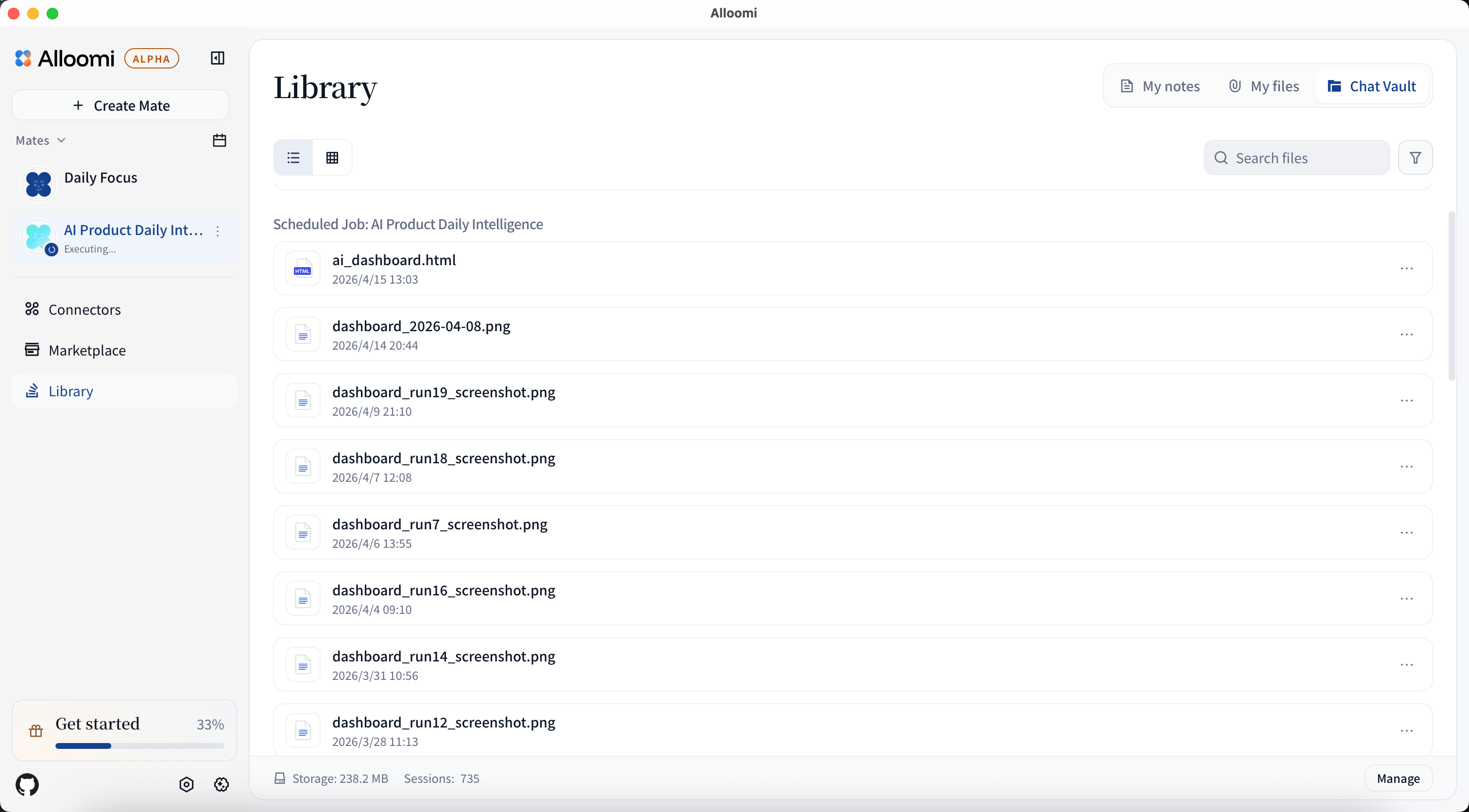
- Upload documents (PDF, Word, text, etc.)
- Ask AI questions about your documents
- Get precise answers with citations
- Build a searchable knowledge library
Supported File Types
| Format | Extension | Status |
|---|---|---|
| ✅ Supported | ||
| Word | .doc, .docx | ✅ Supported |
| Text | .txt | ✅ Supported |
| Markdown | .md | ✅ Supported |
| Excel | .xlsx, .xls | ✅ Supported |
| PowerPoint | .ppt, .pptx | ✅ Supported |
| Images | .png, .jpg, .jpeg | ✅ Supported |
How to Use
1. Upload Documents
- Go to the Library page
- Click Upload or drag-and-drop files
- Wait for processing to complete
2. Ask Questions
Once uploaded, simply ask OpenLoomi:
- "What's in the document about XXX?"
- "Summarize the main points of this file"
- "Find information about [topic]"
- "What does section 3 say about [subject]?"
3. View Full Content
- Click on any document to view its full content
- Search within documents
- View metadata and upload date
Use Cases
Contract Review
Upload contracts and ask:
- "What are the payment terms?"
- "What's the termination clause?"
- "Are there any liability limitations?"
Report Analysis
Upload reports and ask:
- "What are the key findings?"
- "Show me the revenue numbers"
- "What recommendations are made?"
Research Papers
Upload papers and ask:
- "What methodology was used?"
- "What are the main conclusions?"
- "Summarize the abstract"
Meeting Notes
Upload meeting notes and ask:
- "What decisions were made?"
- "Who committed to what?"
- "What were the action items?"
Best Practices
File Organization
- Use clear, descriptive filenames
- Group related documents together
- Delete outdated files regularly
Questioning
- Be specific in your questions
- Ask one question at a time
- Use quotes for exact phrases
Security
- Only upload documents you have rights to share
- Sensitive documents stay within your account
- Delete documents when no longer needed
Tips
- Start with shorter documents to test
- PDFs with text (not images) work best
- Large documents may take longer to process
- You can upload multiple files at once
Verify
- The uploaded document appears in the Library page with the correct file type and size.
- A question about a specific phrase in the document returns a citation pointing back to the right chunk.
- Deleting the document removes it from search results without affecting the rest of Memory.
Troubleshooting
- Upload stalls. Confirm the file isn't above the size limit and that the page hasn't lost connection; re-upload if needed.
- Image-only PDFs return no answers. The RAG pipeline extracts text — scanned PDFs need an OCR pass first.
- Citations point at the wrong chunk. Re-upload the source if the original was edited; chunks aren't auto-refreshed.
Related
- Memory — the Knowledge Base lives inside Memory's
rag_documents/rag_chunkstables - Embedding Providers — choose cloud vs local embeddings for chunk vectors
- Chat — how Chat uses Library answers
- Connectors — auto-fetch documents from connected platforms
- Privacy & Security — Library data stays local