Product-Research Iteration — Plan the next sprint automatically
At a glance
| Persona | Product manager juggling Linear, GitHub, Notion, and Obsidian |
| Goal | Stop stitching the next sprint together from memory |
| Prerequisites | Linear + GitHub connectors; Obsidian vault folder configured as a custom signal source |
| Outcome | One rolling sprint plan that folds in feedback, code state, and prior decisions |
For a product manager, the usual way to plan the next sprint used to look like this: Linear was opened to scan dozens of tickets, GitHub was opened to dig through user feedback and bugs, Obsidian was opened to flip through half-finished proposals and customer interview notes. They'd bounce between these tools, skim 200 headlines, and stitch the next iteration together from memory — then jot the conclusion into Notion, and by Monday's standup half of it was already forgotten.
The painful part wasn't the writing — it was the assembly. Which tickets are actually healthy? Which ones say "small fix" but already have 7 linked cards? Which user pain point shows up in 3 GitHub issues AND a customer interview note? The evidence was scattered across four tools and the PM had to be the one to fold them together.
The shortfall isn't discipline. It's the cognitive load of holding 200 tickets + 50 interview notes + the screen-shots from last week at the same time.
The user doesn't want another chatbot that waits to be asked. They want an AI assistant that genuinely fits the PM iteration cycle: it watches Linear and GitHub continuously, captures what's on the screen as it's browsed, organizes the cross-tool context, and only finds them when there's a decision that genuinely needs to be made.
What Loop ships built-in: Linear and GitHub as signal sources, with screen memory as a parallel input.
What needs a one-time custom channel: Obsidian as a signal source. The
~/.openloomi/loop/custom-channels.jsonregistry lets you wire it up via Composio; once registered, Loop reads your vault the same way it reads Linear.
Problem 1: Sprint planning = 200 headlines to skim
The exchange used to go like this:
- Open Linear, scroll the backlog, try to remember "which of these 80 tickets have I already read this month?"
- Open GitHub, sort by
reactions:desc, scroll the last 30 issues to spot the ones tied to the theme cared about - Open Obsidian, flip through
customers/notes for the latest interview that hasn't been processed - Open the screenshot folder, find the competitor-feature shots saved last week
- Try to remember which of these threads were connected
- Stitch the next iteration together from memory and a Notion doc
If the week was busy, this got pushed to the next Monday. Sometimes several weeks were skipped in a row, ending up reconstructing from memory and scattered chat history.
This is exactly what AI should be doing. The actual hard part of sprint planning isn't the prioritization — it's gathering the scattered evidence and reorganizing it into something a PM can act on.
So screen memory is turned on and the two sources actually read are connected in OpenLoomi:
use openloomi-connectors to connect Linear
use openloomi-connectors to connect GitHub
Then in chat, Obsidian is registered as a custom channel:
Register a custom channel called "obsidian_vault" that polls my Obsidian vault directory every 10 minutes.
Wrap the local filesystem watcher for markdown files.
The skill translates that into a small JSON record stored at ~/.openloomi/loop/custom-channels.json. Once registered, Loop reads the .md notes the same way it reads Linear — and the next tick picks it up automatically.
For screen memory, OpenLoomi Settings → Personalization → Screen Capture is opened:
- The master switch is flipped on. The trigger hotkey defaults to
Enter; it's left as is. - The debounce interval is adjusted (default 5 seconds, so accidental double-presses don't spam captures).
- macOS pops a "Screen Recording" permission prompt — it's allowed.
- Enter is hit to test it — the next Loop scan queues the shot as a "screen memory" entry.
Problem 2: Decisions are scattered across Slack, Notion, and Linear
Once screen memory and the sources are wired, Loop starts folding signals into typed decision cards. The four card types that matter most for the PM workflow:
🖼️ What's on screen queues itself in — Spotting a competitor's new feature, reading IM feedback as it comes in, comparing two A/B variants, finding a feedback page during a customer interview — the global hotkey (default Enter) is hit to capture whatever is being looked at. The next iteration scan matches this memory against signals from Linear / GitHub / Obsidian; when something lines up, it becomes a decision card like "update competitor comparison" or "merge this IM feedback into that issue".
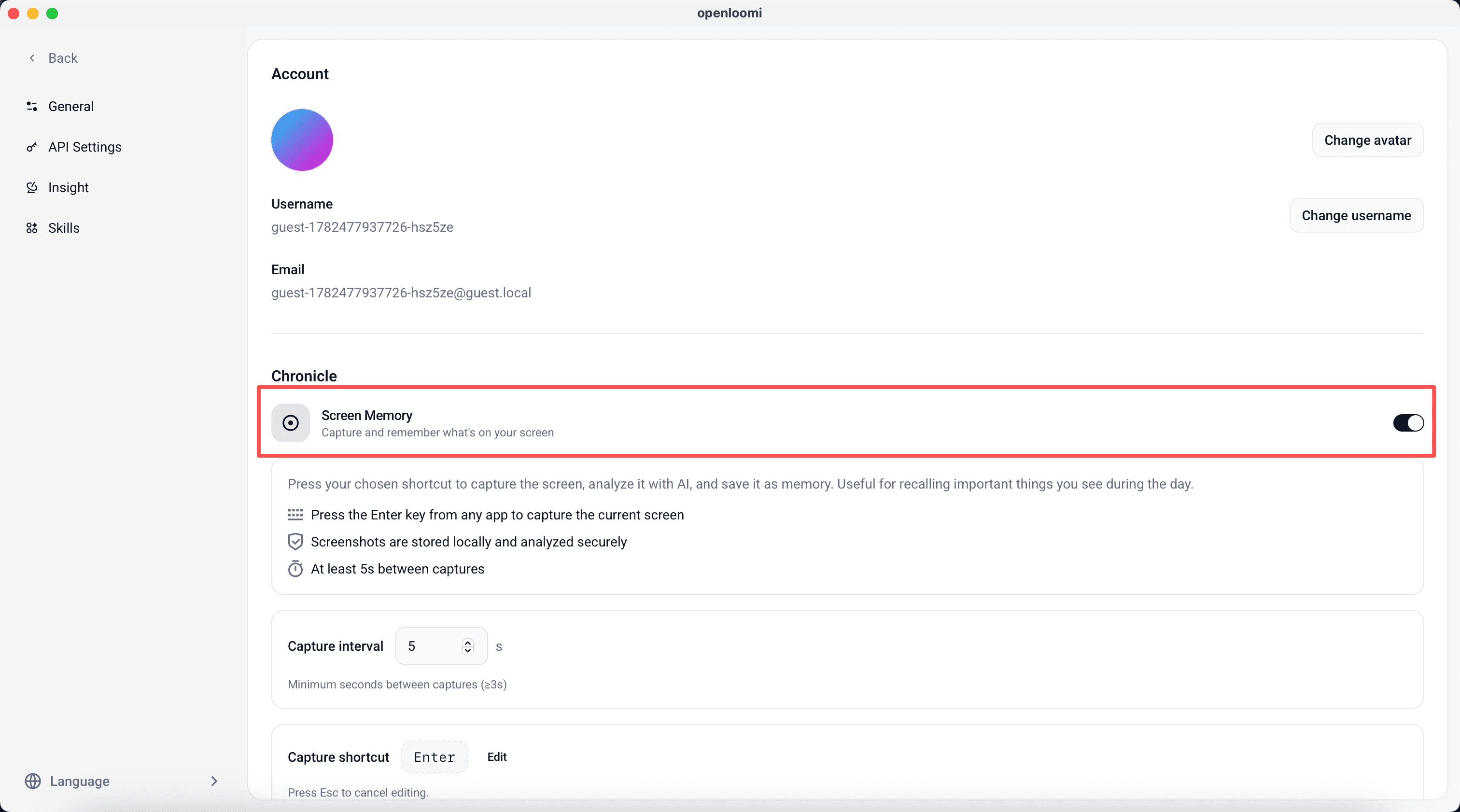
🖥️ Screen memory only works on the desktop app. Screen Capture needs OS-level screen-recording permission; the browser can't grant that interface, and Safari / Firefox don't support it either — Loop automatically skips this step in those environments.
🔍 Linear ticket health check — Before next sprint planning, Loop walks through the Linear backlog: which issues already have a real scope spelled out in the comments, which tickets could actually be merged, which one says "small fix" in the title but already has 7 linked cards. The linear_review card shows Loop's health-check report — read it before tapping Approve.
🧩 Same problem across tools — A user pain point that shows up in 7 GitHub issues tagged upload-large-file, 2 Linear tickets, and an Obsidian customers/acme_corp.md interview note? Loop crosses those signals into a single requirement_synthesis card that says "this is actually the same thing", saving the assembly work.
📅 Roadmap auto-follows along — One line of projects/q2_roadmap.md in Obsidian is edited, and on the next Loop tick Loop turns the corresponding release_plan update into a card and puts it in front — no need to remember to sync it manually. (Loop ticks every 10 minutes by default.)
📝 PRDs / RFCs land back in the knowledge base — A requirement_synthesis card is picked, Approve is tapped, and Loop drafts a PR/FAQ-style PRD and writes it straight into the matching projects/ / ideas/ / customers/ folder of the Obsidian vault — the same decision leaves a traceable footprint on the screen, in Linear / GitHub, and in the local notes.
What a card looks like
The evidence chain on a ticket-review card is the key to automatic traceability: the original Linear issue, related GitHub PR, and the cited section in the Obsidian notes all live on the same line. There's no need to go back to Slack and hunt for "whatever that thread was about".
When Approve is tapped, Loop calls the Linear API to apply the splits the health-check report suggested as new tickets, then writes the new ticket IDs back into the matching project note — one tap does "analyze + edit Linear + sync back to your local knowledge base".
What the Loop board looks like after one scan
Those 5 features don't need to be turned on one at a time — once Linear + screen memory + Obsidian are wired up, the next Loop scan pulls them together and pushes a batch of cards into a single queue. The top of the board has chips, one per decision type: LINEAR (ticket review), REQ (cross-source requirement synthesis), RELEASE (release-plan update), DOC (PRD / RFC landing), plus the main-line chips RSVP / DRAFT / PR / SLACK / TODO.
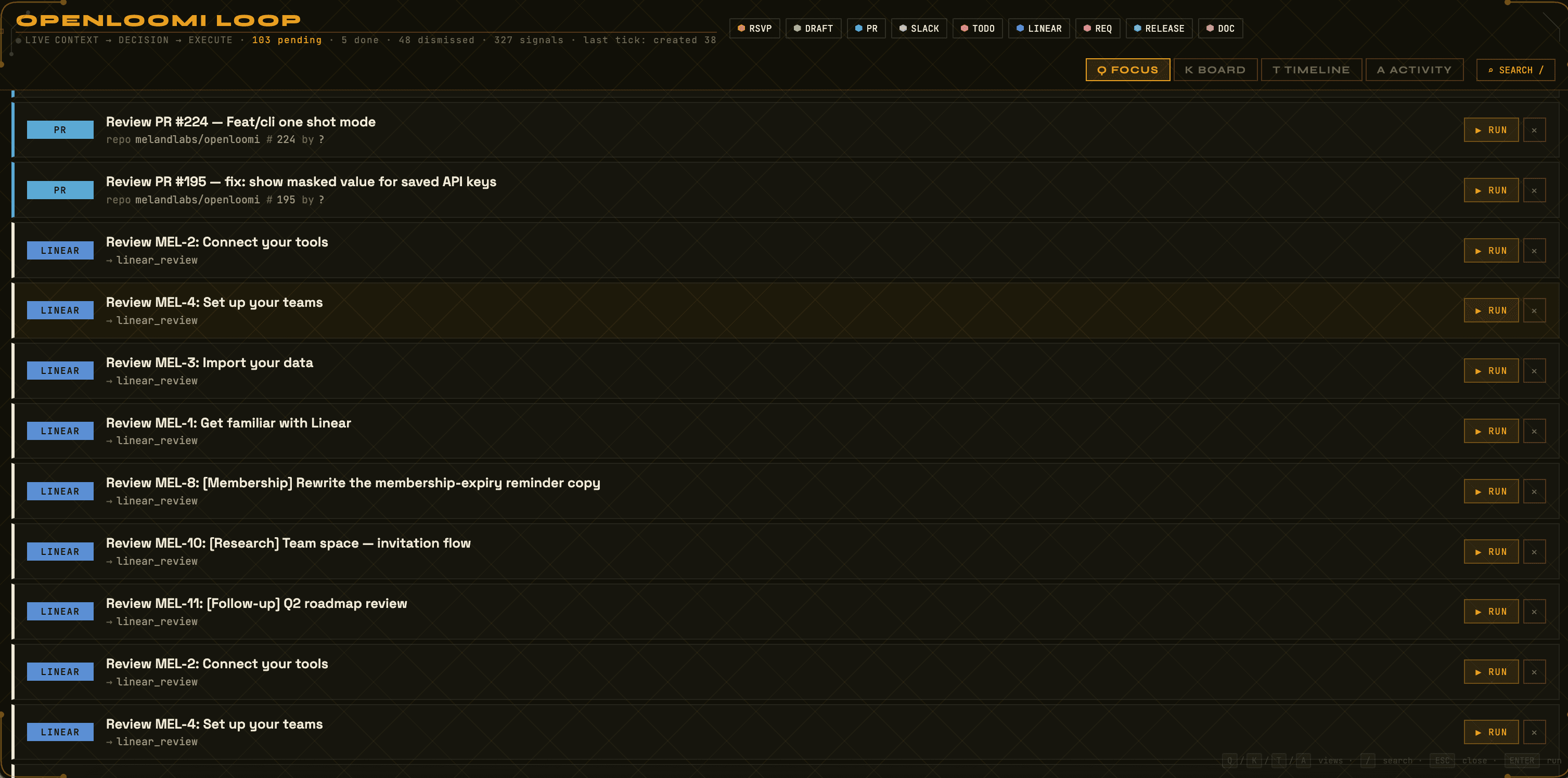
The LINEAR chip is clicked to see only Linear-related cards; REQ is clicked to see only cross-source syntheses. Any card is opened to see the full evidence chain (the original Linear issue / GitHub PR / Obsidian note section / the screen snapped with Enter), and the Approve button in the lower-right triggers the matching action.
Decisions land back in the local Obsidian vault
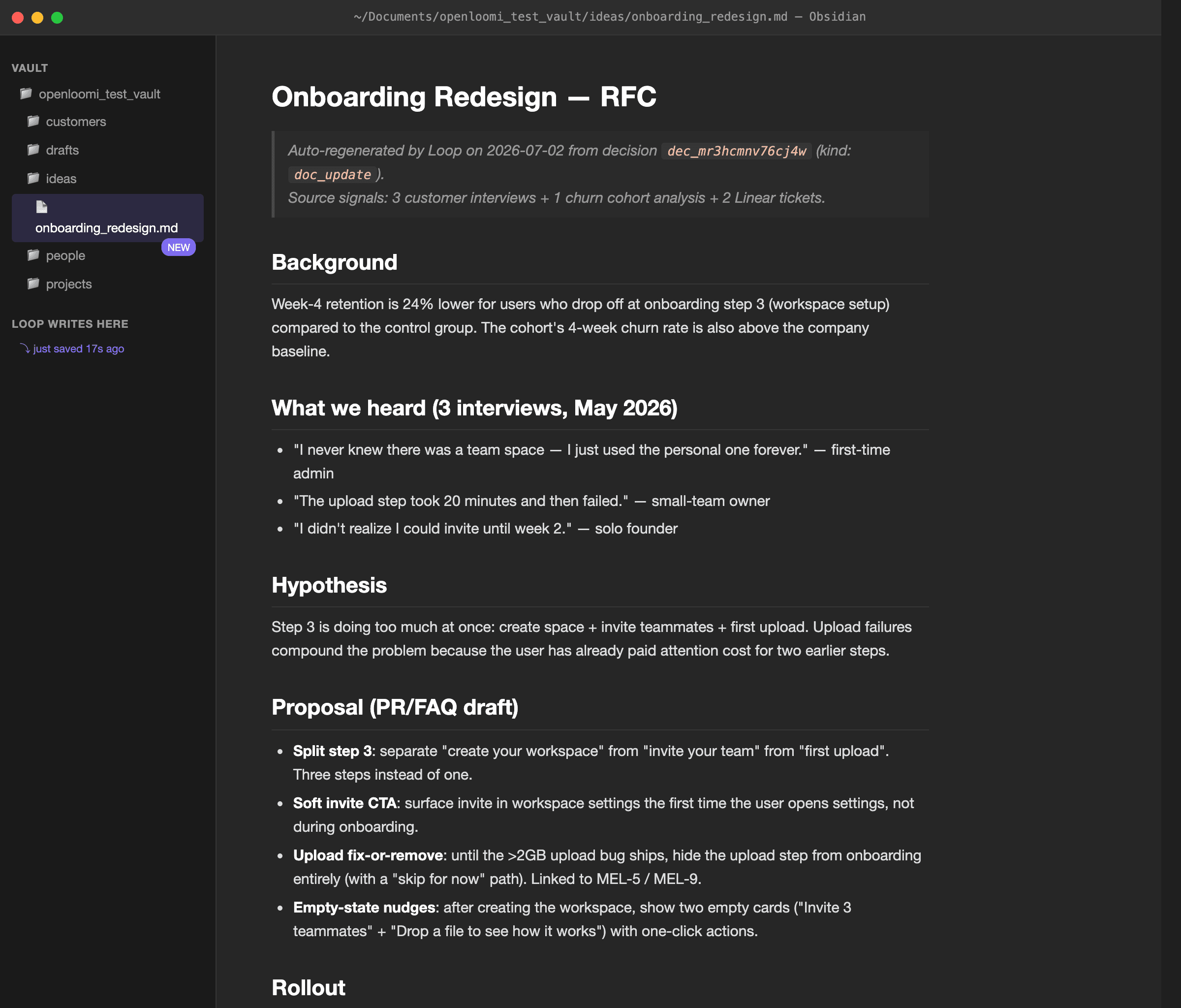
Loop drops the PRDs / RFCs / research notes it generates straight into the matching subfolder (projects/, ideas/, customers/) of the configured Obsidian vault — no extra cloud storage needed. Obsidian is opened and the file is right there, with the regenerated RFC pre-filled, evidence chain attached, and the linked decisions footer at the bottom:
Screen memory is more than a screenshot
Loop doesn't just dump the image just snapped with Enter into the queue — it first uses the vision LLM that was configured to extract the key content from the image (e.g. it sees a Linear board and pulls "Cycle 24 — Mar 17, contains 12 tickets"), then stores both the extracted text and the original image locally. When the next scan matches this memory against signals from Linear / GitHub / Obsidian, the card carries not only a PNG but also the AI-extracted text snippet and the corresponding source link — the evidence chain runs all the way from "that screenshot seen earlier" back to "that ticket on Linear".
Problem 3: Editing Linear shreds the context
The other failure mode that kept being hit: all the synthesis work would be done, the decision "we should split ticket ABC-482 into two and merge ABC-501 into it" would be made, and then Linear would be opened to actually apply it. In the process of editing, the context built up over an hour of reading gets shredded — the comment thread was still in there but the rationale was gone, and the next person who picked up the ticket had to go back to the Obsidian notes and reconstruct what was being thought.
With Loop's doc_update card, the pattern is inverted. When Approve is tapped on a linear_review card, Loop calls the Linear API to apply the splits as new tickets, then writes the new ticket IDs back into the matching project note — one tap does "analyze + edit Linear + sync back to your local knowledge base". The same decision leaves a traceable footprint on the screen, in Linear, and in the local notes.
The PRD Loop drafts for a requirement_synthesis card lands in the matching projects/ / ideas/ / customers/ folder of the Obsidian vault. Next time the vault is opened, the file is right there with the regenerated RFC pre-filled, the evidence chain attached, and a linked-decisions footer. Nothing gets reconstructed from memory anymore.
What this workflow really solves isn't a few automation tasks
At first the goal was just to save the 3 hours every Friday being spent on sprint planning. But after a few weeks, the realization hit: the real problem isn't a few missing automation scripts — it's that product iteration is fundamentally a cross-tool evidence problem:
- Tickets live in Linear, code lives in GitHub, notes live in Obsidian, research lives in the screenshots taken
- The same user pain point shows up in 3 of those tools with 3 slightly different framings
- Cross-cutting signals are buried under 200 other tickets
- By the time a theme is noticed, the context for the original observation is gone
In the past, all this evidence had to be found and pieced together by actively searching. The change OpenLoomi brings is inverting that relationship: instead of constantly searching across tools, AI keeps watching the sources and comes back with the cross-tool synthesis at the right moment.
- If a Linear ticket has hidden complexity, the
linear_reviewcard lands with the health-check report. - If the same user pain point shows up in 3 tools, the
requirement_synthesiscard folds them into one PRD. - If the roadmap note changed, the
release_plancard updates the matching Linear cycle. - If a screen capture taken lines up with a ticket, the next scan surfaces it as a card with the original screenshot attached.
All that's needed is to focus on the parts that genuinely need judgement — the actual priority, the actual scope, the actual PRD content.
From "sprint planning ritual" to a continuously running product loop
To make this work, two kinds of working patterns are configured in OpenLoomi.
One is event-driven:
| Trigger | What happens |
|---|---|
| Linear ticket arrives or is updated | Loop reads the ticket + the related GitHub PR + the matching Obsidian note, surfaces linear_review card |
| Screen capture lands that matches a Linear / GitHub / Obsidian signal | The next iteration scan surfaces a requirement_synthesis or contact_update card with the original screenshot attached |
| Roadmap note in Obsidian changes | Next Loop tick turns it into a release_plan card |
The other is scheduled:
| Task | Schedule | Purpose |
|---|---|---|
| Linear health check | Every Loop tick | Walks the backlog, surfaces linear_review cards |
| Cross-tool synthesis | Every Loop tick | Folds the same pain point across tools into requirement_synthesis cards |
Together they form a loop that runs continuously across the four sources:
Continuously watch → Organize cross-tool evidence → Propose action or PRD → Human decides → Edit Linear / write Obsidian / write back to memoryCompared to configuring an isolated per-tool workflow, the preference is to have OpenLoomi keep understanding "what's the next thing this product needs to ship, and what's the evidence for it."
💡 Custom channels for tools Loop doesn't ship built-in. The
openloomi-loopskill is the public packaging for registering Composio-backed channels like Obsidian — anything outside Linear / GitHub / Email / Calendar / Slack that Loop is wanted to watch as a signal source.
What changed
| Aspect | Before | After |
|---|---|---|
| Sprint planning time | 3+ hours every Friday, stitching 200 tickets from memory | Open the board, see the cards Loop already folded, approve the synthesis |
| Cross-tool context | Re-read every source per theme | Cards carry the evidence chain — original Linear issue, GitHub PR, Obsidian section, screen capture |
| PRD generation | Hours per PRD, hunting for the original customer pain point | Tap Approve on a requirement_synthesis card, the PRD lands in projects/ of your vault |
| Context after editing Linear | Shredded — the comment thread remained but the rationale was gone | One tap does "analyze + edit Linear + write back to your local knowledge base" |
| Screen memory | Saved in a folder, forgotten next week | Each capture is matched against the next iteration scan; surfaces as a card with the original screenshot |
What OpenLoomi saves isn't just the 3 hours every Friday. More importantly, there's no need to keep switching between Linear, GitHub, and Obsidian, re-reading the same notes, and worrying about which evidence was dropped.
How to set this up
Screen memory, Linear, and Obsidian can each be turned on independently — they don't conflict with using Loop for Gmail / Calendar. The steps below are walked through and the next Loop scan picks them all up together.
Step 0: Turn on screen memory (optional, but recommended)
Whether to enable screen memory is entirely up to your workflow — but if competitor sites are regularly browsed, feedback watched roll by in IM group chats, user-feedback pages scrolled, or A/B variants compared, leaving it on lets Loop turn "what's on your screen right now" into a signal source for the next iteration.
OpenLoomi Settings → Personalization → Screen Capture is opened:
- The master switch is flipped on. The trigger hotkey defaults to
Enter; it can be changed. - The debounce interval is adjusted (default 5 seconds, so accidental double-presses don't spam captures).
- If a different vision LLM is wanted, your own model id is filled in — this model is only used for analyzing screen captures; it's independent of the LLM Loop itself uses.
- macOS will pop a "Screen Recording" permission prompt automatically — allow it. If it was denied before, go to System Settings → Privacy & Security → Screen Recording, add OpenLoomi, then come back.
Once it's confirmed, any browser is opened for a moment and Enter is hit to capture a shot — the next Loop scan queues it automatically as a "screen memory" entry.
Step 1: Connect Linear and GitHub via the standard connector flow
Both Linear and GitHub live in Composio's app catalog. In OpenLoomi Desktop → Settings → Connectors, Linear and GitHub are found and Connect is clicked. The browser pops up the matching OAuth page for each. After authorizing, Loop gets read access to the projects and issues / repos the user is a member of.
Verification runs with list-accounts in chat — once both show active, Loop picks them up on the next tick.
Step 2: Register Obsidian as a custom channel (one-time)
Loop's built-in sources are Email / Calendar / GitHub / Slack / Linear. To make Obsidian a signal source, it is registered once via the openloomi-loop skill (or via PUT /api/loop/channels):
Register a custom channel called "obsidian_vault" that polls my Obsidian vault directory every 10 minutes.
Wrap the local filesystem watcher for markdown files.
The skill translates that into a small JSON record stored at ~/.openloomi/loop/custom-channels.json. Once registered, Loop reads the .md notes the same way it reads Linear — and the next tick picks it up automatically.
🗂️ Obsidian isn't a cloud service — it's just a local Markdown folder on your disk. Loop reads the
.mdnotes inside the configured vault directory as signal sources; the same interface is also used to write decision output back into the vault. Default scan rules: recursively walks every.mdunder the vault root; subfolders likeideas/,projects/,customers/are indexed into Loop memory as separate topics.
Step 3: Loop is on by default
Loop is on by default in the desktop app at a 10-minute scan. To tune cadence, sources, and trusted contacts, Settings → Loop is opened. The Brief at 9 AM and Wrap at 6 PM are scheduled rollups that can also be edited there.
To re-scan manually at any moment, Chat is opened and the agent is asked: "Re-run Loop with the latest screen memory, Linear, GitHub, and Obsidian."
OpenLoomi's Tracking panel records every execution — which cards surfaced, which Approves were tapped, which PRDs were generated, which Linear tickets were edited. This way the cross-tool synthesis can be handed off to AI while every action it took remains visible.
Related
- Loop — the cross-tool synthesis engine
- Connectors — wiring Linear + GitHub
- Memory — where prior sprint decisions live
- Automation — schedule the weekly sprint rollup
- Library — upload prior PRDs and interview notes
Unified Inbox — Auto-Fetch + Context-Aware Draft Generation
How a high-volume inbox worker stops re-reading 40-message threads before every reply — OpenLoomi drafts grounded in past context, approval required, they move on
Industry Intelligence
How an analyst stops re-researching last week's launches and lets Memory carry the research — Brief rolls up the channels that were wired, agent does the reading in chat