Settings
Access all settings from the sidebar → ⚙️ Settings (or click your profile avatar).
Settings are organized into five sections:
General
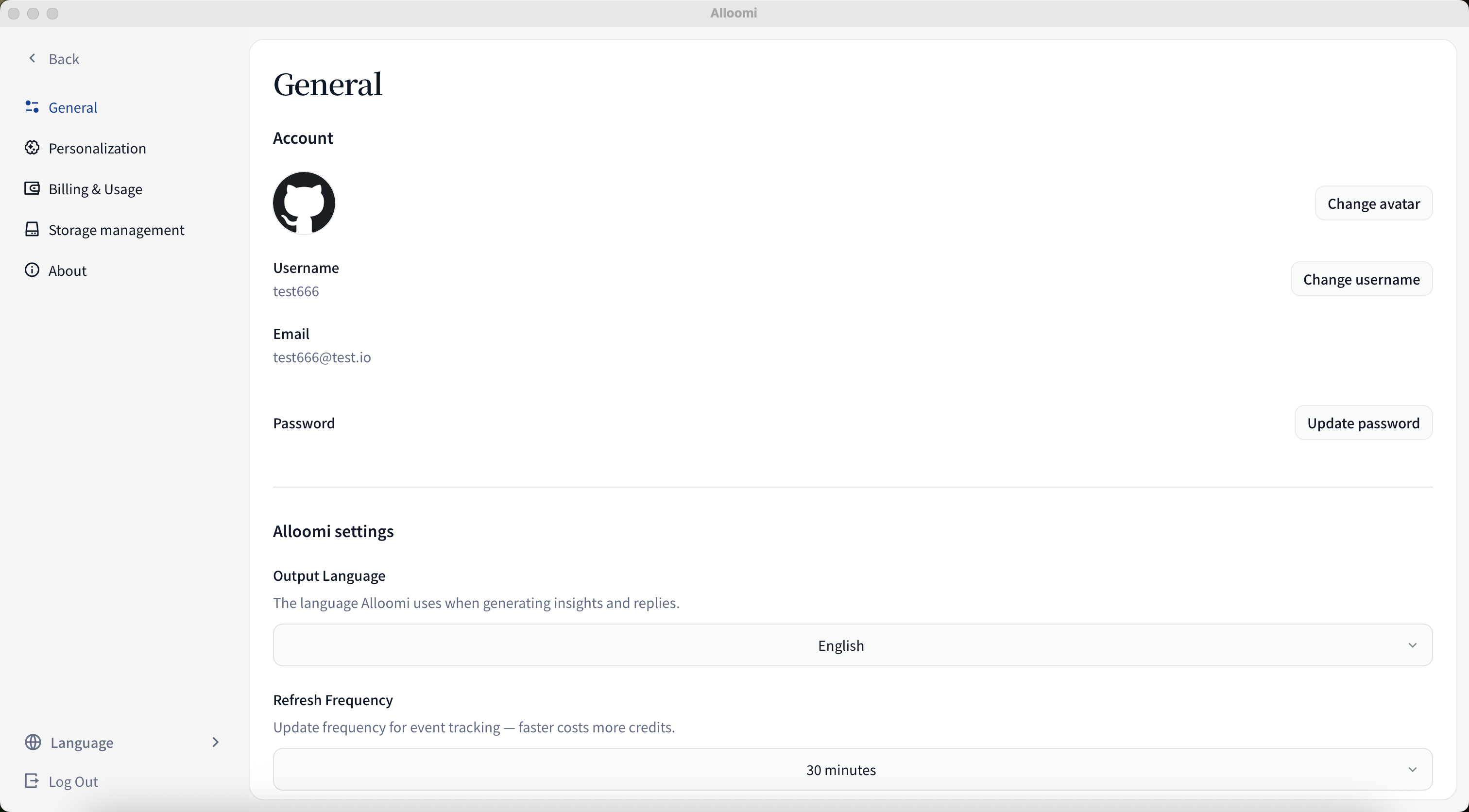
Controls how OpenLoomi looks and behaves at a system level.
Language — changes the UI language. Supported: English, 简体中文.
AI Soul — defines the personality and tone OpenLoomi uses when summarizing, replying, and surfacing insights. Choose from five presets or write a custom prompt:
| Preset | Best for |
|---|---|
| Default | General use — balanced and neutral |
| Strategist | Big-picture thinkers who want high-level synthesis |
| Executor | Action-oriented operators who want direct, zero-fluff output |
| Connector | Relationship-focused users who care about people and networks |
| Calm | Users who prefer a grounded, low-noise experience |
| Custom | Write your own prompt (max 5,000 characters) |
Tip: If you’re just getting started, pick a preset that matches how you think. Switch to Custom once you have a sense of what’s working.
Refresh Interval — how often OpenLoomi syncs new data from your connectors. Options: 5 / 15 / 30 / 60 / 120 minutes.
Personalization
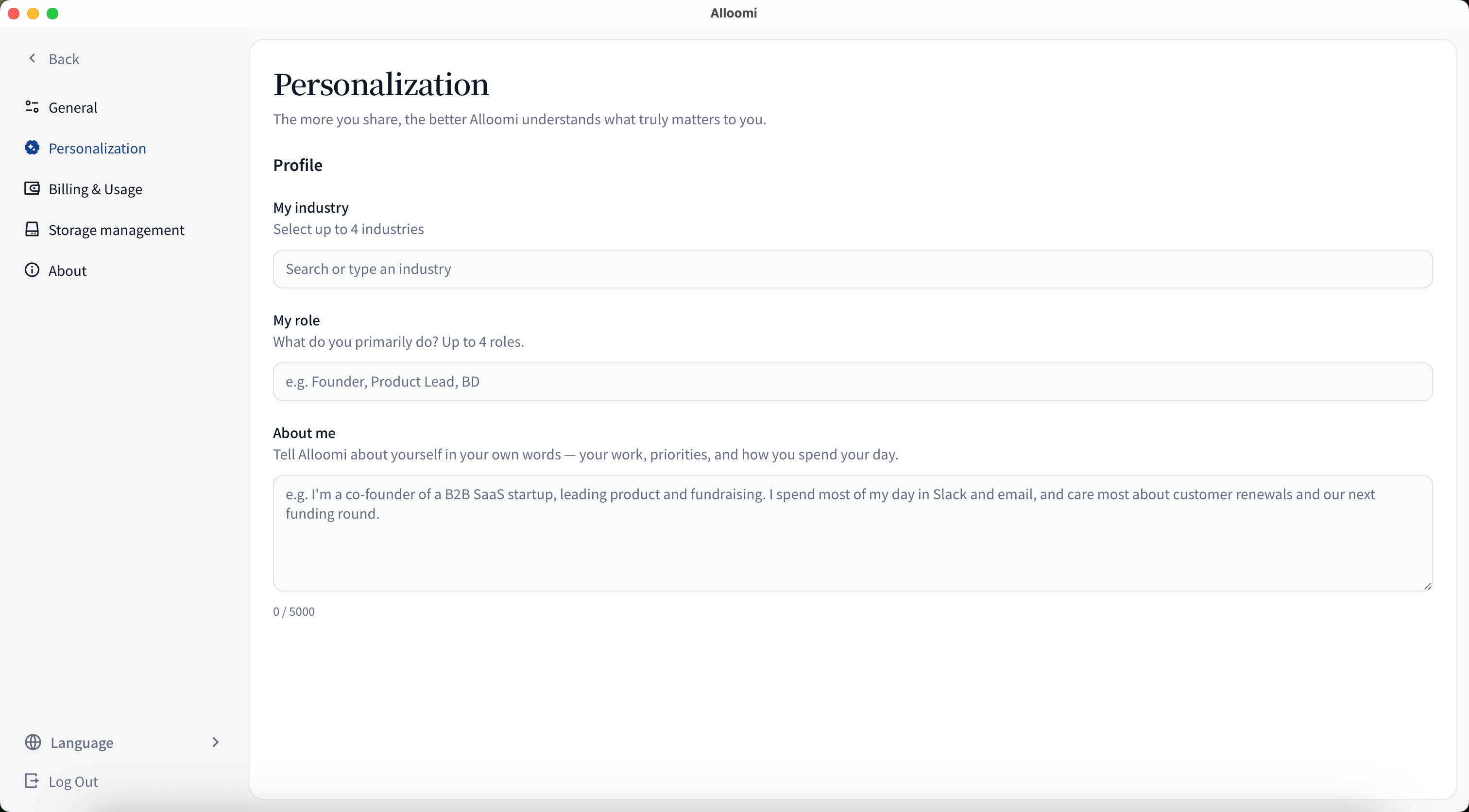
Personalization has four sub-sections — work through them to sharpen OpenLoomi’s understanding of you.
Avatar
Upload a profile picture (PNG, JPEG, WebP, GIF — up to 5 MB). This appears next to your name across OpenLoomi.
Basic
Identical to the AI Soul settings above — language, AI Soul preset, and Refresh Interval are also accessible here.
Interests
Tells OpenLoomi which people and topics matter most, so it can push them to the top of your Focus view.
Two sections:
- People I Follow — enter names, handles, or nicknames. OpenLoomi will watch for their activity across connected platforms.
- e.g., Jess from Finance, @founders channel
- Topics I Follow — enter keywords, project names, or short descriptions. OpenLoomi uses these as signals when ranking events.
- e.g., product roadmap, Series A, customer churn
Quick-start templates — click any card to add it instantly:
| Template | Example |
|---|---|
| Track important people | Watch Zhang’s updates about the project contract |
| Track project progress | Track major milestones for the OpenLoomi project |
| Capture pending actions | Capture action items from the product discussion group |
| Follow trending topics | Follow updates about major AI product releases |
| Monitor tools & systems | Monitor subscription renewal alerts from your tools |
| Collect team assignments | Collect tasks assigned by the team |
| Consolidate feedback | Summarize feedback about the new feature |
| Capture achievements | Capture product launch highlights and user milestones |
Tip: Interests directly influence how events are ranked as High / Medium / Low on your Focus page.
Role
Tells OpenLoomi about you so its summaries and prioritization reflect your actual work context.
Three fields:
- My Industry — select up to 4 (e.g., IT/Tech, Finance, E-commerce, Healthcare…)
- My Role — up to 4 roles (e.g., Founder, Product Lead, Engineer, BD)
- About Me — a freeform description of your work, priorities, and what you spend your time on (up to 5,000 characters)
e.g., I’m a co-founder of a B2B SaaS startup, leading product and fundraising. I spend most of my day in Slack and email, and care most about customer renewals and our next funding round.
Keep it honest and specific — write it like you’re briefing a new teammate on day one, not writing a resume bio.
Storage
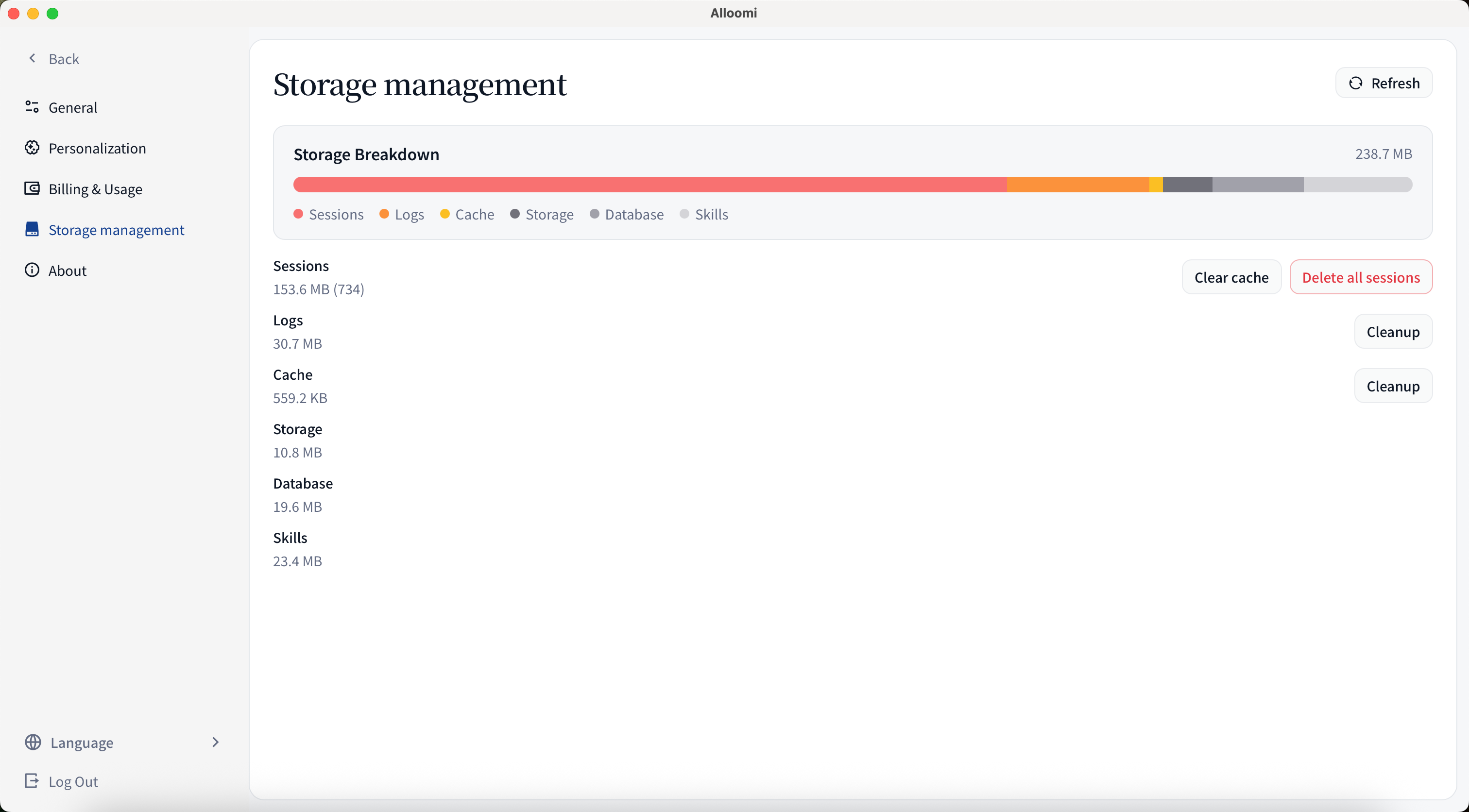
Manages local storage used by OpenLoomi.
Storage Breakdown — visual chart showing space used by:
- Sessions
- Events
- Vector store
- Skills
- Agent browser
- Logs
- Cache
Actions:
- Clear Vector Store Data — removes stored vector embeddings
- Clear Logs — removes log files
About
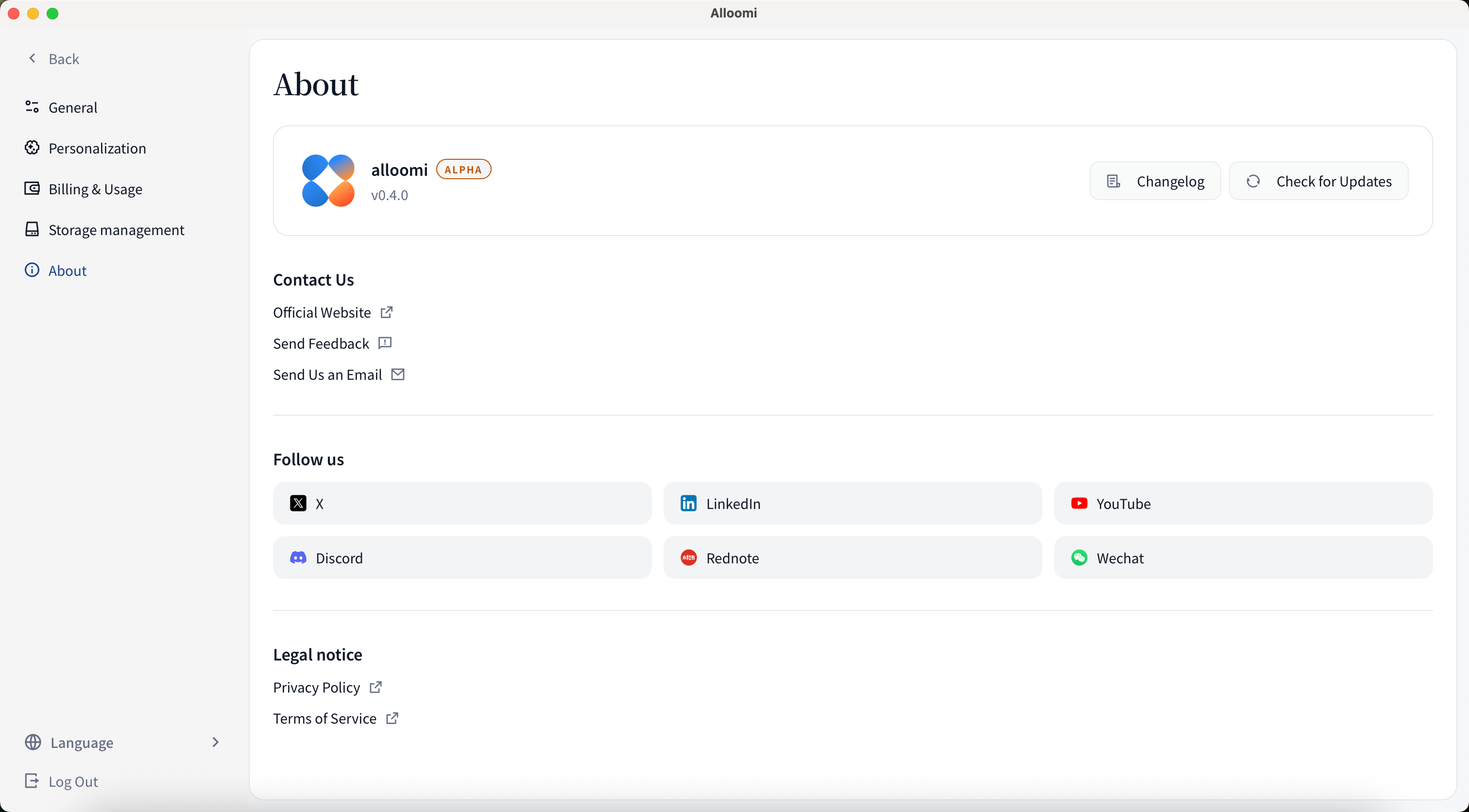
Version — shows your current OpenLoomi version. Click Check for updates to fetch the latest release.
Give Feedback — opens a feedback form to send suggestions or report bugs directly to the team.
Contact:
- Email Us — opens your default mail client
- Social — X, LinkedIn, YouTube, Discord, Rednote, Wechat
Legal:
- Privacy Policy
- Terms of Service
Language Settings
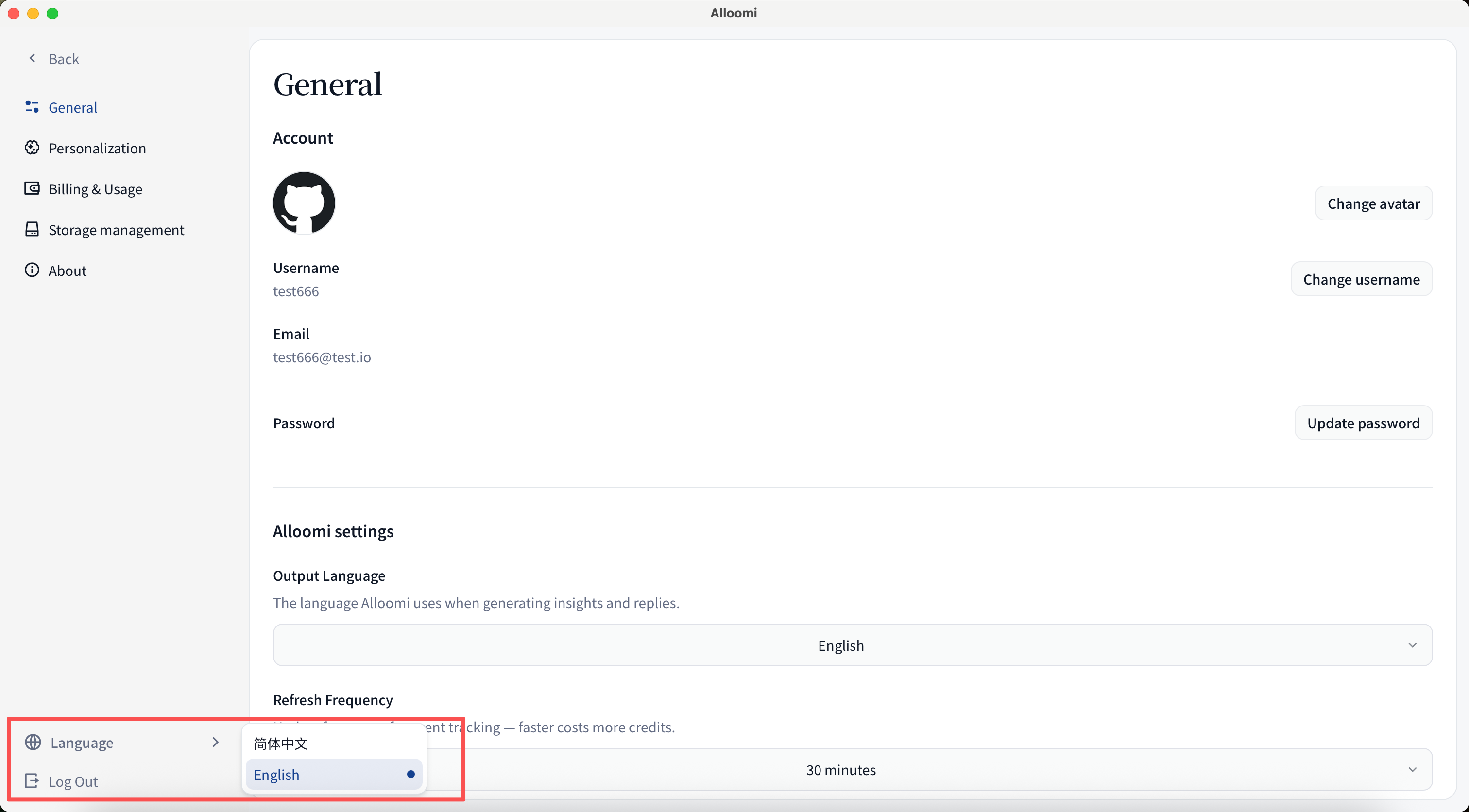
Changes the UI language separately from the output language.
Open: ⚙️ Settings → General → Language (or click your profile avatar → Language Settings)
Supported: English and 简体中文 (Simplified Chinese)