Messaging Apps
Besides using the OpenLoomi interface, you can also interact with OpenLoomi directly through your favorite messaging apps. Once connected, OpenLoomi becomes your AI assistant within those platforms.
⚠️ Important: All conversations and data are stored locally on your device. The app must remain open for the message app feature.
Supported Platforms
| Platform | Status | Features |
|---|---|---|
| Telegram | 🟢 Available | Commands, chat, reminders |
| 🟢 Available | Chat, reminders, notifications | |
| iMessage | 🟢 Available | Chat, reminders, notifications |
| 🟢 Available | Chat, commands, automation | |
| Lark/Feishu | 🟢 Available | Enterprise workflow, commands |
Telegram
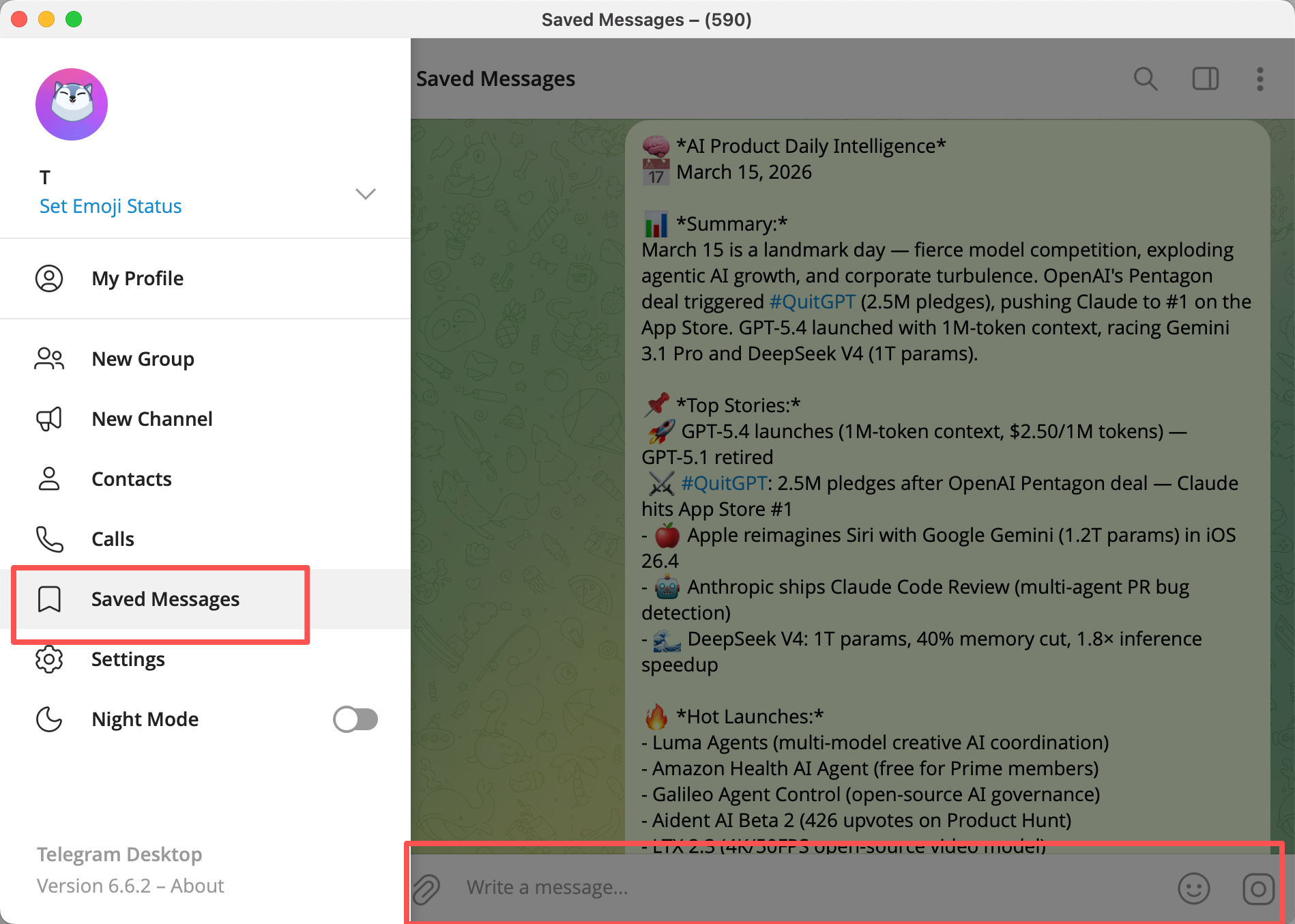
After connecting your Telegram account, you can also chat with OpenLoomi naturally—just send a message to Saved Messages and it will respond.
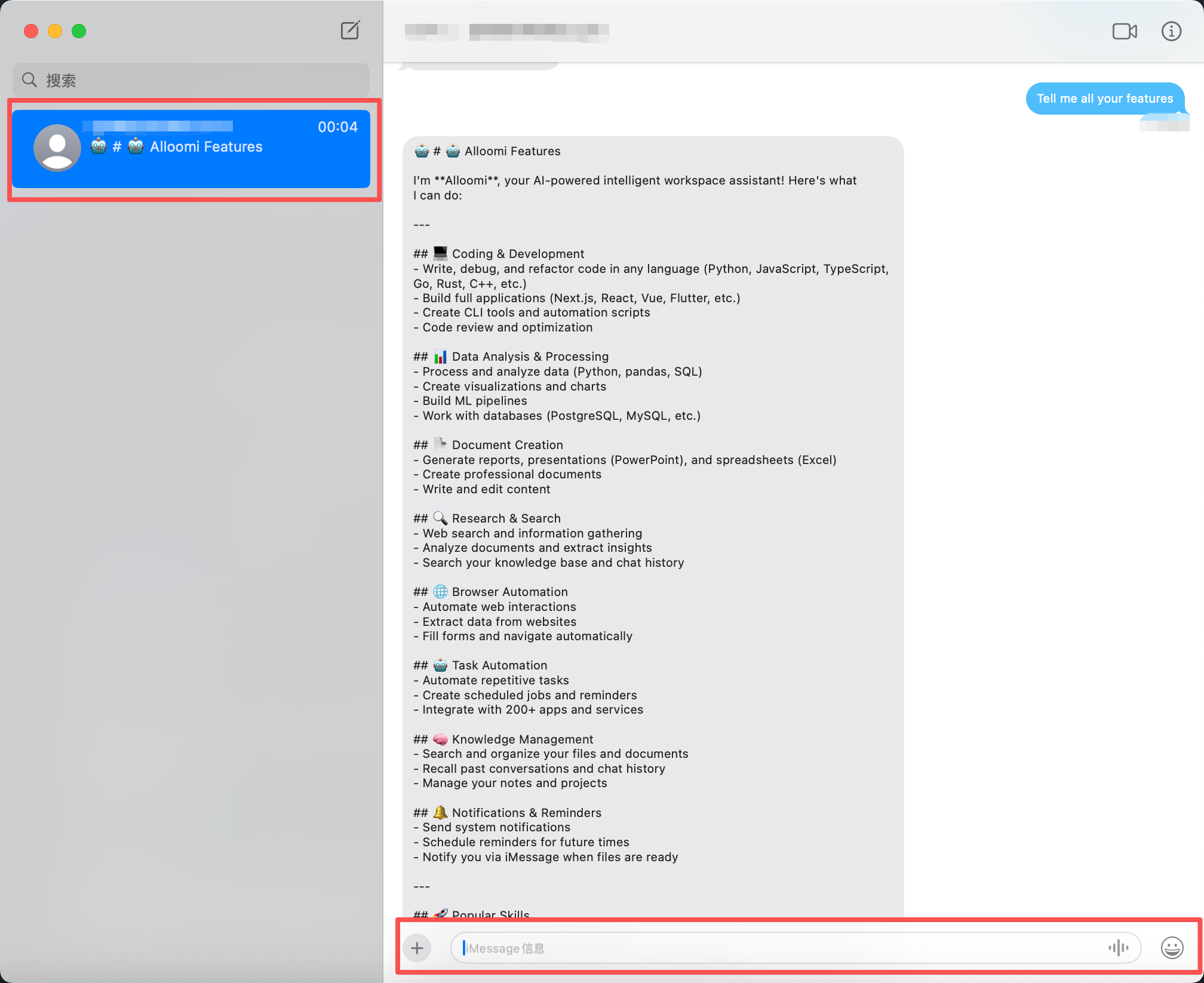
iMessage
iMessage integration is only available on macOS. Your message data stays on your local device—OpenLoomi only reads recent messages when you use it to generate insights.
- Chat with OpenLoomi naturally
- Set reminders
- Get quick answers from your data
- Manage tasks
Connect via QR code or phone pairing, then use OpenLoomi as your personal assistant:
- Set reminders
- Get quick answers
- Manage tasks
Connect your QQ account to use OpenLoomi as a chat assistant. Once connected, you can:
- Chat with OpenLoomi naturally
- Use commands for quick actions
- Automate workflows
Lark/Feishu
Connect Lark/Feishu to enable enterprise workflow automation. Once connected, you can:
- Automate approval workflows
- Handle group messages
- Integrate with enterprise tools
- Use commands for common tasks
Setting Up
- Go to Settings → Connectors
- Click Connect on your preferred messaging platform
- Follow the authorization steps (OAuth, QR code, or device pairing)
- Start chatting with OpenLoomi!
For detailed setup instructions for each platform, see the Connectors guide.